Pocket Dev: the beginner guide
Want your coding assistant to help? Copy the setup prompt and paste it into an agent running on your computer. You can also follow the steps below yourself.
Picture by picture. No experience needed. You will put Pocket Dev on a computer, then open it on your phone.
Every picture marked ILLUSTRATION is a drawing that shows what to look for. Your screen may look a little different. The commands are real: copy them exactly.
Before you start
What you need
- A computer: Windows 11 or 10, a Mac, or a Linux computer.
- A phone on the SAME Wi-Fi as the computer.
- About 15 minutes and a working internet connection.
- A password you will choose (it is made for you the first time, and you can change it later).
Pick your system and follow only that part: Part A: Windows | Part B: Mac | Part C: Linux.
Words you will see
| Word | What it means |
|---|---|
| Terminal / PowerShell | A window where you type short instructions to the computer. On Windows it is called PowerShell. On Mac it is called Terminal. |
| Command | One line you type in that window, then press Enter. You can copy and paste it. |
| Node.js | A free program that runs Pocket Dev. You install it once. |
| npm | A helper that comes with Node.js. It downloads and installs programs for you. |
| Package | A program that npm can install. Pocket Dev is a package. |
| IP address | The computer's number on your home network, like 192.168.1.20. Your phone uses it to find the computer. |
| Wi-Fi network | Your home or office Wi-Fi. The computer and phone must be on the same one. |
| Firewall | A guard on the computer that blocks other devices from connecting. You will tell it to allow Pocket Dev. |
Contents
Each part has the same 10 steps: 1 Open the command window, 2 Check Node.js, 3 Install Node.js, 4 Install Pocket Dev, 5 Start it, 6 Firewall, 7 Open it on your phone, 8 Start by itself (optional), 9 Extra tools (optional), 10 A second computer (optional).
Part A: Windows
Step 1. Open the command window (PowerShell)
- Press the Windows key on your keyboard (it has the Windows logo).
- Type PowerShell. Do not press anything else yet.
- Click Windows PowerShell (or press Enter).
Choose plain Windows PowerShell. Do not choose "Run as administrator". You do not need it.
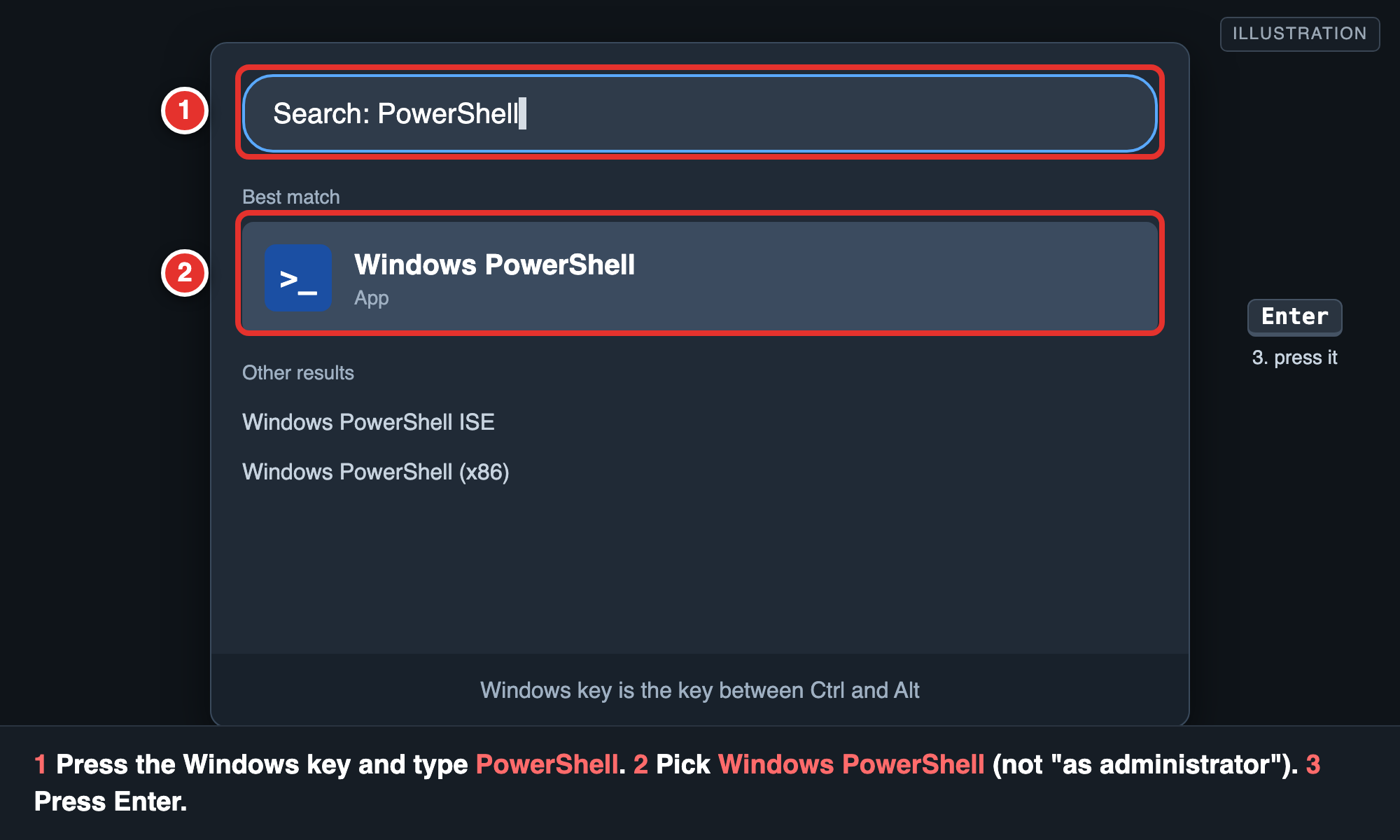
A blue or black window opens with a blinking cursor. This is PowerShell. It is safe. It only does what you type, and only when you press Enter. You can close it any time with the X.
Step 2. Check if Node.js is already installed
Type this and press Enter:
node -v
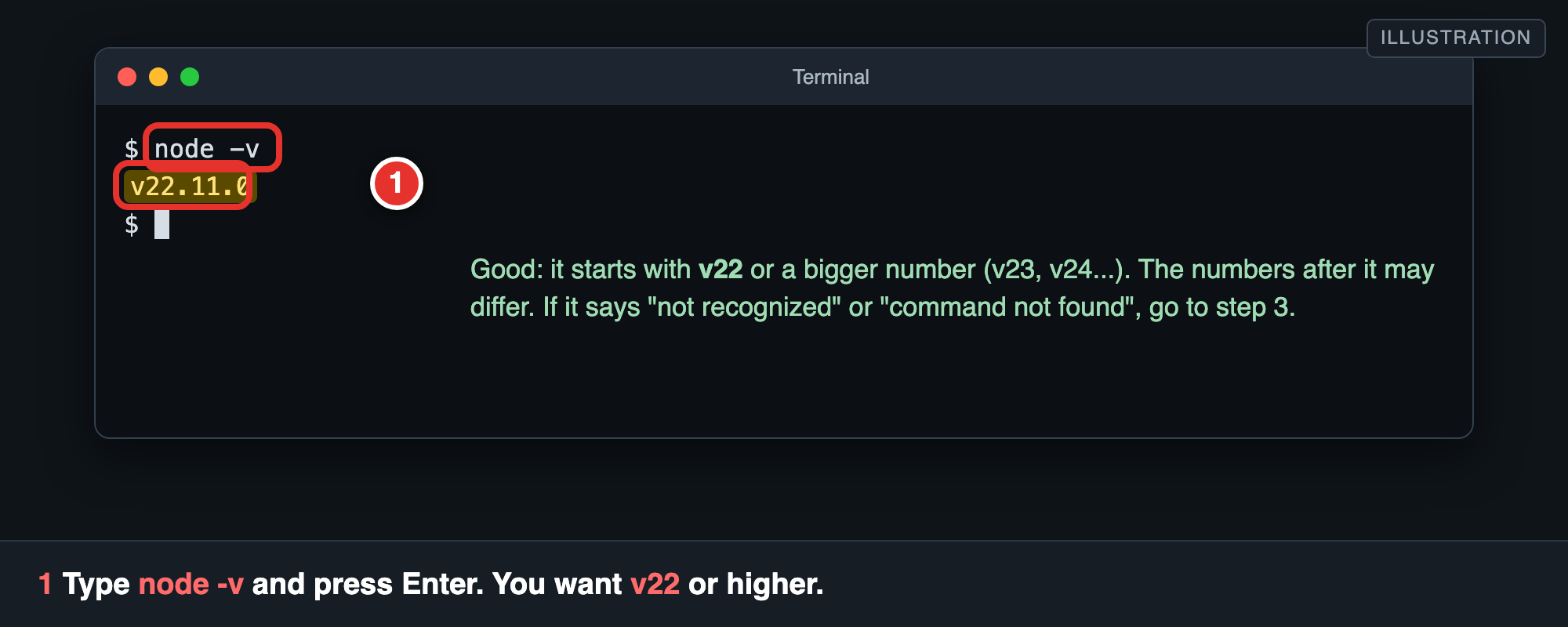
- A number like
v22.11.0(v22 or higher, such as v23 or v24): good. Skip to Step 4. - A lower number (like
v18.20.0): too old. Do Step 3 to install a newer one. 'node' is not recognized...: Node.js is not installed. Do Step 3.
Step 3. Install Node.js
- Open https://nodejs.org in your browser.
- Click the big green LTS button. (LTS means the stable, recommended version.) A file downloads.
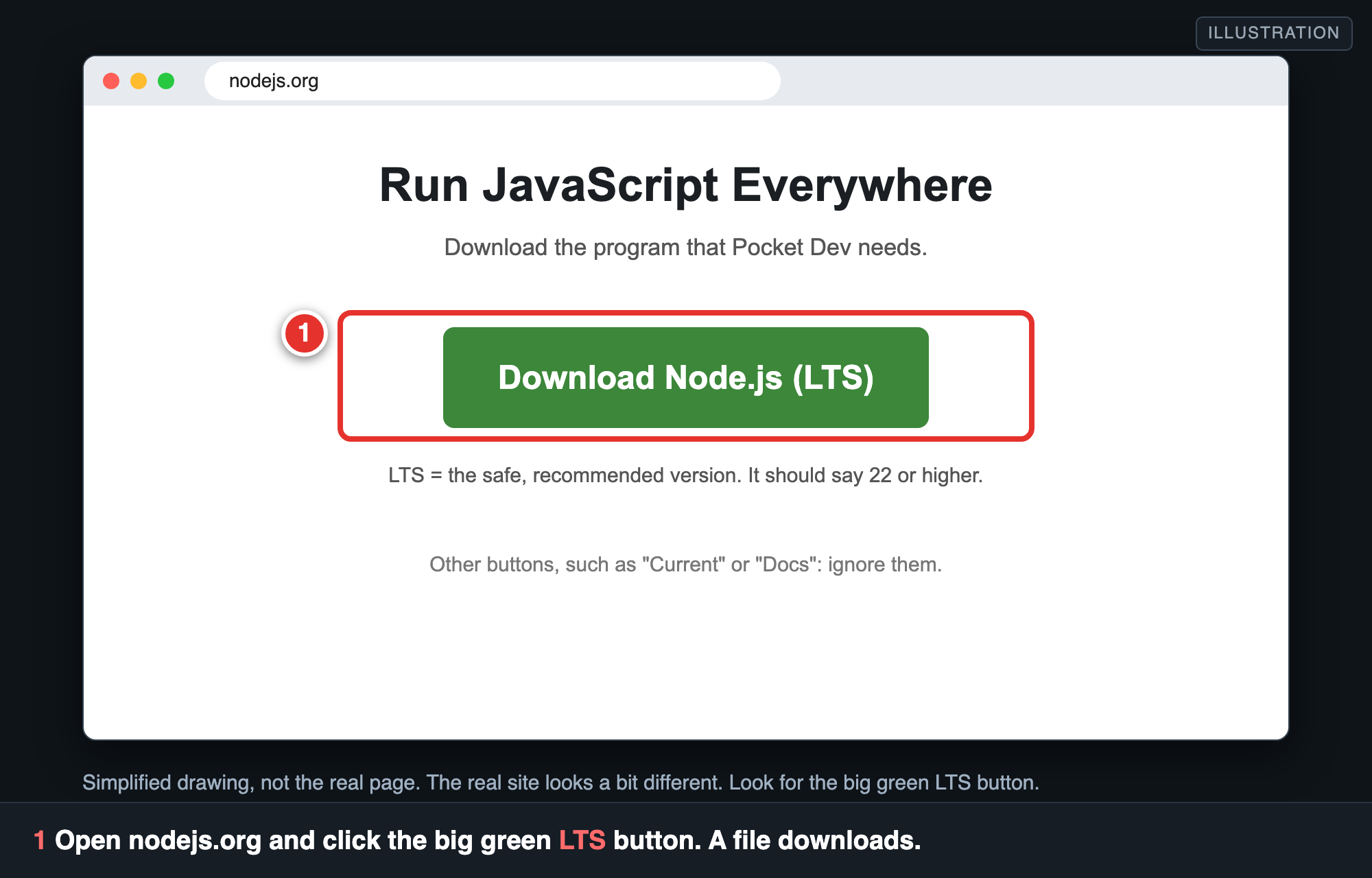
- Open the downloaded file. Click Next, Next, Next, then Install. Tick nothing special. If a box offers to install "tools for native modules", leave it unticked.
- When it says it is finished, click Finish.
- Close PowerShell completely and open a new one (Step 1 again). This matters: an old window does not know about the new program.
- Type
node -vagain. You should now see v22 or higher.
Another way (optional): in PowerShell, type winget install OpenJS.NodeJS.LTS, then close and reopen PowerShell.
Step 4. Install Pocket Dev
Type it exactly, with the
@and the-g:npm install -g @anisirji/pocket-devWithout
-git will not make thepocket-devcommand. Without@anisirji/it installs the wrong thing (see thepocket-devis not recognized fix).
How to paste in PowerShell: copy the line above (select it and press Ctrl+C), click the PowerShell window, then right-click once inside the window. The text appears. (Ctrl+V also works in most windows.) Press Enter.
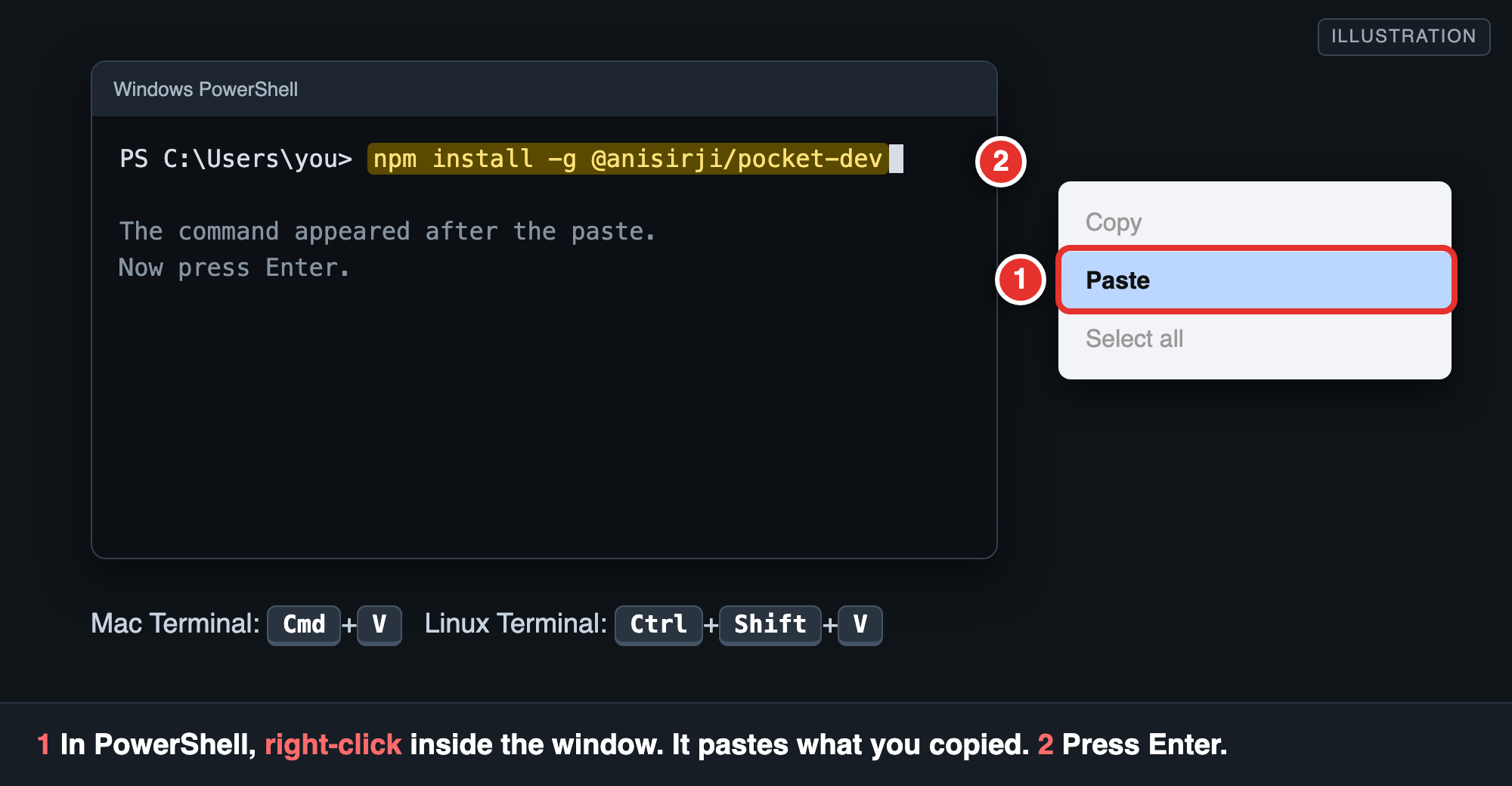
It takes 1 to 3 minutes. Lines scroll by. Wait until you get the PS C:\Users\you> prompt back.
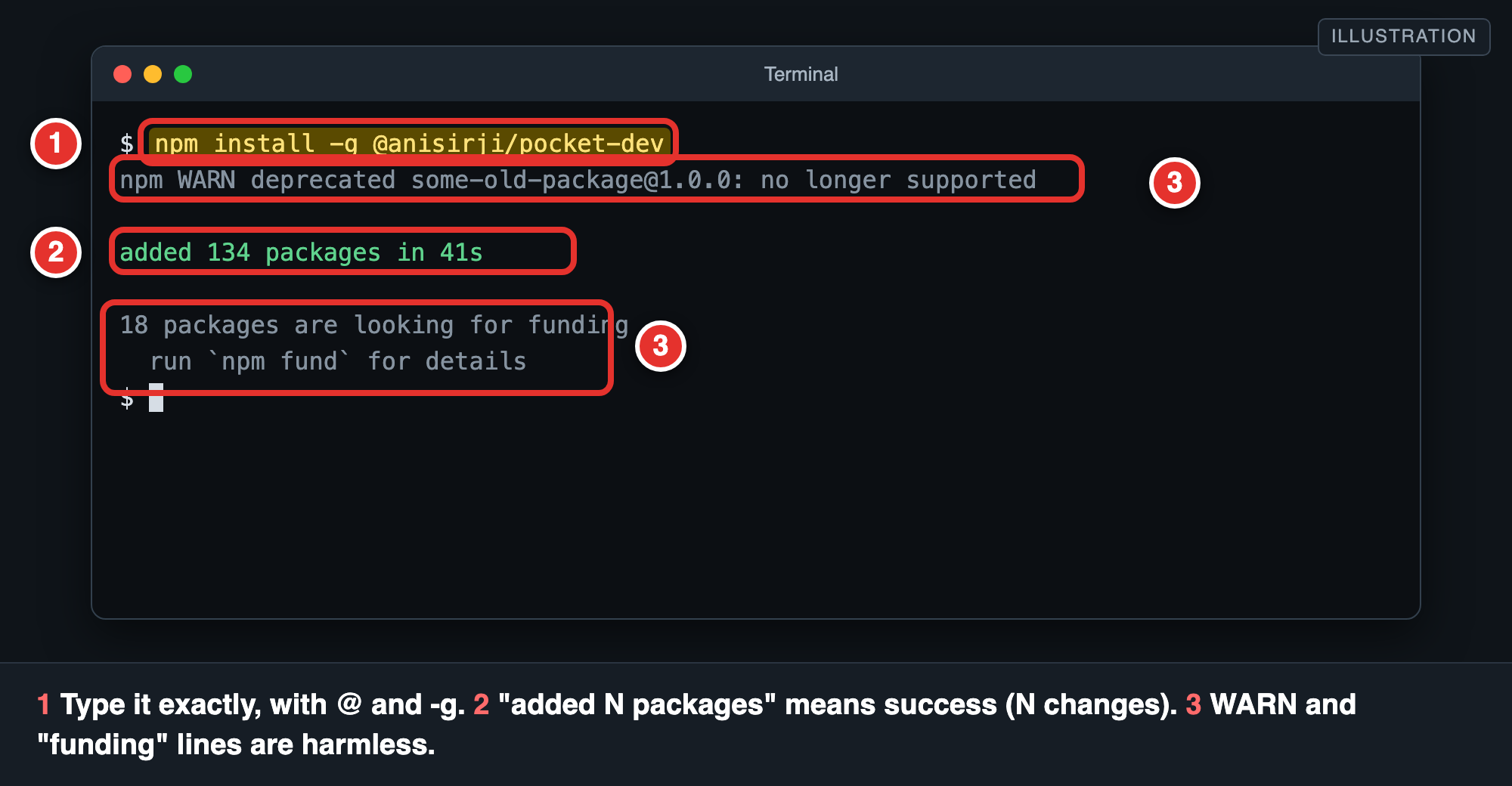
- Good: a line like
added 134 packages in 41s(your number will differ). - Harmless: yellow or plain
npm WARN deprecated ...(or lowercasenpm warn ...) lines, andN packages are looking for funding. Ignore them. - Red text that mentions
npm errororERR!means it failed. See If something goes wrong.
Step 5. Start Pocket Dev
Type this and press Enter:
pocket-dev start
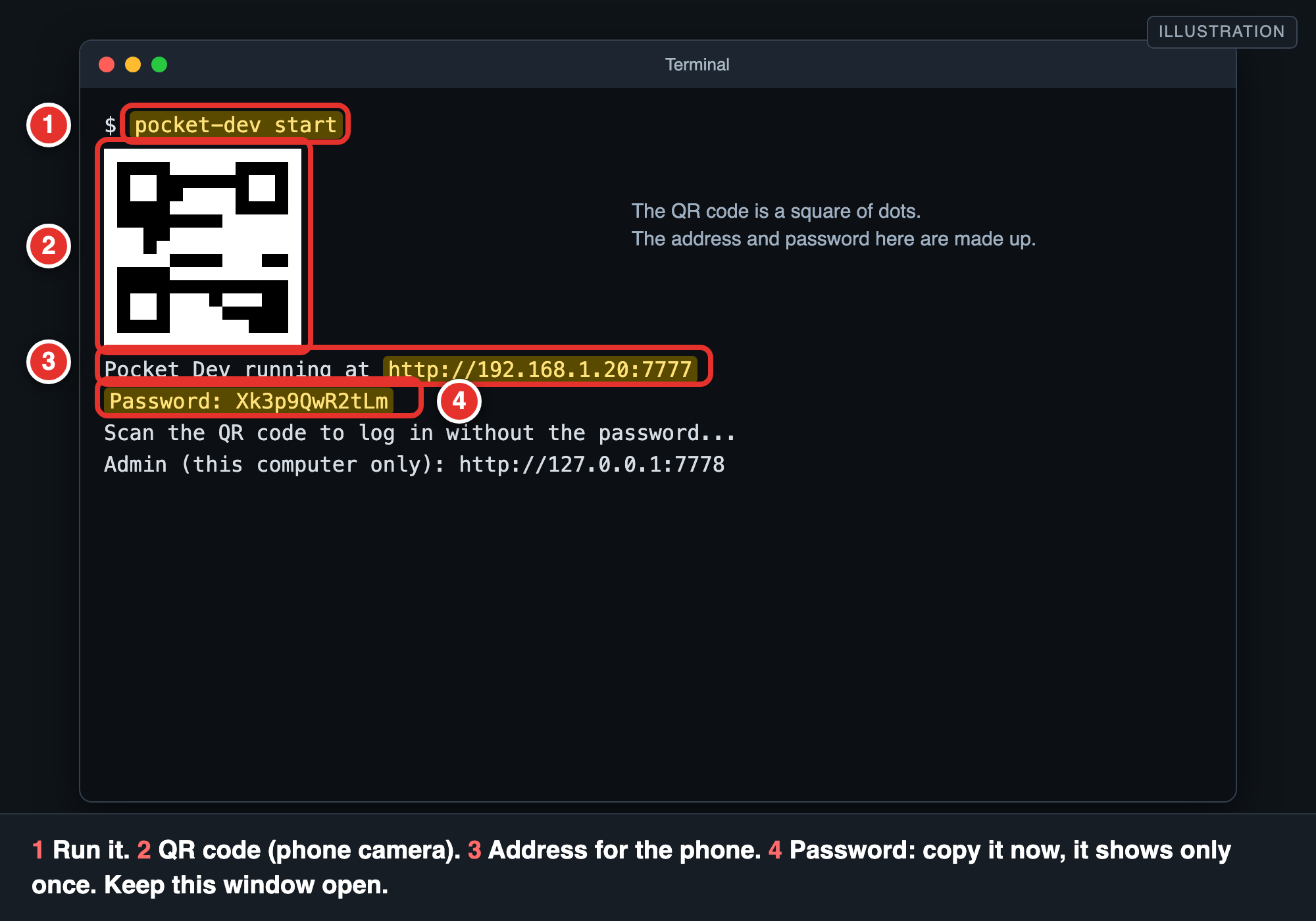
What you see:
- A square QR code. Your phone camera can scan it to log in (see Step 7).
Pocket Dev running at http://192.168.1.20:7777: the address you will type on your phone. Yours will be different.Password: ...: your one-time password. Copy it NOW (select it, right-click). It is shown only the first time. Write it down or paste it into a note. If you lose it, see I forgot the password.Admin (this computer only): http://127.0.0.1:7778: a settings page that opens on this computer.
Keep this window open. Pocket Dev runs while the window is open. To stop it, click the window and press Ctrl+C. To start it again, type pocket-dev start.
Step 6. Allow it through the firewall
The first time, Windows shows a box ("Windows Security Alert") about Node.js JavaScript Runtime. This box can hide behind other windows: look at the taskbar.
- Tick Private networks (home or work Wi-Fi). Leave Public networks unticked.
- Click Allow access.
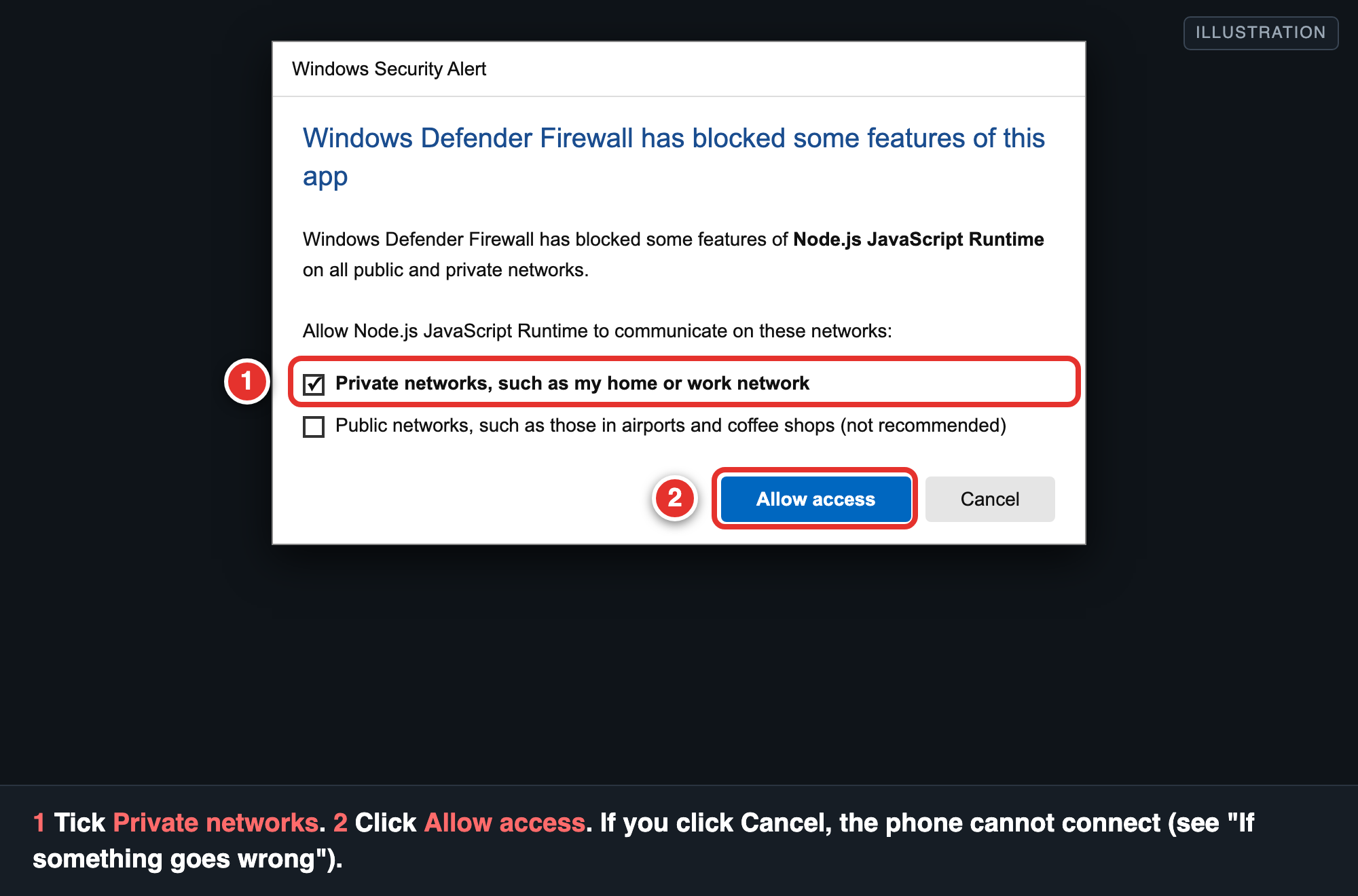
If you clicked Cancel or the box never appeared, see The phone cannot open the address.
Step 7. Open it on your phone
- On the phone, join the same Wi-Fi as the computer. (Not mobile data.)
- Open the phone's browser (Chrome, Safari, Samsung Internet).
- Type the address from Step 5 into the address bar at the top. Not into a Google search box. Start with
http://.
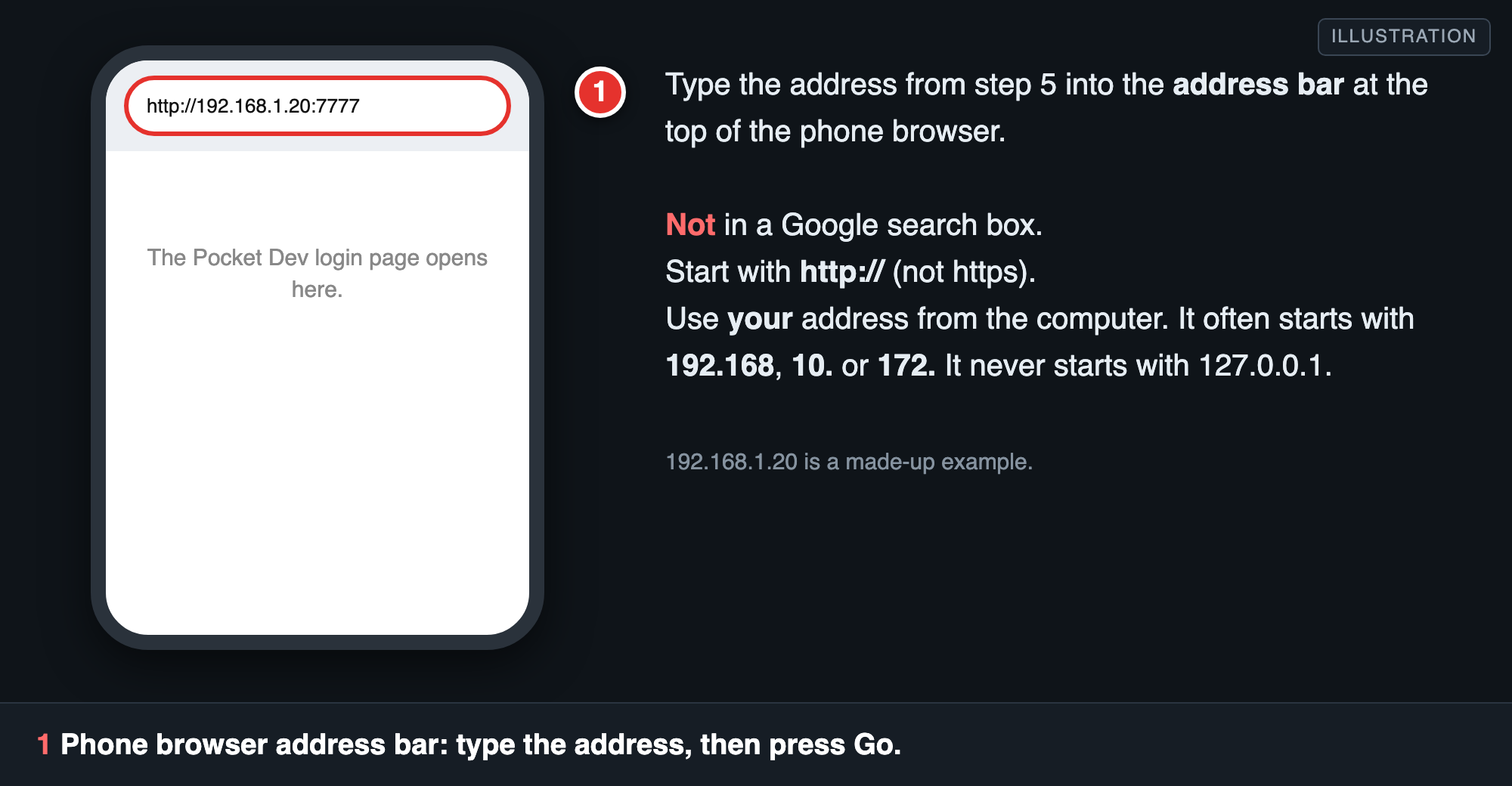
- The login page opens. Type the password from Step 5, or scan the QR code on the computer with the phone camera (it logs you in once, and works for 10 minutes).
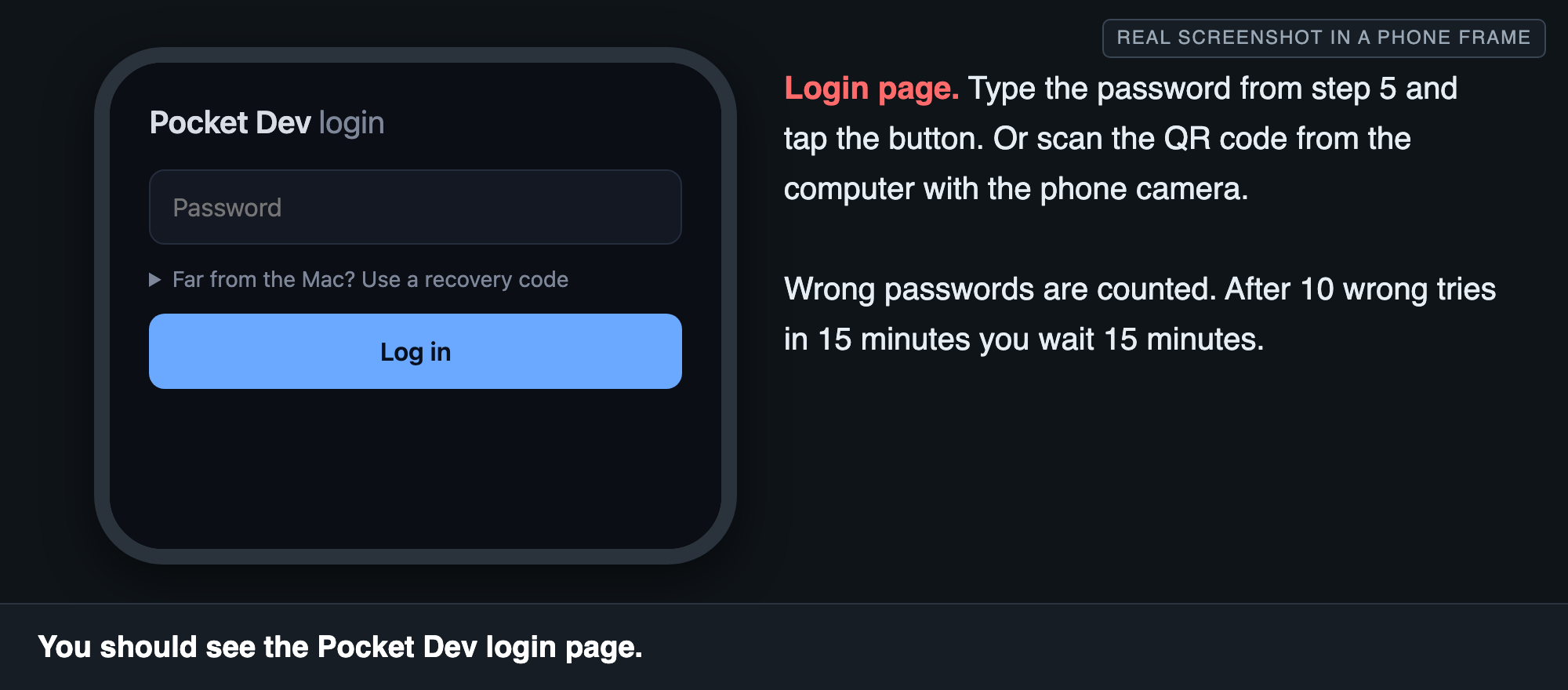
- You should now see the Pocket Dev app, with a terminal of your computer.
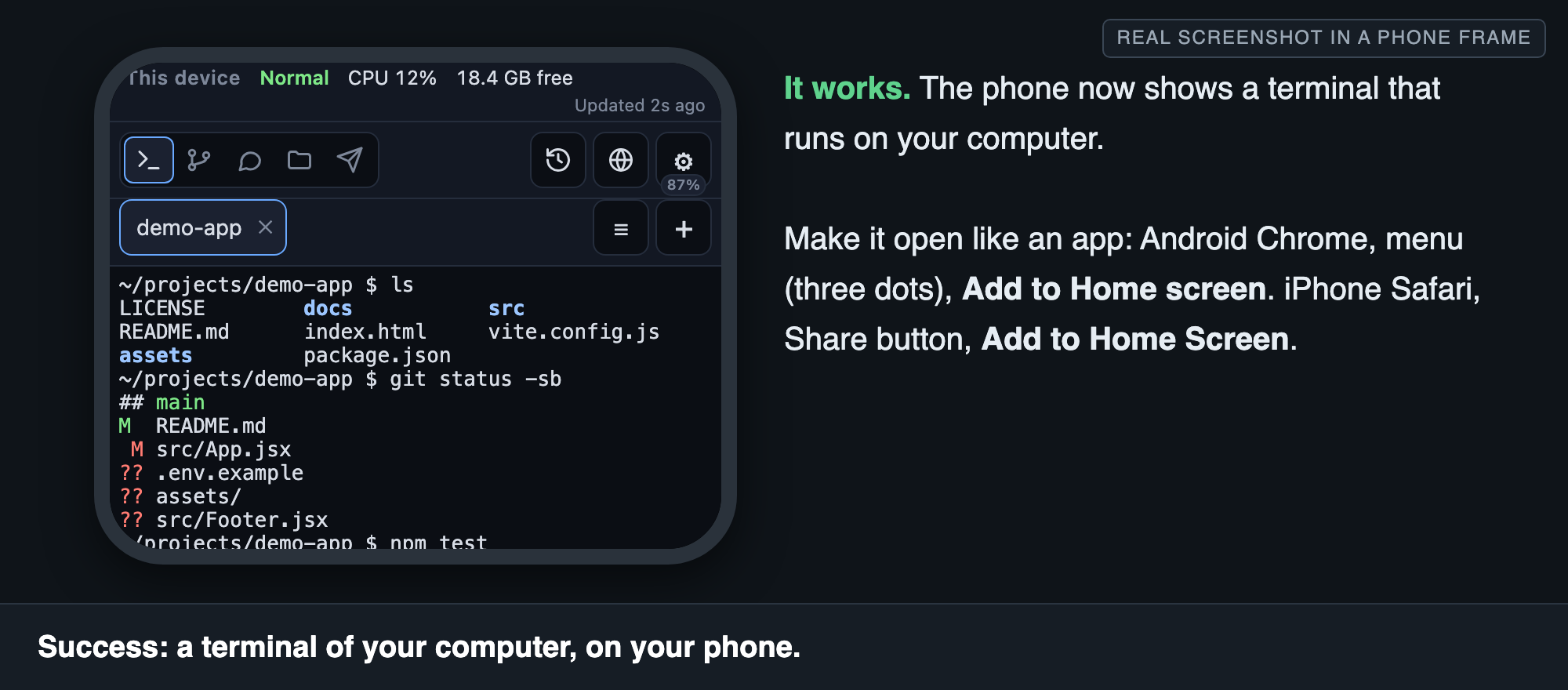
Put it on your home screen so it opens like an app: Android Chrome: menu (three dots), then Add to Home screen. iPhone Safari: tap the Share button, then Add to Home Screen.
If the page does not open, go to The phone cannot open the address.
Step 8. Make it start by itself (optional)
Right now Pocket Dev stops when you close the window. To run it without a window, in PowerShell:
Start-Process pocket-dev.cmd -ArgumentList 'start','--no-open' -WindowStyle Hidden
This runs it hidden until you restart the PC. To stop it, open Task Manager (Ctrl+Shift+Esc), find Node.js JavaScript Runtime, and click End task.
To start at every login, run pocket-dev admin and open Service on the page that opens. It can create a Windows Task Scheduler task for you. Honest note: the hidden-start line above comes from the main README. The start-at-login task is written but not yet tested on a real PC.
pocket-dev service installis for Mac only. It does not work on Windows.
Step 9. Optional: install your helper tools
pocket-dev setup
This checks, and offers to install and log you in to, some extra tools. All are optional. It shows each command before it runs anything.
- Claude Code and Codex: AI coding helpers you can talk to from the phone.
- GitHub: lets the computer download and save your code on GitHub.
- Cloudflare (
cloudflared): lets you reach the computer from outside your home. Only for internet access.
Use pocket-dev setup --check to only look, without changing anything.
Step 10. Optional: add a second computer
Install Pocket Dev on the other computer the same way, then join them in a room, so one phone can switch between both. See "Rooms: several computers, one phone" in the README (README.md in the package, or on the npm page).
You are done. Go to If something goes wrong only if you got stuck.
Part B: Mac
Step 1. Open the command window (Terminal)
- Press Cmd + Space (this opens the search box).
- Type Terminal.
- Press Enter when Terminal is highlighted.
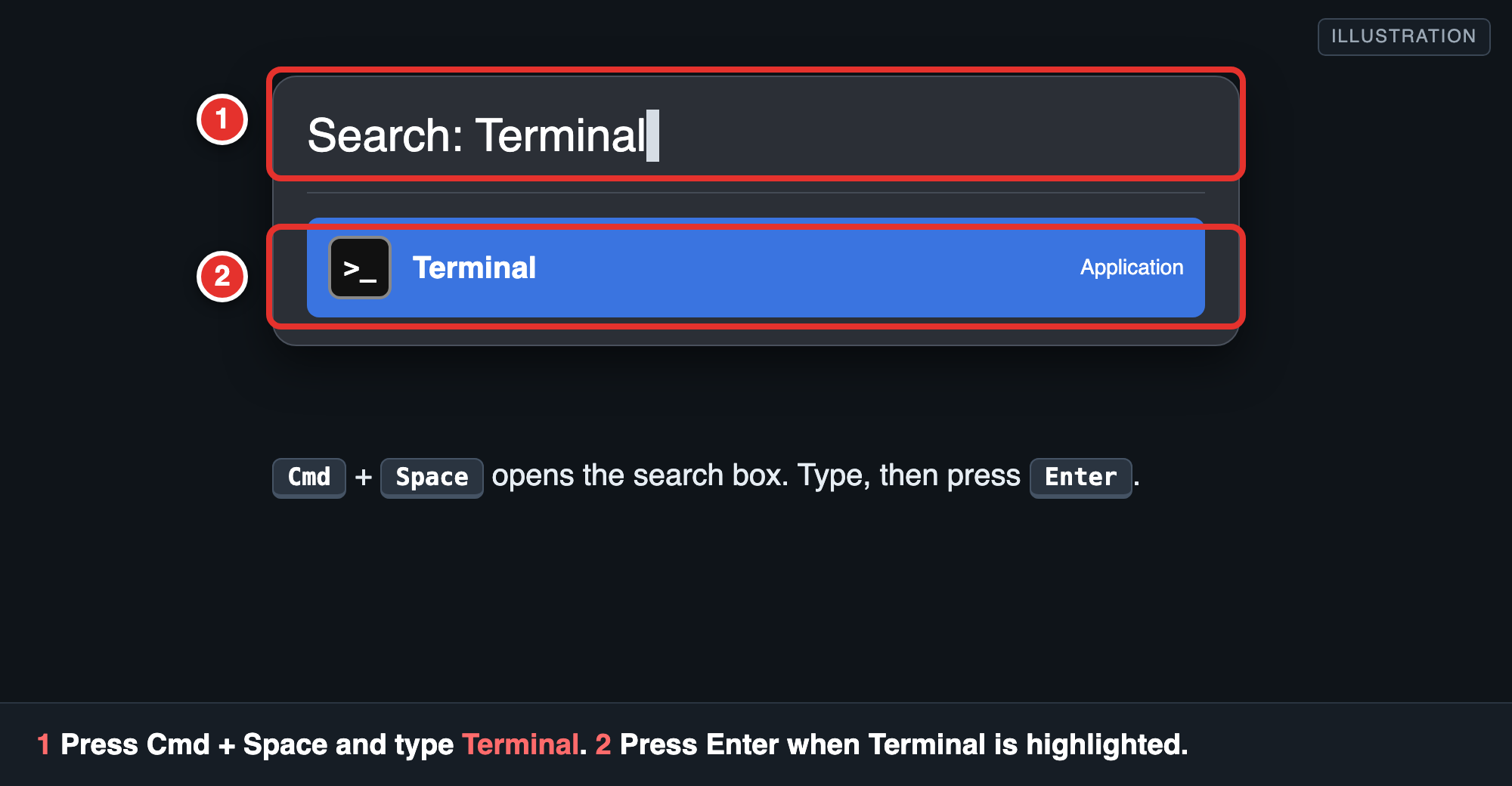
A white or black window opens with a blinking cursor. This is Terminal. It is safe. It only does what you type, and only when you press Enter.
Step 2. Check if Node.js is already installed
Type this and press Enter:
node -v
v22.11.0or higher (v23, v24...): good. Skip to Step 4.- A lower number, or
command not found: node: do Step 3.
Step 3. Install Node.js
Easiest: download the installer.
- Open https://nodejs.org and click the big green LTS button.
- Open the downloaded
.pkgfile and click Continue and Install until it finishes. Your Mac may ask for your Mac password. That is normal. - Close Terminal and open a new one.
- Type
node -vagain. You should see v22 or higher.
Another way, if you use Homebrew: brew install node.
Step 4. Install Pocket Dev
Type it exactly, with the
@and the-g:npm install -g @anisirji/pocket-dev
How to paste in Terminal: copy the line above, click the Terminal window, press Cmd + V, then press Enter.
It takes 1 to 3 minutes.
- Good: a line like
added 134 packages in 41s(your number will differ). - Harmless:
npm WARN deprecated ...andN packages are looking for funding. - If it fails with a message about building
node-pty, runxcode-select --installonce (a window asks to install developer tools; click Install), then run the install command again. - If it says
EACCES permission denied, see the EACCES fix. Do not usesudo.
Step 5. Start Pocket Dev
pocket-dev start
- A square QR code. Your phone camera can scan it to log in.
Pocket Dev running at http://192.168.1.20:7777: the address for your phone. Yours will differ.Password: ...: your one-time password. Copy it NOW (select it, then press Cmd + C). It is shown only the first time.Admin (this computer only): ...: a settings page. It also opens in your Mac's browser.
Keep this window open. To stop Pocket Dev, click the window and press Ctrl+C.
Missed the address? Run ipconfig getifaddr en0 in a new Terminal window (use en1 if it prints nothing). The address for the phone is http:// + that number + :7777.
Step 6. Allow it through the firewall
If your Mac asks "Do you want the application node to accept incoming network connections?", click Allow. If it never asks, you do not need to do anything.
Step 7. Open it on your phone
- On the phone, join the same Wi-Fi as the Mac. (Not mobile data.)
- Open the phone's browser.
- Type the address from Step 5 into the address bar at the top. Not into a Google search box. Start with
http://.
- The login page opens. Type the password from Step 5, or scan the QR code on the Mac screen with the phone camera.
- You should see the Pocket Dev app with a terminal of your Mac.
Put it on your home screen: Android Chrome: menu (three dots), Add to Home screen. iPhone Safari: Share button, Add to Home Screen.
Step 8. Make it start by itself (optional)
pocket-dev service install
It runs in the background and starts every time you log in to the Mac, with no window needed. Check it with pocket-dev service status. See its log with pocket-dev service logs. Remove it with pocket-dev service uninstall.
Stop the window version first (Ctrl+C), or the port is busy.
pocket-dev service install --forcetakes over the port from a leftover copy.
Honest note: the Mac is the best tested system.
Step 9. Optional: install your helper tools
pocket-dev setup
It shows each command before it runs anything. All of these are optional.
- Claude Code and Codex: AI coding helpers you can talk to from the phone.
- GitHub: lets the computer download and save your code on GitHub.
- Cloudflare (
cloudflared): lets you reach the computer from outside your home.
pocket-dev setup --check only looks, and changes nothing.
Step 10. Optional: add a second computer
Install Pocket Dev on the other computer, then join both in a room. See "Rooms: several computers, one phone" in the README.
You are done.
Part C: Linux
Honest note: Linux is written for, but not yet tested on a real machine. If something breaks, please tell us (see How to ask for help). The steps use Ubuntu or Debian words; other systems are similar.
Step 1. Open the command window (Terminal)
Press Ctrl + Alt + T together. If nothing happens, open your apps menu and search for Terminal.
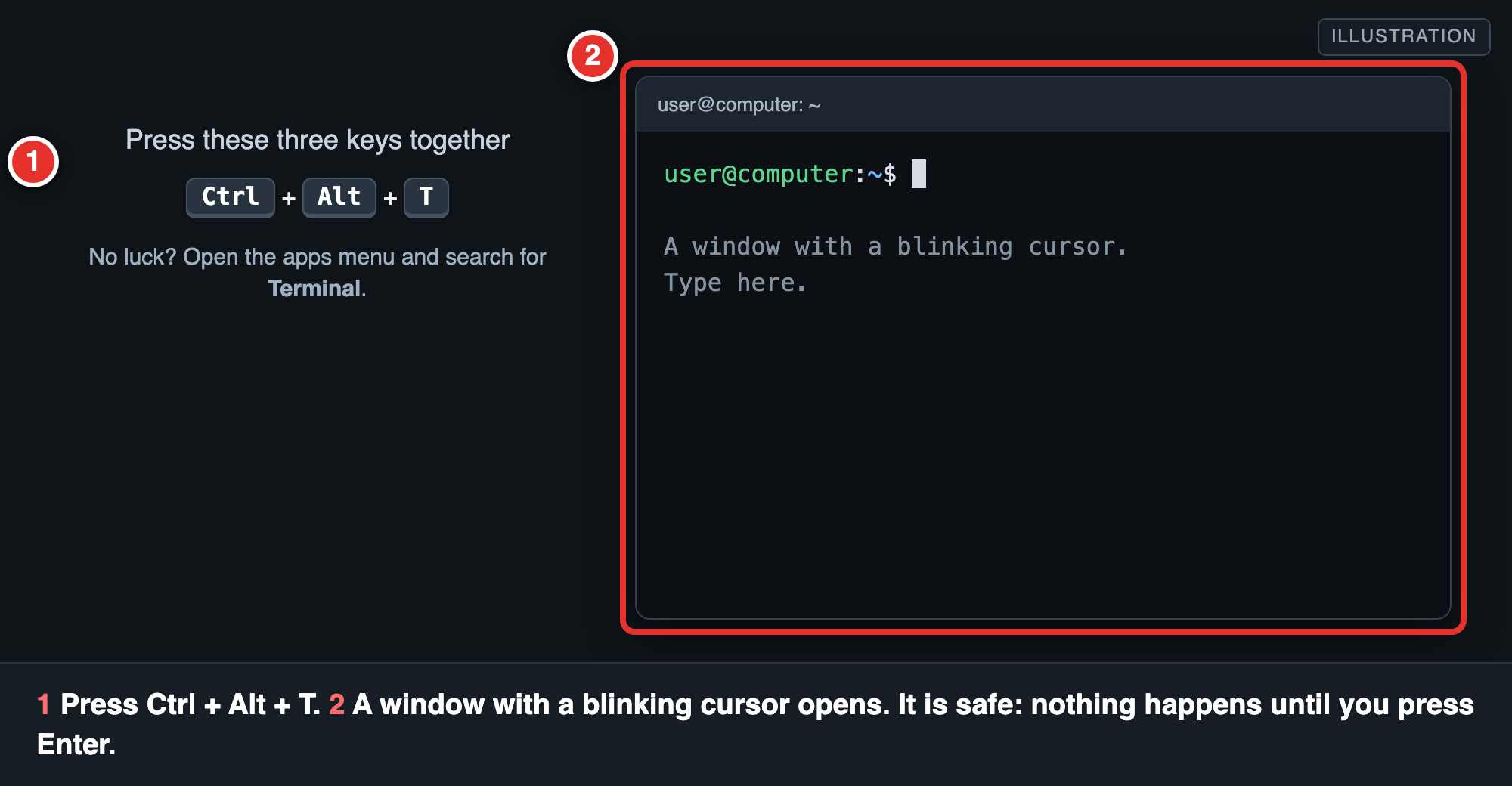
A window opens with a blinking cursor. It is safe. It only does what you type, and only when you press Enter.
Step 2. Check if Node.js is already installed
node -v
v22.11.0or higher: good. Skip to Step 4.- A lower number, or
command not found: do Step 3. (Many Linux systems ship an old Node.)
Step 3. Install Node.js
Best way (nvm, no sudo): open https://github.com/nvm-sh/nvm, copy the install command from the "Installing and Updating" part, and paste it into Terminal (Ctrl+Shift+V). Then close Terminal, open a new one, and run:
nvm install 22
Other way (your system's package manager): for example sudo apt install nodejs npm. This is often an old version, so check with node -v. If it is lower than v22, use nvm instead.
Then type node -v again. You should see v22 or higher.
Step 4. Install Pocket Dev
Type it exactly, with the
@and the-g:npm install -g @anisirji/pocket-dev
How to paste in Linux Terminal: copy the line, click the Terminal, press Ctrl + Shift + V (plain Ctrl+V does not paste there), then Enter.
It takes 1 to 3 minutes.
- Good:
added 134 packages in 41s(your number will differ). - Harmless:
npm WARN deprecated ...andpackages are looking for funding. - If it fails while building
node-pty, install the build tools once:sudo apt install build-essential python3, then run the install again. - If it says
EACCES permission denied, see the EACCES fix. Do not usesudo npm.
Step 5. Start Pocket Dev
pocket-dev start
- A square QR code for your phone camera.
Pocket Dev running at http://192.168.1.20:7777: the address for your phone. Yours will differ.Password: ...: your one-time password. Copy it NOW (select it, press Ctrl+Shift+C). It is shown only the first time.
Keep this window open. To stop it, press Ctrl+C.
Missed the address? Run hostname -I in a new window. Use the first number that looks like 192.168... or 10.... The phone address is http:// + that + :7777.
Step 6. Allow it through the firewall
Many Linux computers have no firewall on by default, so you may not need this. If you use one, allow port 7777 from your home network. On Ubuntu with ufw: sudo ufw allow from 192.168.0.0/16 to any port 7777 proto tcp (change the numbers if your network starts differently).
Step 7. Open it on your phone
- Join the phone to the same Wi-Fi as the computer. (Not mobile data.)
- Open the phone's browser.
- Type the address from Step 5 into the address bar at the top. Not into a Google search box. Start with
http://.
- Log in with the password from Step 5, or scan the QR code on the computer screen.
- You should see the Pocket Dev app with a terminal of your computer.
Put it on your home screen: Android Chrome: menu (three dots), Add to Home screen. iPhone Safari: Share, Add to Home Screen.
Step 8. Make it start by itself (optional)
To keep it running after you close the Terminal window:
nohup pocket-dev start --no-open > ~/pocket-dev.log 2>&1 &
It keeps running until you restart the computer. Find the address and the log in ~/pocket-dev.log. Stop it with pkill -f pocket-dev.
For start-at-login, pocket-dev admin has a Service section that sets up a systemd user service. Honest note: that part is written but not tested on a real Linux machine. pocket-dev service commands are for Mac only.
Step 9. Optional: install your helper tools
pocket-dev setup
It shows each command before it runs anything. All of these are optional.
- Claude Code and Codex: AI coding helpers you can talk to from the phone.
- GitHub: lets the computer download and save your code on GitHub.
- Cloudflare (
cloudflared): lets you reach the computer from outside your home.
pocket-dev setup --check only looks.
Step 10. Optional: add a second computer
Install Pocket Dev on the other computer, then join both in a room. See "Rooms: several computers, one phone" in the README.
You are done.
If something goes wrong
Find the red message you saw, then follow the fix. Red text is not a disaster: it says what went wrong. If you are stuck, jump to How to ask for help.
'npm' is not recognized or command not found: npm
Node.js (which brings npm) is not installed, or the window is older than the install.
- Close the terminal completely and open a new one.
- Type
node -v. If it still fails, do Step 3 (install Node.js) again.
pocket-dev is not recognized
Windows shows: pocket-dev : The term 'pocket-dev' is not recognized as the name of a cmdlet.... Mac and Linux show command not found: pocket-dev. The install did not finish, or this window is older than the install.
- Close the terminal and open a new one. Try
pocket-dev startagain. - Run the install again, exactly:
npm install -g @anisirji/pocket-dev(with@and-g). - Still not found? Type
npm config get prefix. This prints the folder where npm puts commands. On Windows that folder must be in your PATH (the list of places Windows looks for commands). On Mac and Linux, thebinfolder inside it must be in your PATH. Reinstalling Node.js usually fixes this on Windows.
A very common mix-up: typing npm i anisirji/pocket-dev (no @, no -g). That is a different thing. It means "download from GitHub and put it in the folder I am standing in". It does not make the pocket-dev command, and it can fail on Windows. Use npm install -g @anisirji/pocket-dev. If you made a mess, delete the node_modules folder, and the package.json and package-lock.json files that appeared in the folder you were in.
npm.ps1 cannot be loaded because running scripts is disabled on this system
Windows PowerShell blocks scripts by default. Fix it once (it only changes your own account):
Set-ExecutionPolicy -Scope CurrentUser -ExecutionPolicy RemoteSigned
Answer Y and press Enter. Open a new PowerShell. Or, without changing anything, type npm.cmd instead of npm, and pocket-dev.cmd instead of pocket-dev.
EACCES permission denied on Mac or Linux
npm is not allowed to write in the system folder. Do not use sudo. Use one of these:
- Best: install Node.js with nvm (Linux, Part C Step 3), or Homebrew or the installer on Mac. Then retry.
- Or give npm your own folder:
mkdir -p ~/.npm-global
npm config set prefix ~/.npm-global
Then add that folder to your PATH. On Mac (zsh): echo 'export PATH=~/.npm-global/bin:$PATH' >> ~/.zshrc. On Linux (bash): echo 'export PATH=~/.npm-global/bin:$PATH' >> ~/.bashrc. Close the terminal, open a new one, and run the install again.
Update Pocket Dev
The first pocket-dev start (or pocket-dev setup) begins by checking whether a newer version exists and asks Update now? [Y/n]. Press Enter to say yes; it installs the update and carries on with the new version. Any time later, run:
pocket-dev update
(pocket-dev update --check only says whether a newer version exists.) The phone shows an update icon and the Admin page has an Update button when a newer version exists; installing is done on the computer, from that button or in a terminal. If it says EACCES permission denied, use the own-folder fix above; do not use sudo. The only thing looked up online is the newest version number on npm, at most every six hours. To turn that off: pocket-dev config set updateCheck false.
Windows: ENOENT ... node-pty or TAR_ENTRY_ERROR while installing
npm lost some files while unpacking (antivirus or a bad cache). In PowerShell:
- Remove the half-installed folder:
Remove-Item -Recurse -Force "$env:APPDATA\npm\node_modules\@anisirji" - Clean npm's cache:
npm cache clean --force - Install again and watch for the real error:
npm install -g @anisirji/pocket-dev --foreground-scripts - Antivirus: pause real-time protection for a few minutes while it installs (turn it back on after), or add an exclusion for
%APPDATA%\npmand%LOCALAPPDATA%\npm-cache. - If it still says it must build
node-pty, install Visual Studio Build Tools (choose "Desktop development with C++") and Python 3, then try again. - After a successful install, run
pocket-dev doctor --fix. This command checks the install and repairs common problems. It is new; if your version says it does not knowdoctor, update withnpm install -g @anisirji/pocket-dev@latest. - Last resort, to try it without installing:
npx -y @anisirji/pocket-dev start.
The phone cannot open the address
Check these in order:
- Same Wi-Fi? The phone must be on the same Wi-Fi as the computer, not mobile data. Turn mobile data off to be sure.
- Guest network? Many "Guest" Wi-Fi networks and some routers ("AP isolation" or "client isolation") stop devices from talking to each other. Use the main network.
- Firewall? On Windows, open Windows Defender Firewall, then Allow an app through firewall, find Node.js JavaScript Runtime, and tick Private. See Step 6.
- Typed in the address bar? It must go in the browser's address bar, not in a Google search box.
http://, nothttps://. Pocket Dev on your home Wi-Fi does not use https. Typehttp://192.168.1.20:7777(with your own numbers).- Wrong address? An address that starts with
127.0.0.1or sayslocalhostonly works on the computer itself. Use thePocket Dev running at ...address (it often starts with192.168,10.or172.). Find it again withipconfig(Windows, the IPv4 Address of your Wi-Fi),ipconfig getifaddr en0(Mac), orhostname -I(Linux). - Is it running? The window with
pocket-dev startmust still be open. If it saidPhone access is off, runpocket-dev connectin another window.
EADDRINUSE or "Port 7777 is already in use"
Another program (or an older Pocket Dev) is using port 7777. Start on another port:
pocket-dev start --port 7780
Then use :7780 at the end of the address on the phone.
I forgot the password
On the computer, run:
pocket-dev admin
A page opens in the computer's browser. Open Password and set a new one. No old password is needed. The password is only shown once, on the first start.
The settings and your data live in a folder: ~/.pocket-dev on Mac and Linux, and %USERPROFILE%\.pocket-dev on Windows (for example C:\Users\you\.pocket-dev).
"Device limit reached" or the phone says too many devices
Pocket Dev lets only 2 devices log in with a password by default. Run pocket-dev admin, open Devices, and log an old device out. Or raise the limit: pocket-dev config set maxDevices 5.
"This page is older than the server. Reload Pocket Dev and try again."
You restarted Pocket Dev while the phone page was still open. Reload the page on the phone (pull down, or close the tab and open the address again). Log in again if asked.
The Windows PC went to sleep and the phone lost it
A sleeping PC cannot answer the phone, and Pocket Dev cannot wake it. On the PC: Settings, System, Power, set Sleep (when plugged in) to Never. You can also run pocket-dev awake status to see if the keep-awake option works on your computer. Do not press the remote Sleep button unless you know your PC wakes up again.
Still stuck
See How to ask for help.
How to ask for help
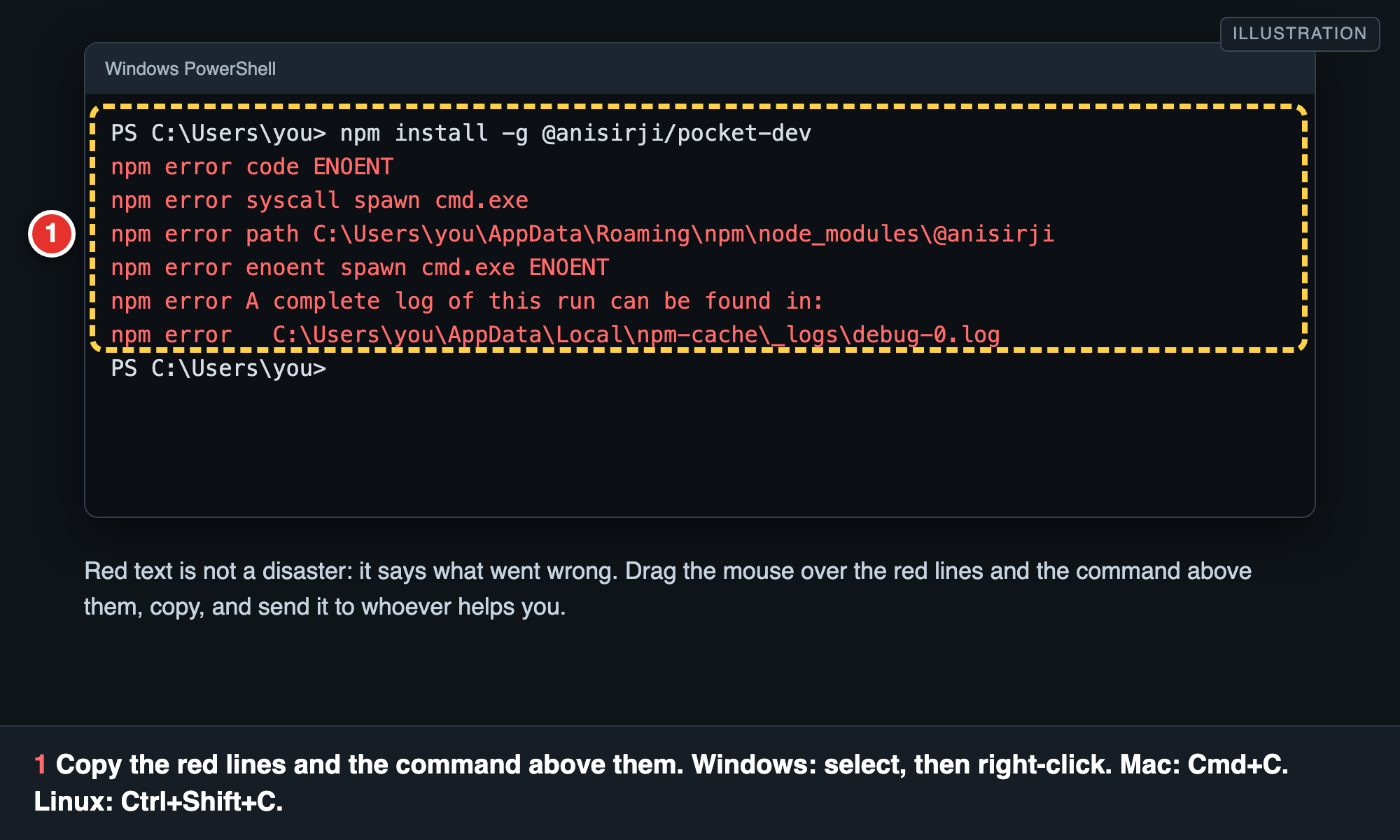
Send the person helping you these things. Copy and paste them as text. A photo is a second choice.
- What you were doing: the step number, and what you expected to happen.
- Your system: Windows 11, Windows 10, Mac or Linux.
- The two version numbers: type
node -v, thennpm -v, and copy both answers. - The command you typed and the red text it printed. To copy from the terminal:
- Windows PowerShell: drag the mouse over the text to select it, then right-click (this copies it). Paste it into your message.
- Mac Terminal: drag the mouse over the text, then press Cmd + C.
- Linux Terminal: drag the mouse over the text, then press Ctrl + Shift + C.
- For install problems, also the log file path that npm printed (a line like
A complete log of this run can be found in: ...). Attach that file if you can.
Never send your password. The Password: line from pocket-dev start is a secret. Cross it out first. Addresses like 192.168.1.20 are private to your home and safe to share.
Read from docs/INSTALL_BEGINNERS.md in the repository and refreshed about once an hour.