Pocket Dev
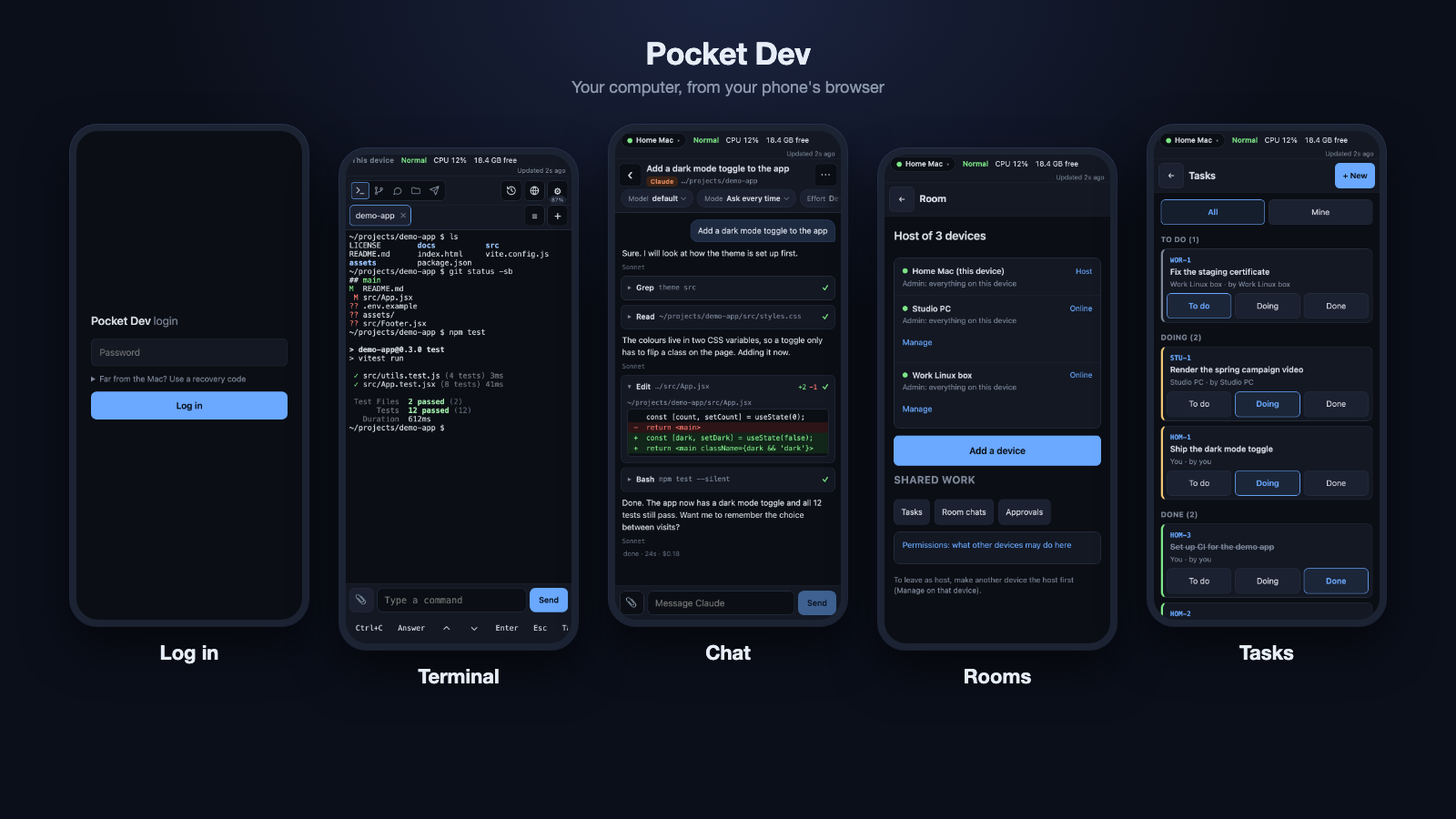
Control your computers from your phone's browser: terminals, Claude Code and Codex chats, Git, files and more. Several computers, one phone, no cloud account.



New in 2.1.2: a copy icon under every chat message, the time on every message, and PDF and text documents that open from Messages and Files.
New in 2.1: one Chats list for Pocket Dev chats and computer conversations, opening a conversation the computer still has open without stopping it, the hand-over on Windows, Take photo in the file menu, and AI-assisted setup. See the 2.1 release notes.
New in 2.0: four chat engines with one-chat provider and model switching, continuing a conversation between your computer and your phone (the pocket-dev takeover command is gone), self-update with an update icon and an Admin Update button, and an Admin tile added to your Dock or taskbar when you install. See the 2.0 release notes.
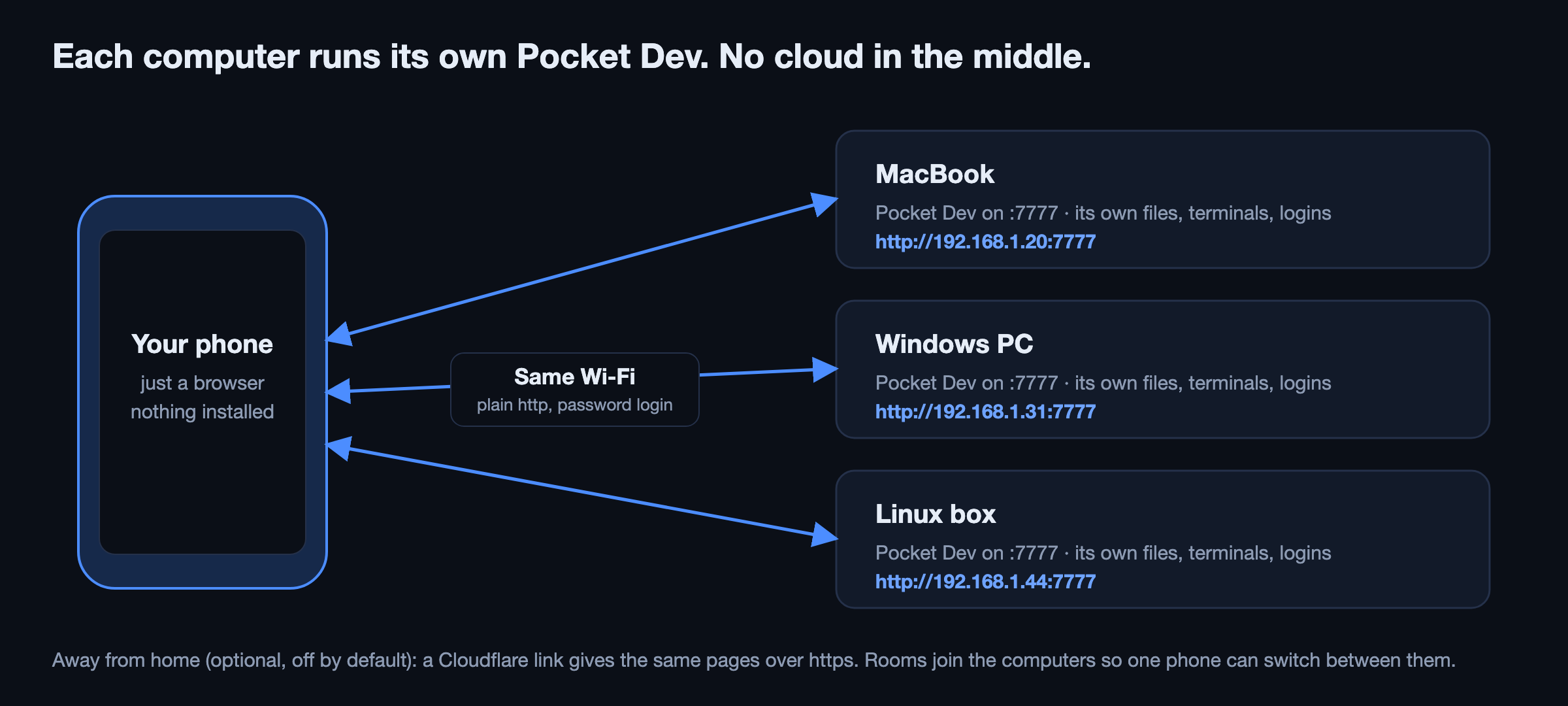
Pocket Dev is one Node.js server that runs on a computer as your user. Your phone opens http://<computer-address>:7777 on the same Wi-Fi, logs in with a password or a one-time QR code, and gets a mobile web app. Nothing is installed on the phone. macOS is the best tested system, Windows 11 is tested for the main features on a real PC, and Linux is written but not tested on a real machine.
Set it up in 5 minutes
Prefer your coding assistant? Copy the setup prompt and paste it into an agent running on your own computer. AI setup details explain what it can automate and how to verify the phone connection.
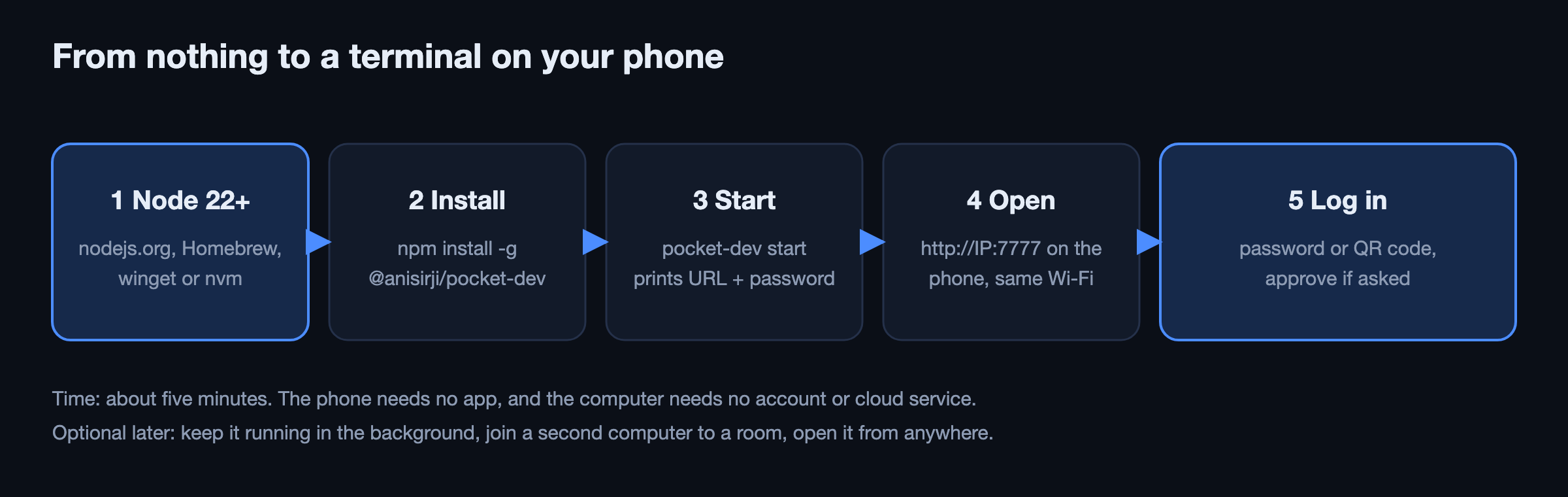
You need a computer (Mac, Windows 11 or Linux) and a phone on the same Wi-Fi. You do not need to know Node. Pick your system, follow the numbered steps, and compare what you see with the line under each step.
New to the terminal? Follow the picture-by-picture beginner guide: the full guide ships inside the package at
docs/INSTALL_BEGINNERS.md. Its contents and first three steps are right below, under Beginner guide.
Use the name with the
@and-g:npm install -g @anisirji/pocket-dev.npm i anisirji/pocket-dev(no@) installs from GitHub, not from npm, into the current folder, and does not create thepocket-devcommand.
Want to try it first without installing? npx -y @anisirji/pocket-dev start runs it once and leaves nothing behind (it is slower to start).
Guided setup on the first start. The first
pocket-dev starton a computer opens the guided setup before the server starts (pocket-dev setupruns it again any time). It checks Node, Git, Claude Code, Codex, the GitHub CLI and Cloudflare'scloudflared, shows the exact command before it installs anything, and offers each tool's own login (claude auth login,codex login,gh auth login). Claude Code, Codex and the GitHub CLI are accounts, so their install and login default to no. Then it sets your password and the phone access, and the Always on step shows one list of recommended changes (start at login, Keep awake) and asks once. It ends with the address, a one-time QR code and a short note from the author, Ani (--quiethides it). Without a terminal (a script, CI) the start prints the status table and the command, and goes on;pocket-dev start --no-setuporPOCKET_DEV_NO_SETUP=1skips the guide.pocket-dev setup --checkonly shows the status;--dry-runshows the plan. Details: docs/SETUP.md. The same checklist is in Settings, under Tools on this computer.
Beginner guide
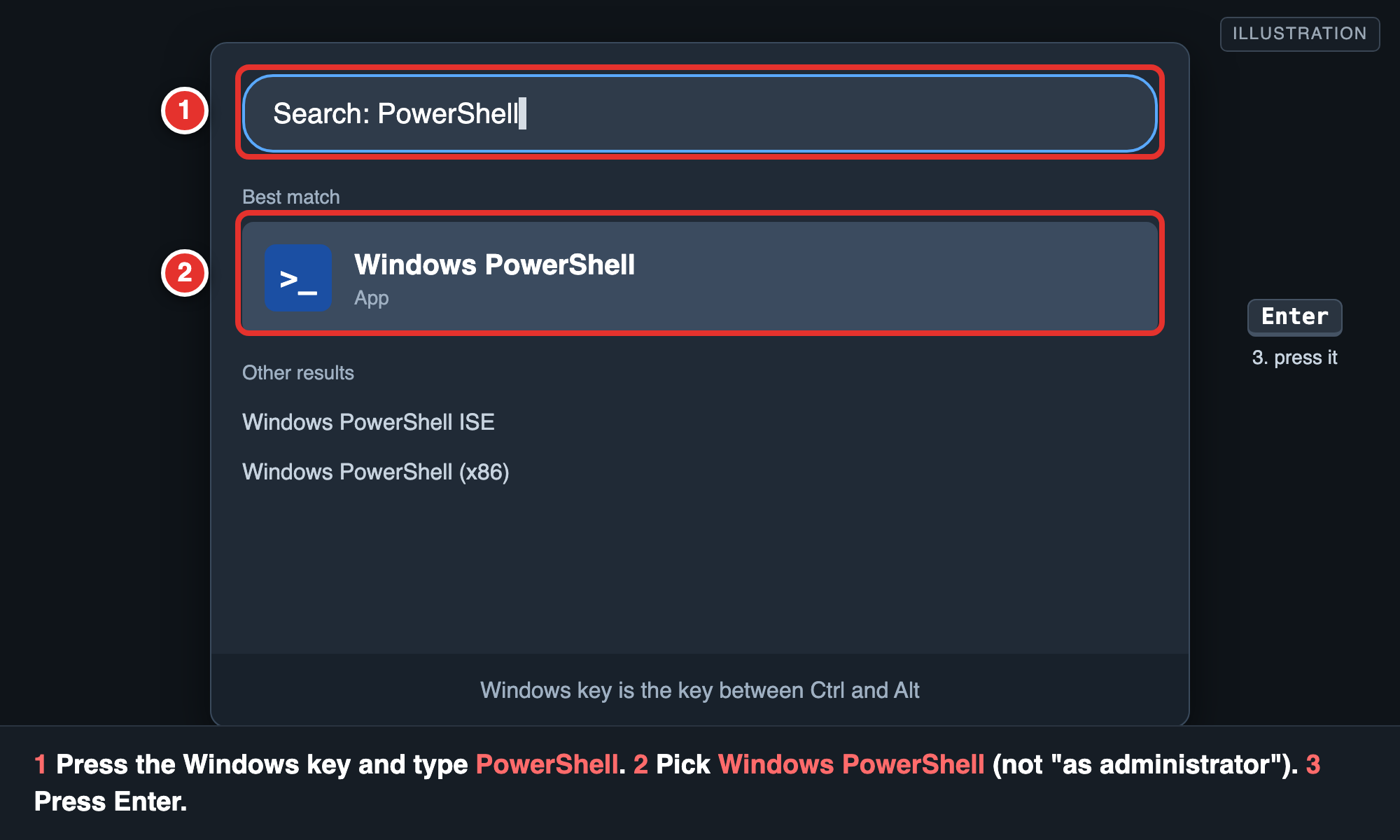
The full guide (Windows, Mac and Linux, with pictures, a glossary and a fix for each common error) is the file docs/INSTALL_BEGINNERS.md in this package. The pictures are drawings that show what to look for. In short:
- Open the command window. Windows: press the Windows key, type PowerShell, press Enter (not "as administrator"). Mac: press Cmd+Space, type Terminal, press Enter. Linux: press Ctrl+Alt+T. It is safe: it does only what you type.
- Check Node.js. Type
node -vand press Enter.v22or higher is good. "Not recognized" or "command not found" means it is not installed. - Install Node.js (skip if step 2 was good). Open nodejs.org, click the big green LTS button, run the installer (Next, Next, Next; tick nothing special), then close the window and open a new one and check
node -vagain. Windows can also usewinget install OpenJS.NodeJS.LTS; Mac can usebrew install node; Linux can use nvm andnvm install 22.
Then: 4 npm install -g @anisirji/pocket-dev, 5 pocket-dev start (the first time, the guided setup opens; copy the one-time password), 6 allow it through the firewall, 7 open the address on your phone, 8 start by itself (the Always on step of the setup), 9 pocket-dev setup again any time, 10 add a second computer (optional). Then, if stuck: If something goes wrong and How to ask for help, both in the guide.
macOS
- Install Node 22 or newer. Easiest with Homebrew:
brew install node. Or download the LTS installer from nodejs.org. Check withnode -v: it should printv22or higher. - Install Pocket Dev:
npm install -g @anisirji/pocket-dev. If it fails while buildingnode-pty, runxcode-select --installonce and repeat. - Start it:
pocket-dev start. It prints a QR code, then lines like these (the password appears this one time only, so copy it):
The Admin page also opens in your Mac's browser (addPocket Dev running at http://192.168.1.20:7777 Password: Xk3p9QwR2tLm--no-opento stop that). - Find the address if you missed it:
ipconfig getifaddr en0prints the Wi-Fi address (useen1ifen0prints nothing). The URL ishttp://<that address>:7777. If macOS asks whethernodemay accept incoming connections, choose Allow. - Open the URL on the phone (same Wi-Fi) and log in with the password, or scan the QR code with the phone camera (it logs you in once, for 10 minutes). Forgot the password? Run
pocket-dev admin, open Password, and set a new one. No old password is needed. - Approve the device if asked. If Approve new devices is on, the phone waits and the Mac Admin page (Waiting) shows a 4-character code to compare. It is off by default. While collaborator sharing is on, every new password login waits, even with the switch off. A QR login never waits.
- Keep it running in the background and at login:
pocket-dev service install. Check withpocket-dev service status. - Optional: add a second computer, see Rooms.
- Update:
npm install -g @anisirji/pocket-dev@latestthenpocket-dev service restart. Uninstall:pocket-dev service uninstallthennpm uninstall -g @anisirji/pocket-dev. Settings stay in~/.pocket-devuntil you delete that folder.
Windows 11
- Install Node 22 or newer. In PowerShell:
winget install OpenJS.NodeJS.LTS, or use the installer from nodejs.org. Close PowerShell and open a new one, thennode -vshould printv22or higher. For the Git view also install Git:winget install --id Git.Git -e. - Install Pocket Dev:
npm install -g @anisirji/pocket-dev. A prebuiltnode-ptyis used when one exists. If the install fails onnode-pty, install Visual Studio Build Tools (the "Desktop development with C++" workload) and Python 3, then run the command again. - Start it:
pocket-dev start. You should seePocket Dev running at http://192.168.…:7777and aPassword:line (shown once, copy it). - Firewall: Windows asks whether Node may accept connections. Choose Private networks and Allow. Find the PC's address with
ipconfig(the IPv4 address of your Wi-Fi). On the PC itself you can usehttp://localhost:7777. - Open the URL on the phone (same Wi-Fi) and log in with the password, or scan the QR code the start printed. Forgot the password? Run
pocket-dev adminand set a new one under Password. - Approve the device if asked (when Approve new devices is on, or collaborator sharing is on): approve it on the PC's Admin page, Waiting.
- Keep it running without a window:
Start-Process pocket-dev.cmd -ArgumentList 'start','--no-open' -WindowStyle Hidden. The Admin page (pocket-dev admin, Service) can also install a start-at-login Task Scheduler task; that part is written but not tested on a real PC.pocket-dev serviceis macOS only. After installing a tool such as Git, restart Pocket Dev so its terminals see the new PATH. - Optional: join it to a room, see Rooms.
- Update:
npm install -g @anisirji/pocket-dev@latest, then stop and start it again. Uninstall:npm uninstall -g @anisirji/pocket-dev. Settings and data live in%USERPROFILE%\.pocket-devuntil you delete that folder.
Do not use the remote Sleep button on a Windows PC unless you know it wakes: Windows may hibernate, and nothing remote can wake it. Temperature, lid control and window names are not available on Windows.
Linux
Written for Linux and not yet tested on a real machine. Tell us what breaks.
- Install Node 22 or newer. With nvm:
nvm install 22. Or use your distribution's package or NodeSource; distribution packages are often older, so checknode -v. - Install Pocket Dev:
npm install -g @anisirji/pocket-dev. Ifnode-ptyhas to be built, installbuild-essentialand Python 3 first (for examplesudo apt install build-essential python3). - Start it:
pocket-dev start. It prints the URL and aPassword:line (shown once). - Find the address:
hostname -Iprints the computer's addresses; use the Wi-Fi or LAN one:http://<address>:7777. If a firewall is on, allow TCP port 7777 from your local network. - Open the URL on the phone (same Wi-Fi) and log in, or scan the printed QR code. Forgot the password? Run
pocket-dev admin(needs a browser on that computer) and set a new one. - Approve the device if asked on the Admin page, Waiting.
- Keep it running: the Admin page's Service section installs a systemd user unit (written, not tested). A simple alternative is
nohup pocket-dev start --no-open > ~/pocket-dev.log 2>&1 &.pocket-dev serviceis macOS only. - Optional: join it to a room, see Rooms.
- Update:
npm install -g @anisirji/pocket-dev@latest, then restart. Uninstall:npm uninstall -g @anisirji/pocket-dev; settings stay in~/.pocket-dev.
What you should see
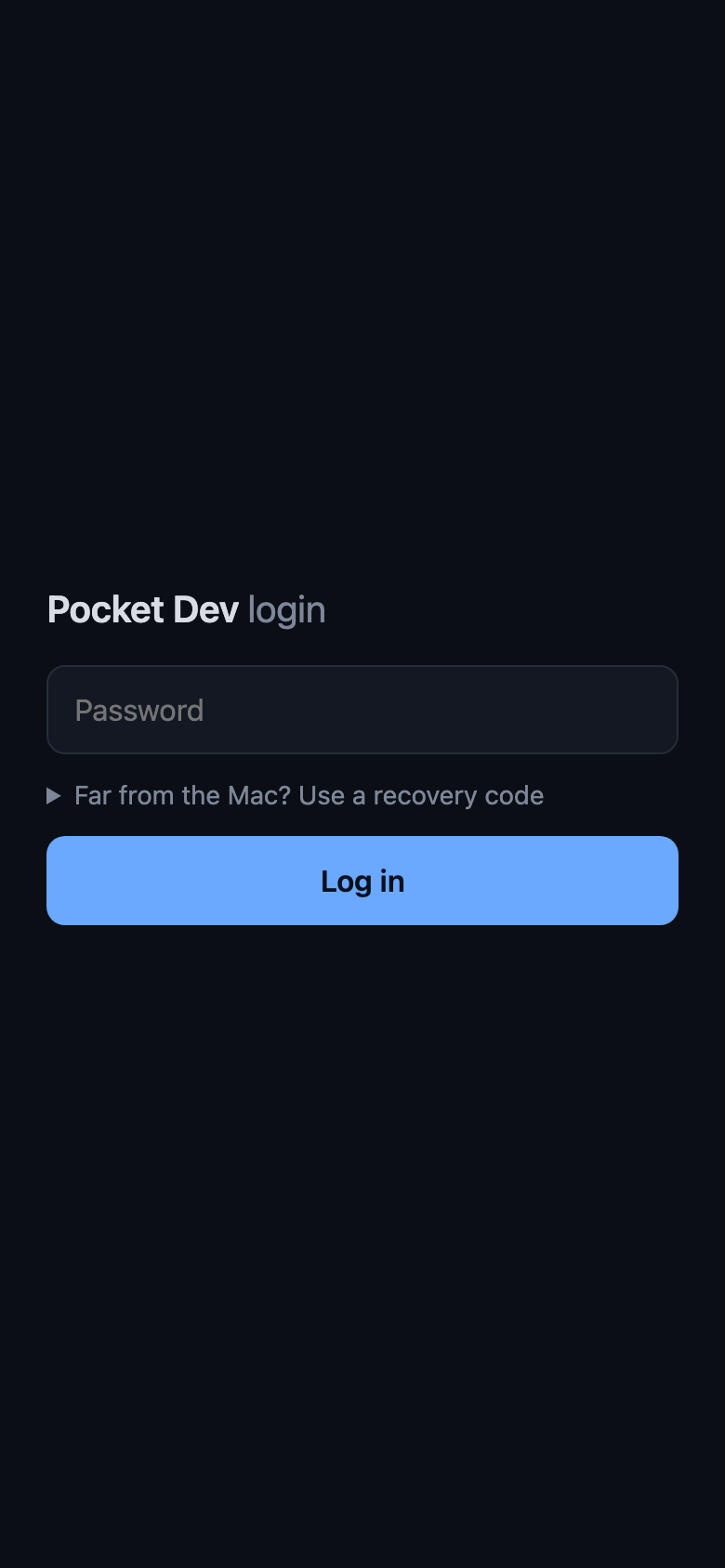 Log in with the printed password | 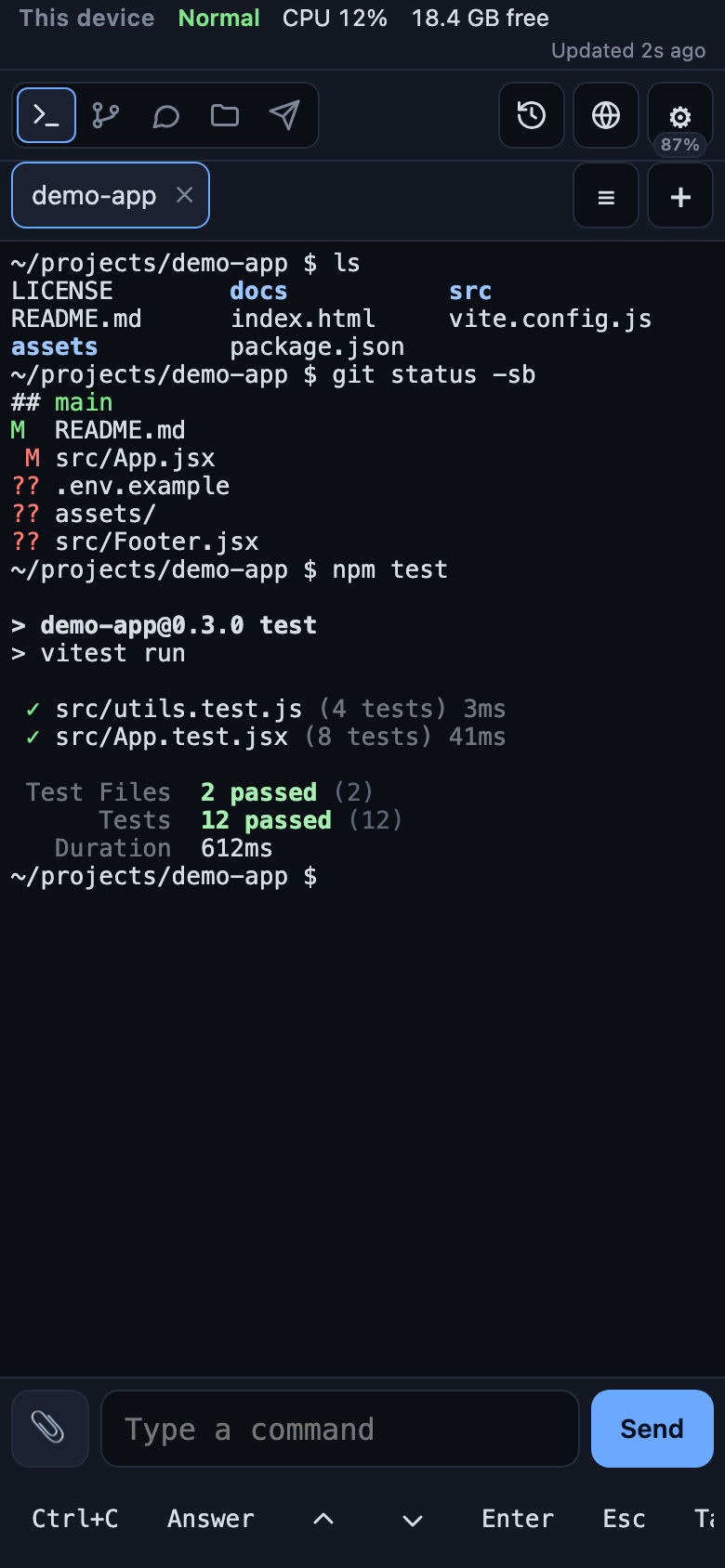 Your first terminal | 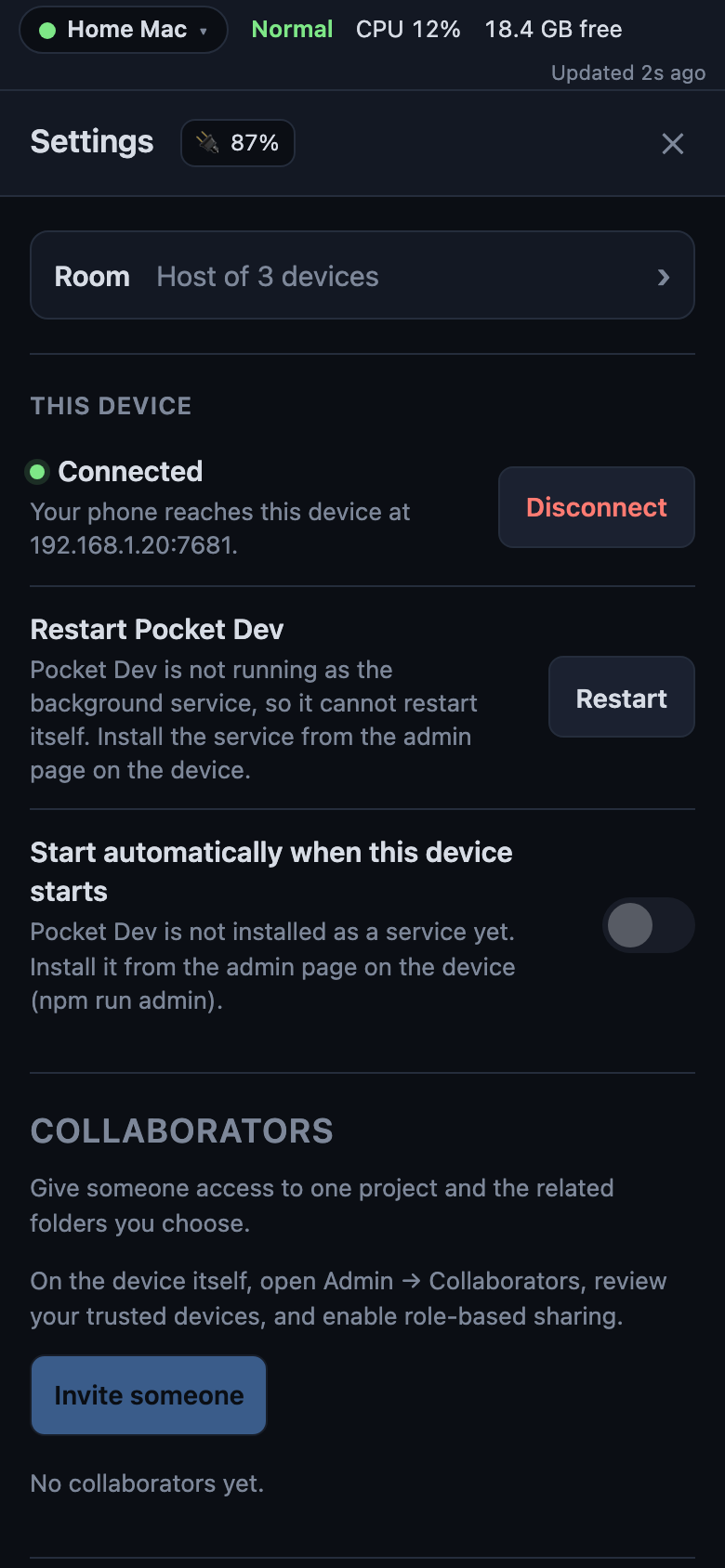 Settings |
Common first-time mistakes
| What happened | Fix |
|---|---|
pocket-dev is "not recognized" or "command not found" | You skipped -g, or the terminal is older than the install. Open a new terminal. Check that npm's global folder is on your PATH: npm config get prefix (the command lives there, in bin or the folder itself on Windows). |
npm i anisirji/pocket-dev was used | That installs from GitHub into the current folder and makes no command. Delete the stray node_modules and package.json it created, then run npm install -g @anisirji/pocket-dev. |
Windows: ENOENT, TAR_ENTRY_ERROR or spawn cmd.exe ... node-pty | Files went missing while npm unpacked. See the Windows ENOENT entry in Troubleshooting. |
| The phone cannot open the address | Same Wi-Fi? Firewall prompt answered? See Troubleshooting. |
| The phone's Terminal view says "Terminals are not available on this computer" | The optional terminal part (node-pty) is missing. On the computer run pocket-dev doctor --fix, then restart Pocket Dev. Everything else works meanwhile. |
Something not working? Run pocket-dev doctor on the computer. It checks Node, npm's PATH, terminals, tools and the port, and prints the exact command for each problem. See also Troubleshooting.
Why Pocket Dev
- Your own computer, from your pocket. Real terminals, your Claude Code and Codex logins, Git, files and open apps, on the machine where your work already is.
- No cloud in the middle. Each computer runs its own server and talks to your phone over your Wi-Fi. Nothing is installed on the phone. Internet access is optional and off by default.
- Several computers, one phone. Join them into a room, switch between them, share tasks and messages, and decide per device how much it may do.
Tour
Details for every feature are in docs/REFERENCE.md. A one-page summary of what Pocket Dev can reach on the computer is in ACCESS.md.
Terminals
Terminal with the compact key bar |
Each tab is a login shell in a real pty (zsh or your $SHELL on macOS and Linux, PowerShell on Windows). Terminals keep running when the phone sleeps or you change tabs, and reconnect with recent output replayed. A folder picker, shortcuts, uploads and a Copy view are built in. Terminals do not survive a computer restart.
Agents in a terminal. When Claude Code runs in a terminal tab and starts helper agents, a slim strip above the terminal says how many are running (for example "2 agents running"). Tap it to see each agent, whether it is running, finished or failed, and the last thing a running agent did. It shows while an agent runs and for about half a minute after the last one ends, and it is hidden in every other view. Pocket Dev reads this from the conversation files Claude Code keeps on the computer, so nothing is added to the terminal and nothing is sent anywhere. Limits: it only works for Claude Code (a Codex tab shows no strip). An agent that was running when its session was closed is shown as stopped after about 90 seconds, or 15 minutes if Claude Code recorded it as unfinished. Collaborators never see it.
Files
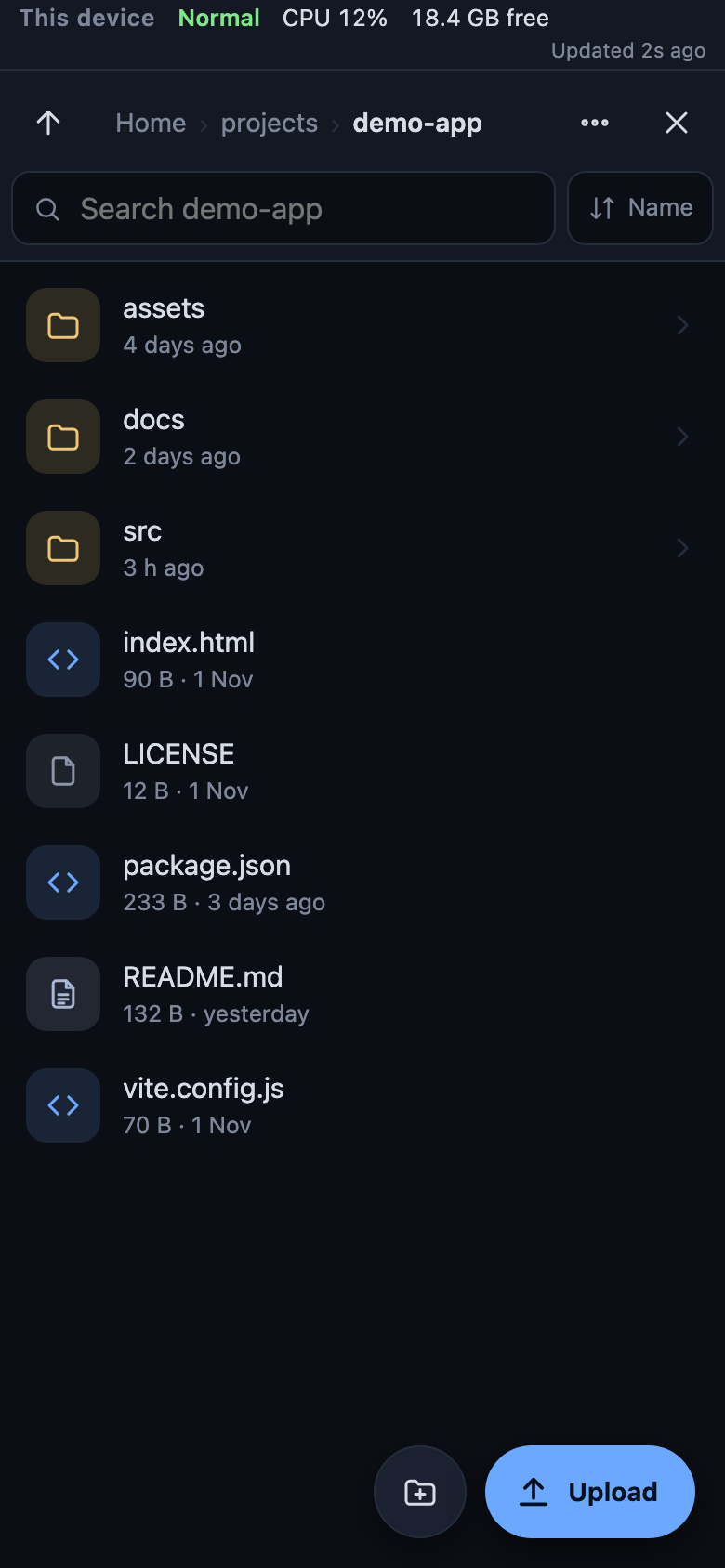 Browse and upload | 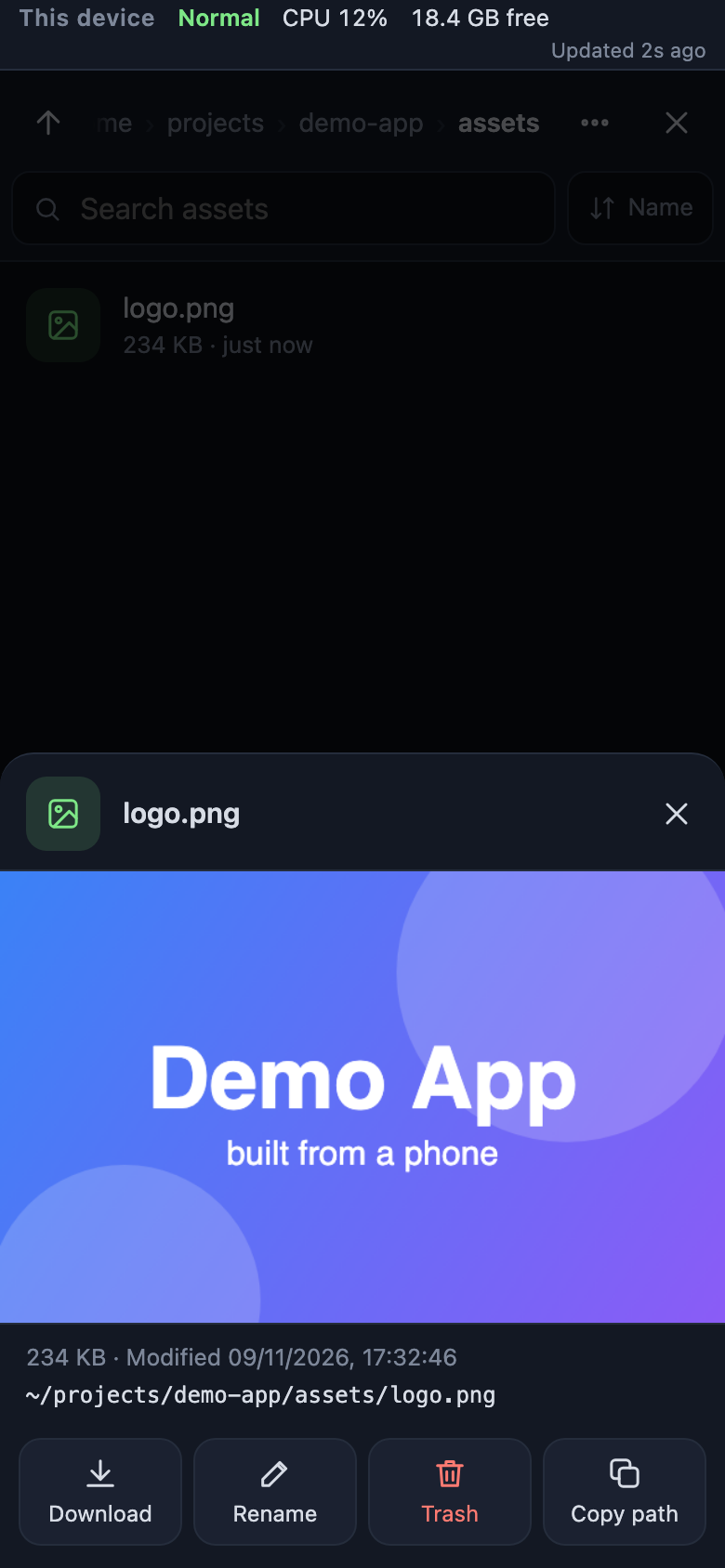 Preview a file |
Browse the folders you allow (your home folder by default), upload several files with progress (2 GB each, never overwriting) (on a phone, Upload and the paperclips in Chat, the terminal and Messages first ask Take photo (camera), Photos and videos or Files, so Android opens its document browser instead of only your pictures; the paperclips in Chat and the terminal take files up to 25 MB), download or zip, rename, search by name, and move to the Trash or Recycle Bin. Previews cover images, video, audio, PDF and text, in a sandbox. Every path is checked again after symlinks resolve.
Git
 Changes, commit and push | 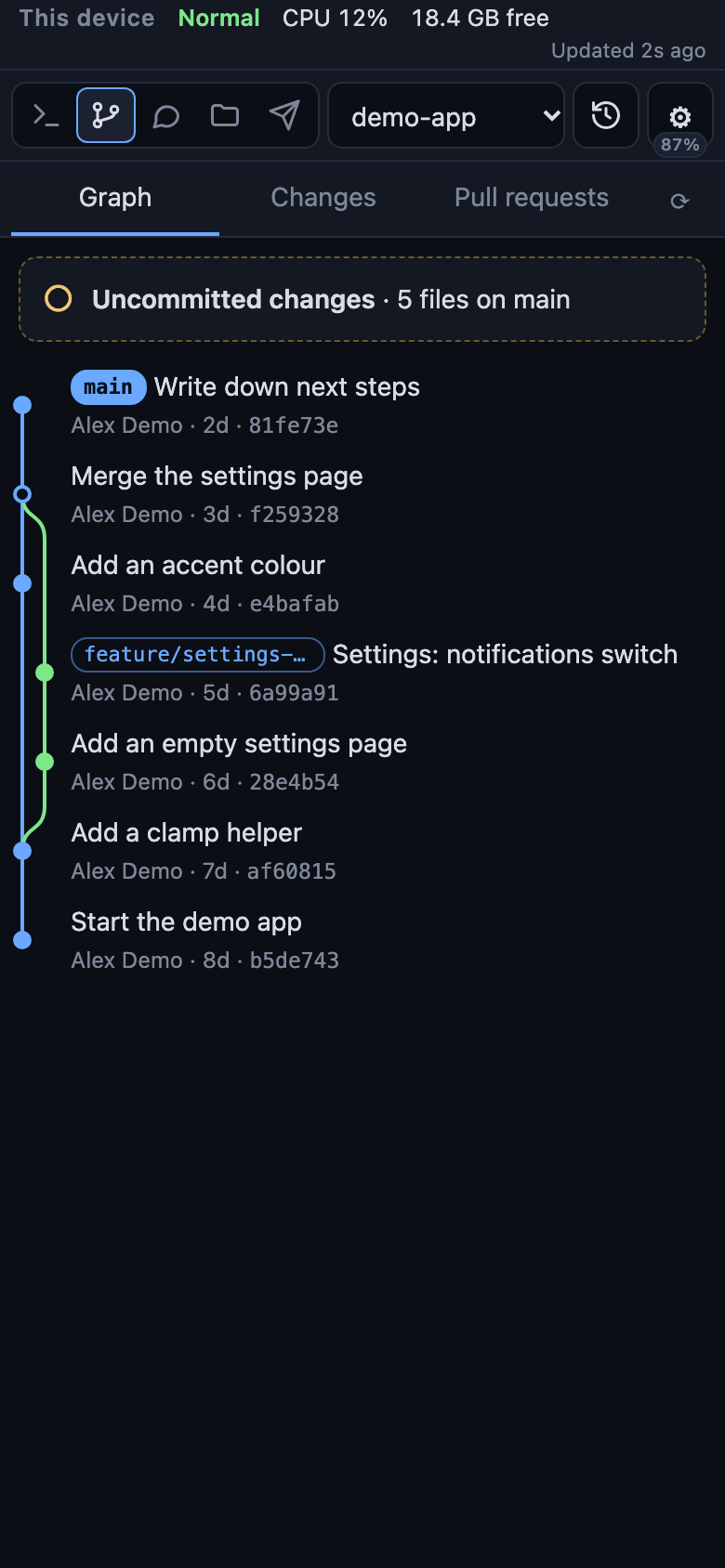 History graph |
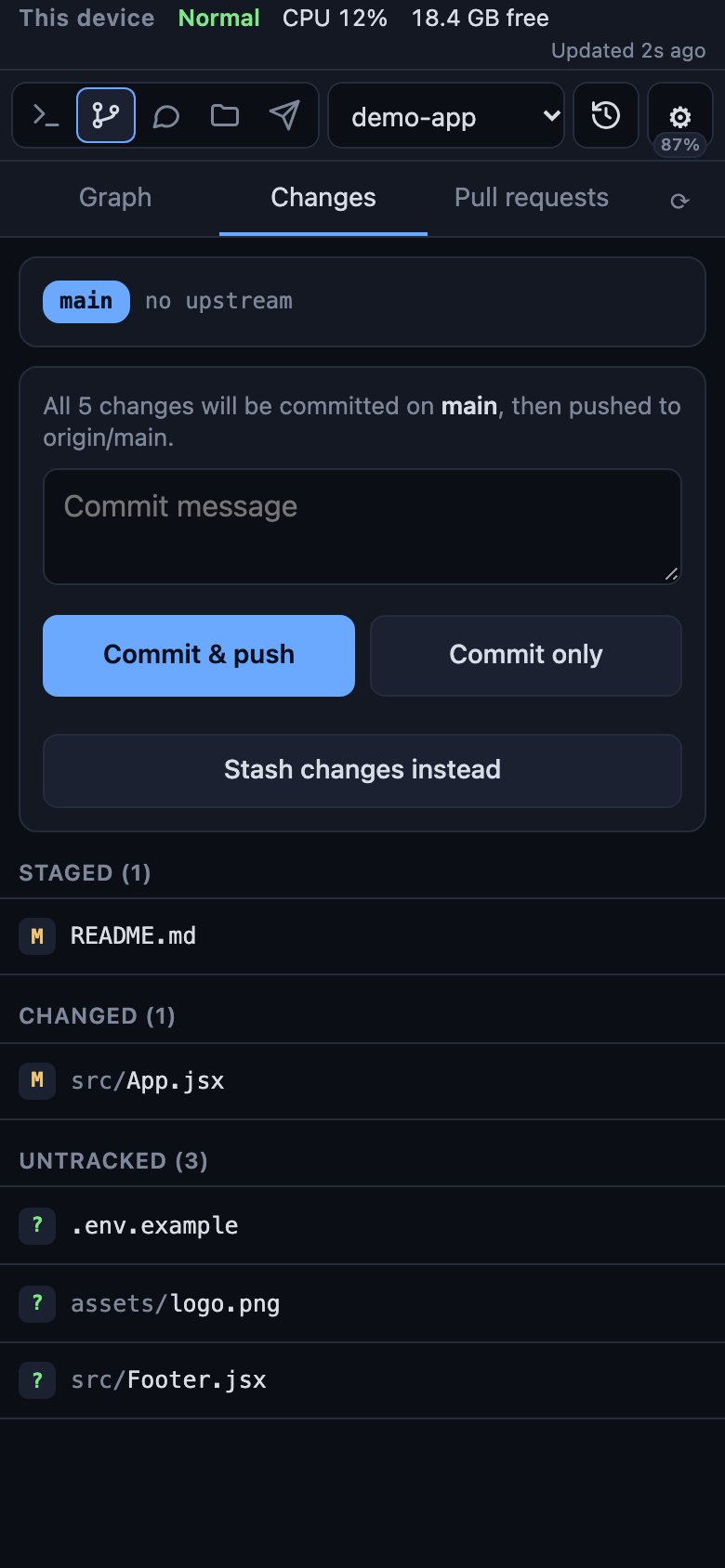
A commit graph of all branches, per-file diffs, and a Changes tab that commits everything with your message and pushes (never forcing). Switch and create branches, stash and apply stashes, and work with GitHub pull requests: review, merge, close, reopen and create (through gh).
The repository list holds the repositories found under repoRoots. To open another one, choose Open folder… at the end of the list and pick any folder inside it. Every Chat and Terminal page also has a Git graph button that opens the Graph for that chat's or terminal's folder. Opened repositories stay in the list.
The Admin shortcut and the logo
Installing adds a Pocket Dev Admin shortcut with the Pocket Dev logo (the orange square with a prompt): a Dock tile on macOS, Desktop and Start menu shortcuts on Windows, an applications menu entry on Linux (also a GNOME favourite). Clicking it opens the Admin page of the Pocket Dev that is running, whatever its port, and says so if Pocket Dev is not running. Windows does not let a program pin itself to the taskbar, so right-click the shortcut and choose Pin to taskbar. Undo: pocket-dev admin unpin. Skip at install: POCKET_DEV_NO_PIN=1 or --ignore-scripts. The same logo is the browser tab icon on the phone pages and the Admin page.
Chat with Claude Code, Codex, Antigravity and Copilot
 Chat with approval cards | 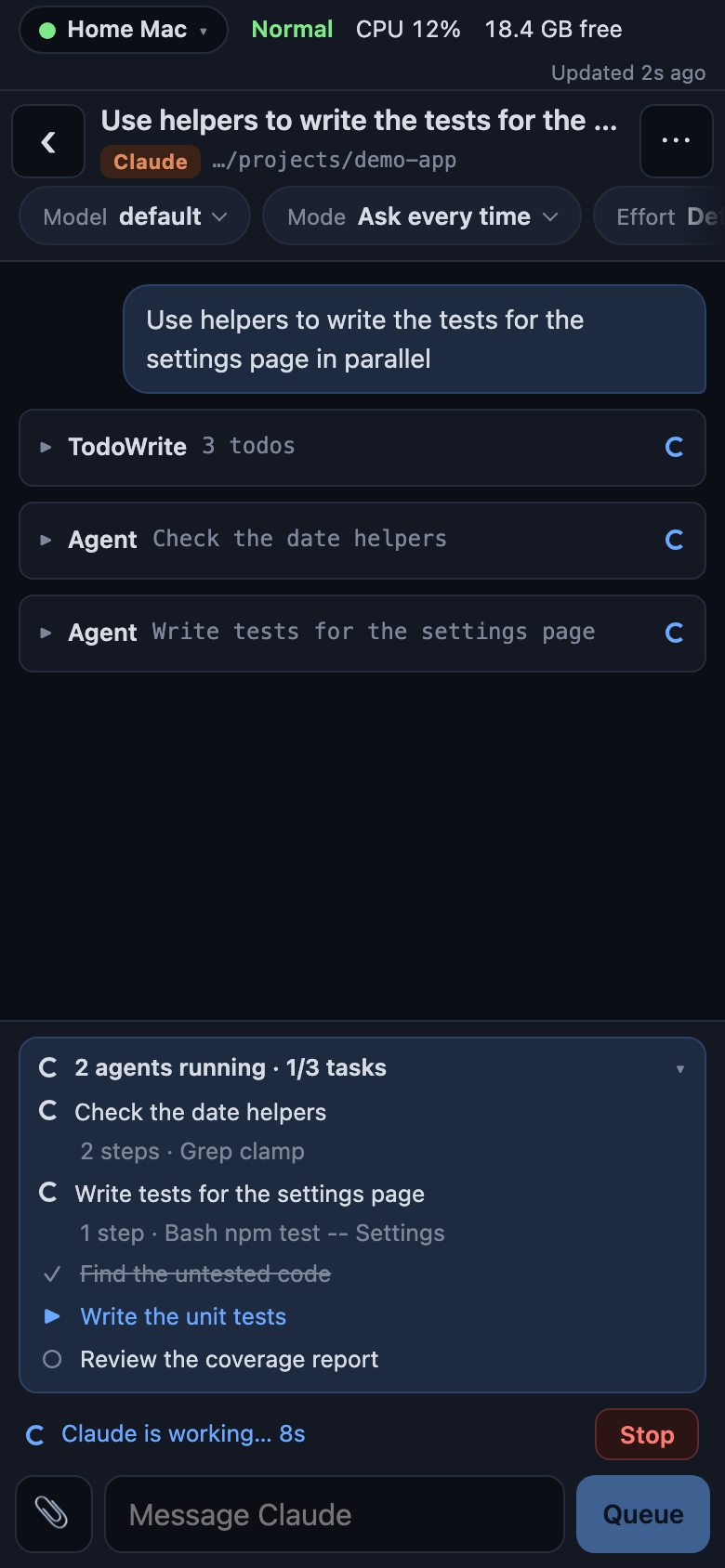 Agents panel |
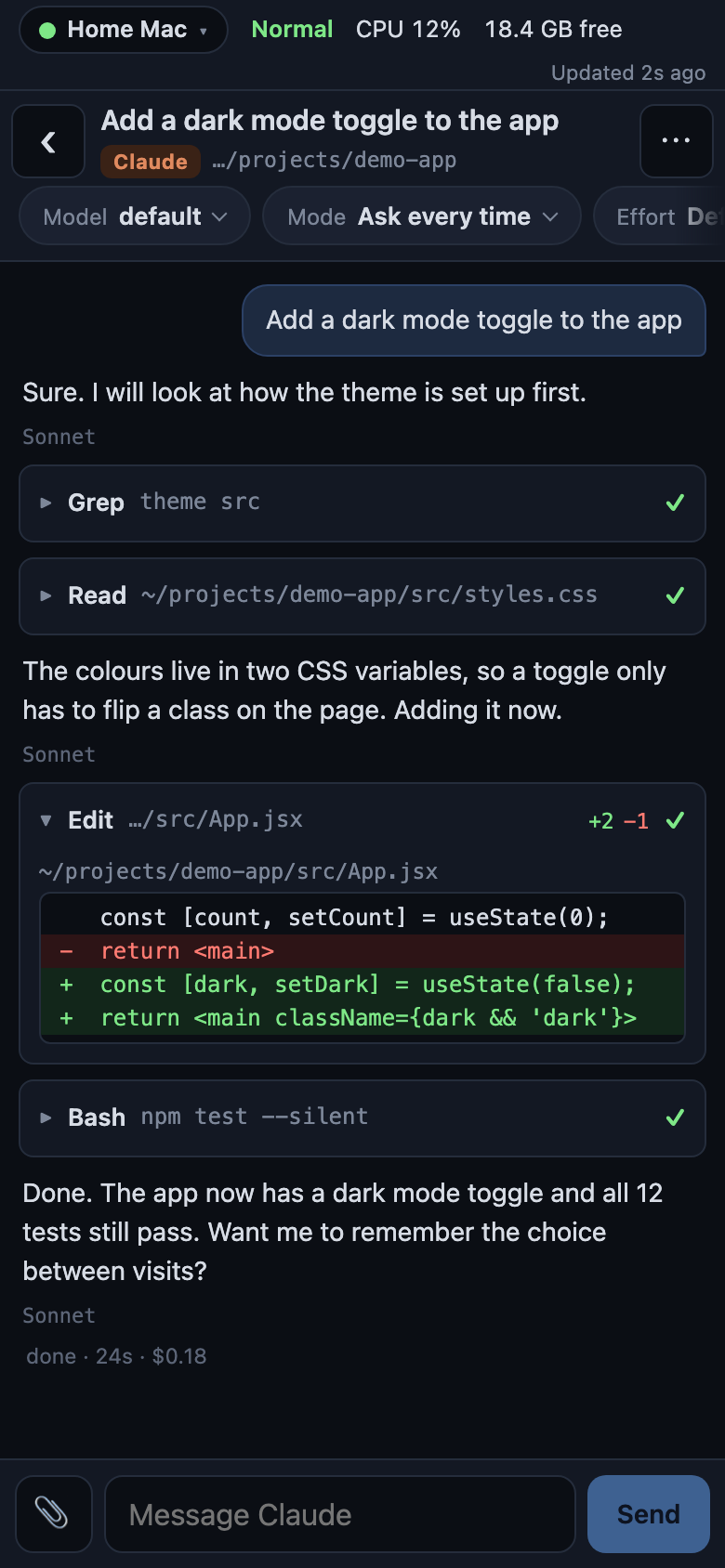
Start or continue Claude Code and Codex conversations from the phone, with your existing logins. Antigravity and GitHub Copilot work the same way and are experimental. Approval cards (Allow once, Always allow in this chat, Always allow in this project when Claude offers it, and Deny; Codex shows Approve, Approve for this chat and Deny), permission modes, a message queue, limits notices and a Copy button are built in. New in 1.1: an agents panel in the chat. Open Chats to see In Pocket Dev and From your computer in the same list. Recent Claude Code, Codex, Antigravity and Copilot conversations appear automatically. Search by title, folder or provider, or tap Show more. Tap a computer conversation to open it in chat. If a program on the computer still has it open, the chat reads along and leaves that program running. Sending a message continues the conversation in the chat and closes the program on the computer. Readable earlier messages are saved in Pocket Dev too. Antigravity conversations show their title and step count, because agy does not keep its text in a form Pocket Dev can read. To go the other way, open the chat settings and tap Continue on computer, then run the command it shows. Reopen the conversation from the Chats list to bring back readable messages added on your computer. Each message, answer and finished turn shows the time it happened (the date too when it was not today); press and hold the time for the full date. The copy icon under each message copies it.
Switch the provider and the model in the same chat. The settings row under the chat title starts with a Provider pill, then the Model pill, then the engine's other pills. Tap Provider to pick Claude Code, Codex, Antigravity or any other engine Pocket Dev lists (a chat with no messages yet can switch too); right after you pick one, its model list opens, and the model you last used with that provider comes back by itself. An engine that is not installed (or not signed in) is marked and is not greyed out: tap it to see the commands to run on your computer, then pocket-dev setup. The provider cannot change while a reply is running, a permission or question waits, a message is queued or the engine is waking: the Provider pill is dimmed and says "Stop the reply first.", and the server refuses the switch for any client. The model can change at any time. During a reply the change is saved and remembered at once, the running reply is left alone, and the model sheet says "Applies to the next reply". Pocket Dev keeps the whole conversation in its own copy, so the next provider starts a fresh session with everything said so far and carries on. Each answer shows which provider wrote it. Longer chats are digested rather than cut: the newest turns go word for word and older ones become a short digest, with no extra model call. If Claude reports a usage limit, the chat also offers a one-tap Continue with button for each other installed engine.
GitHub Copilot (experimental). Pocket Dev starts copilot --acp --stdio and shows what Copilot does: the answer as it streams, file changes with their diff, and permission questions you answer from the phone (Approve, Approve for this chat, Deny). Model (Auto or a name you type), Mode (Agent or Plan) and Effort are settings above the chat. Copilot keeps its sessions in ~/.copilot/session-state, so they appear directly in Chats, with the real messages, and continuing on your computer works for them (copilot --resume <id> on the Mac). It needs a GitHub Copilot plan, copilot installed and copilot login done on the computer, and every prompt counts against your premium requests. Copilot offers no model list, shows no reasoning, and Autopilot and Allow all stay in the terminal. If Copilot no longer has a chat's saved session, Pocket Dev starts a new one and gives it the conversation so far. What was and was not run for real is in the roadmap.
Messages
 WhatsApp-style messages |
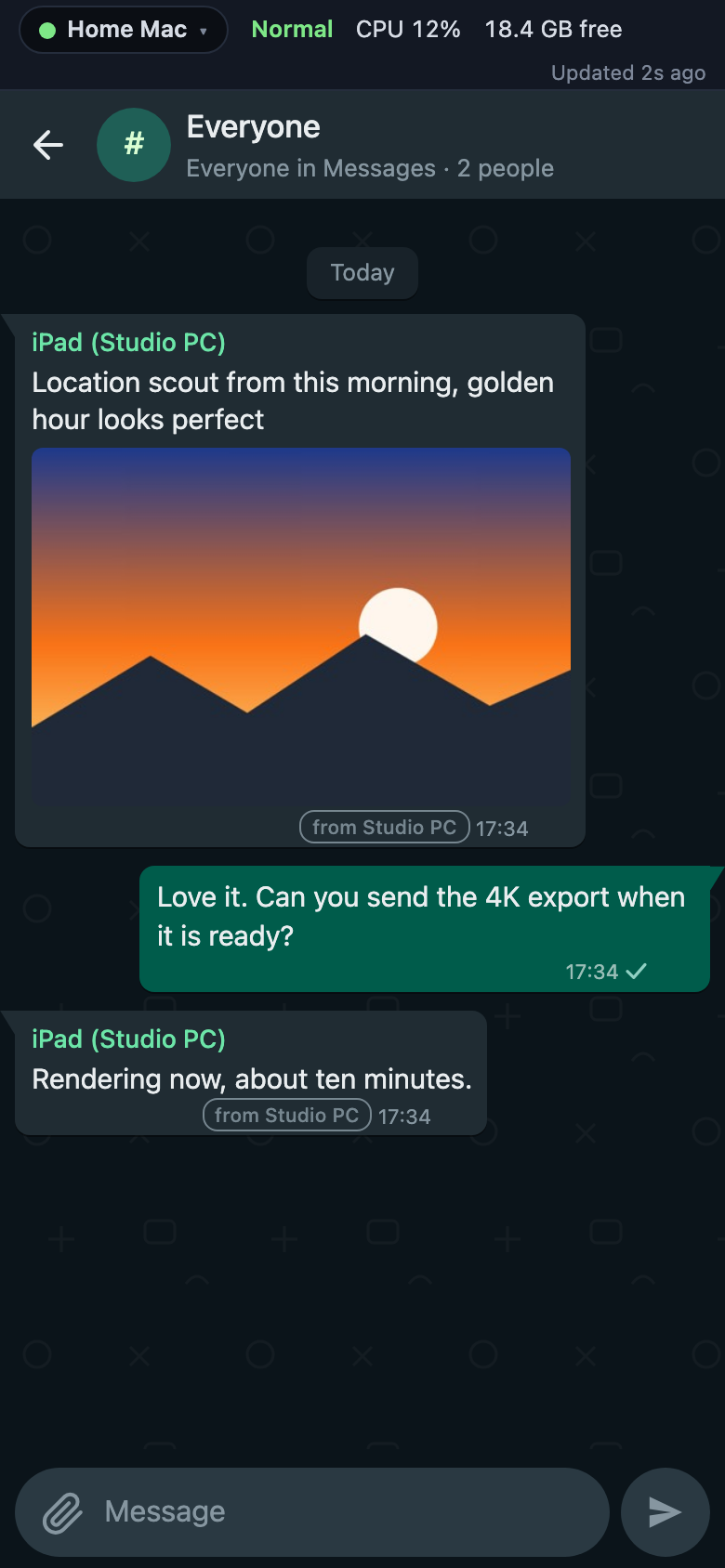
A WhatsApp-style chat between your computers, your phones and the people you invite: text, photos, videos and files. Direct and group chats, delete for everyone, hide for me. From a terminal: pocket-dev message "build finished".
Documents. Any file can go either way. PDFs and plain-text files (.txt, .md, .csv, .json and similar) open in the browser from the message; Word, Excel and other files download. Where the phone has a share sheet, a Share or save button hands the file to Files, Drive or another app. In Files, open a file and tap Send in Messages: the computer copies it into Messages (the phone does not carry it), then you pick who gets it and send. Receiving a document shared into Pocket Dev from another phone app is not built yet.
Open apps, health and power
 Health and alerts | 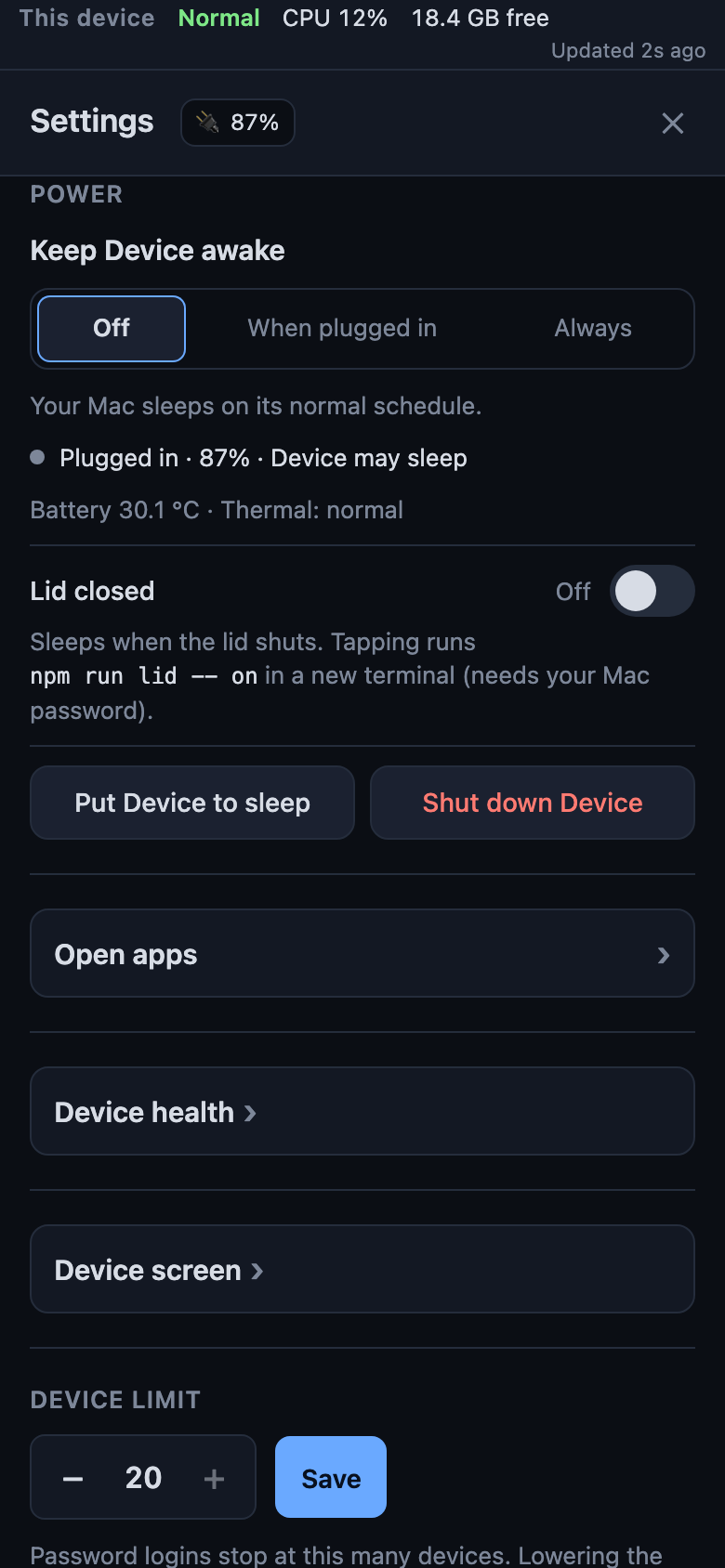 Power |
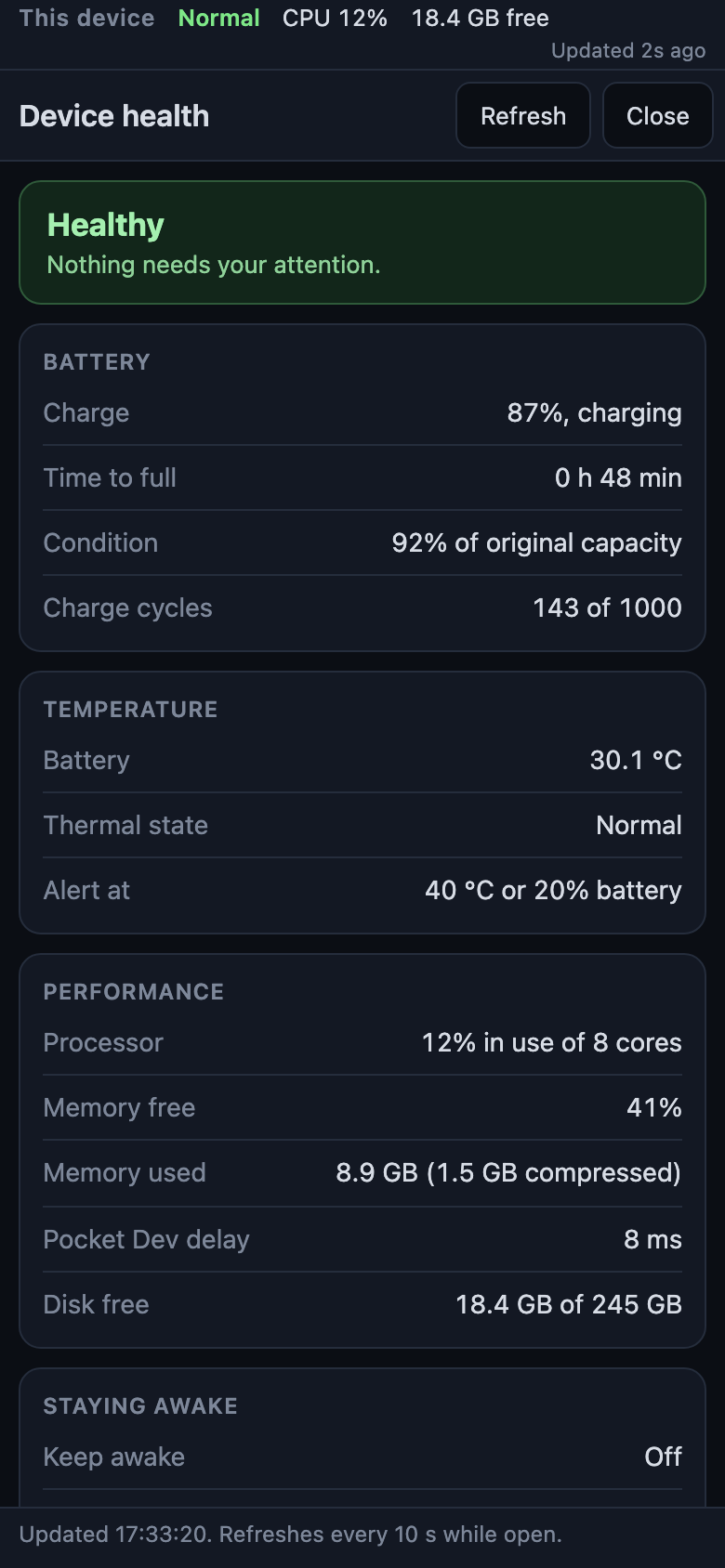
Open apps lists what is running with memory and CPU and can quit or force quit. The health panel and the strip at the top show battery, temperature, CPU, memory and disk, with alerts when something is off. Power can keep the computer awake (off, plugged, always), put it to sleep or shut it down. Screen view shows a read-only picture of the main display.
Collaborators and the Admin page
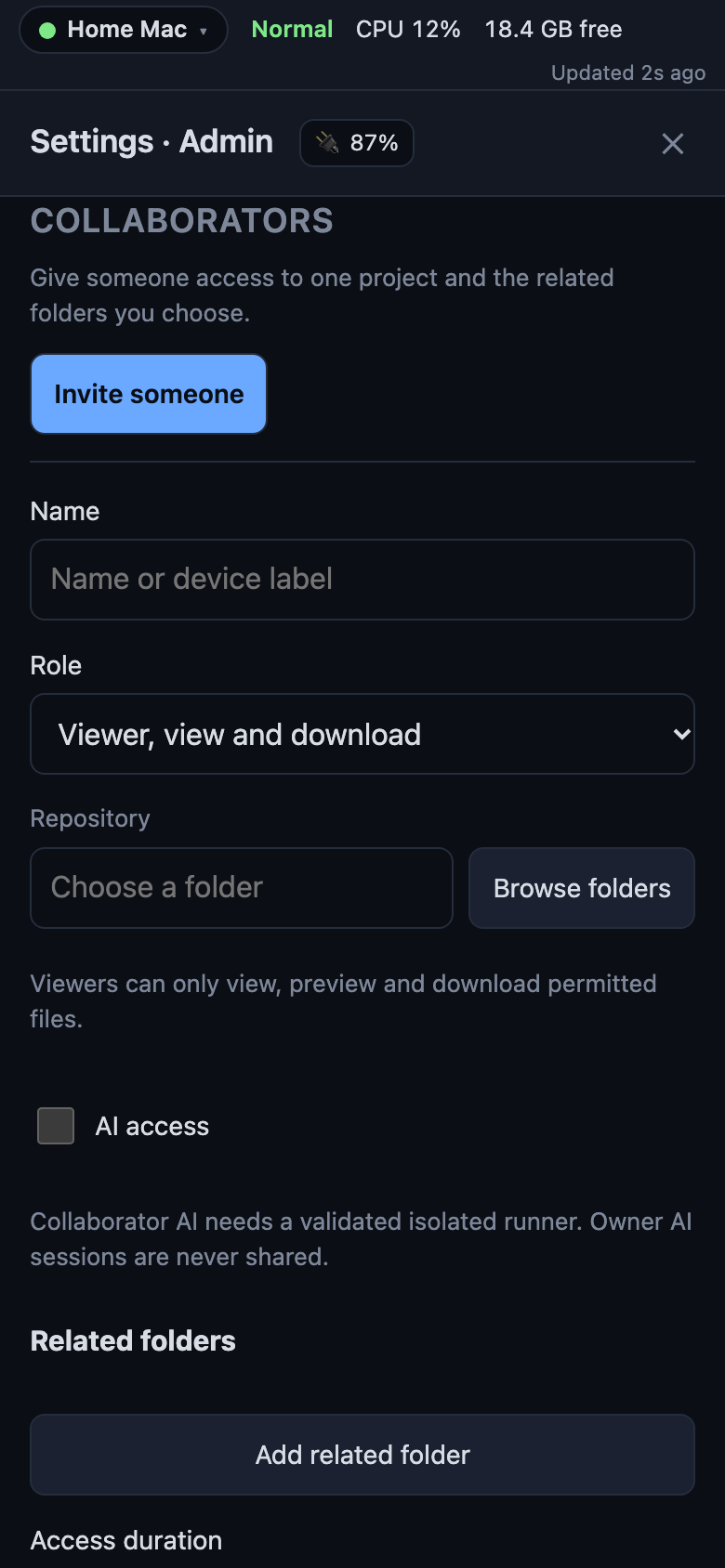 One-project access with expiry | 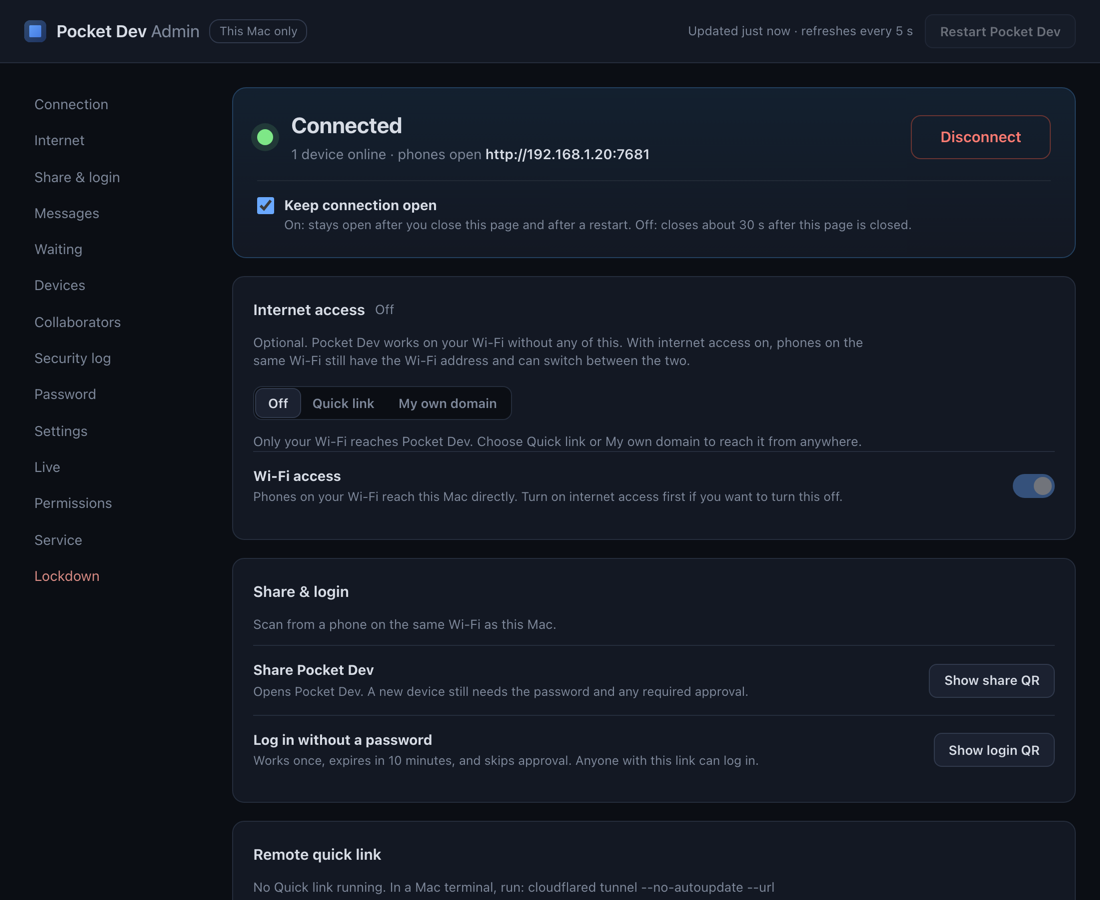 Admin page (computer only) |
Share one project with someone for 1 hour, 1 day or 7 days through a QR invitation: a Viewer previews and downloads, a Developer edits a separate copy, and neither can reach your terminals, chats or other folders. The Admin page runs on http://localhost:7778 and only a process on the computer can open it: devices, security log, internet access, service, lockdown.
Update Pocket Dev
pocket-dev update asks the npm registry for the newest version, shows Version X is available, you have Y, and installs it with npm install -g @anisirji/pocket-dev@latest after you say yes (--yes skips the question, --check only reports). If Pocket Dev runs as the background service it is restarted for you. A copy from a git checkout, npm link or npx is not touched. If npm answers EACCES, use the own-folder fix in the beginner guide and never sudo. The guided setup starts with the same check, so a fresh install is current before anything else.
Every six hours (a failed look-up is retried after one hour, and the Admin page asks again when its last look is over an hour old) Pocket Dev looks up the newest version on npm: one plain request, nothing about you or your computer. When a newer one exists:
- On the phone an update icon (an arrow in a circle with a warm dot) appears beside the Settings gear. Tapping it opens a sheet that shows
You have 2.1.1 → 2.1.2 is availableand three numbered steps worded for your computer: open Pocket Dev Admin (the Dock tile on a Mac, the Desktop or Start menu shortcut on Windows, the app menu on Linux, orpocket-dev admin), tap Update and confirm, then wait a few seconds while the page reconnects by itself. It also gives the one-line alternative,pocket-dev updatein a terminal on the computer. Every time you open Pocket Dev, and when you come back to the tab after more than ten minutes away, a notice saysPocket Dev X is availablewith Details and Later. Later hides it only until the page is opened again, so it keeps asking until you update. The phone has no install button: installing software is done on the computer. - On the Admin page (this computer only) a banner stays at the top on every load, the tab title starts with
• Update available, and the Update button installs it. It first shows exactly what will happen:npm install -g @anisirji/pocket-dev@latest, then a restart of the background service, so phone terminals and chats reconnect after a few seconds and nothing is deleted. The banner shows npm's last lines while it runs. If npm answersEACCESit shows the own-folder fix. A copy from a git checkout,npm linkornpxhas the button switched off with the reason. If Pocket Dev is not running as the background service, it saysRestart Pocket Dev to finish: pocket-dev start. Only one update runs at a time. - In the terminal
pocket-dev startandpocket-dev adminprint one line,Pocket Dev X is available (you have Y), when the last look-up found one. - On the computer's desktop a notification says
Pocket Dev X is available. Open Pocket Dev Admin and tap Update.once when Pocket Dev starts with an update waiting, and then at most once every six hours, until the update is installed. It uses the system's own notifications (macOSdisplay notification, never a dialog; a Windows toast through the built-in notification API;notify-sendon Linux, and nothing if it is missing). Turn only this off withpocket-dev config set updateNotify false.
Turn all of it off with pocket-dev config set updateCheck false or POCKET_DEV_NO_UPDATE_CHECK=1; updateNotify false turns off only the desktop notification.
Rooms: several computers, one phone
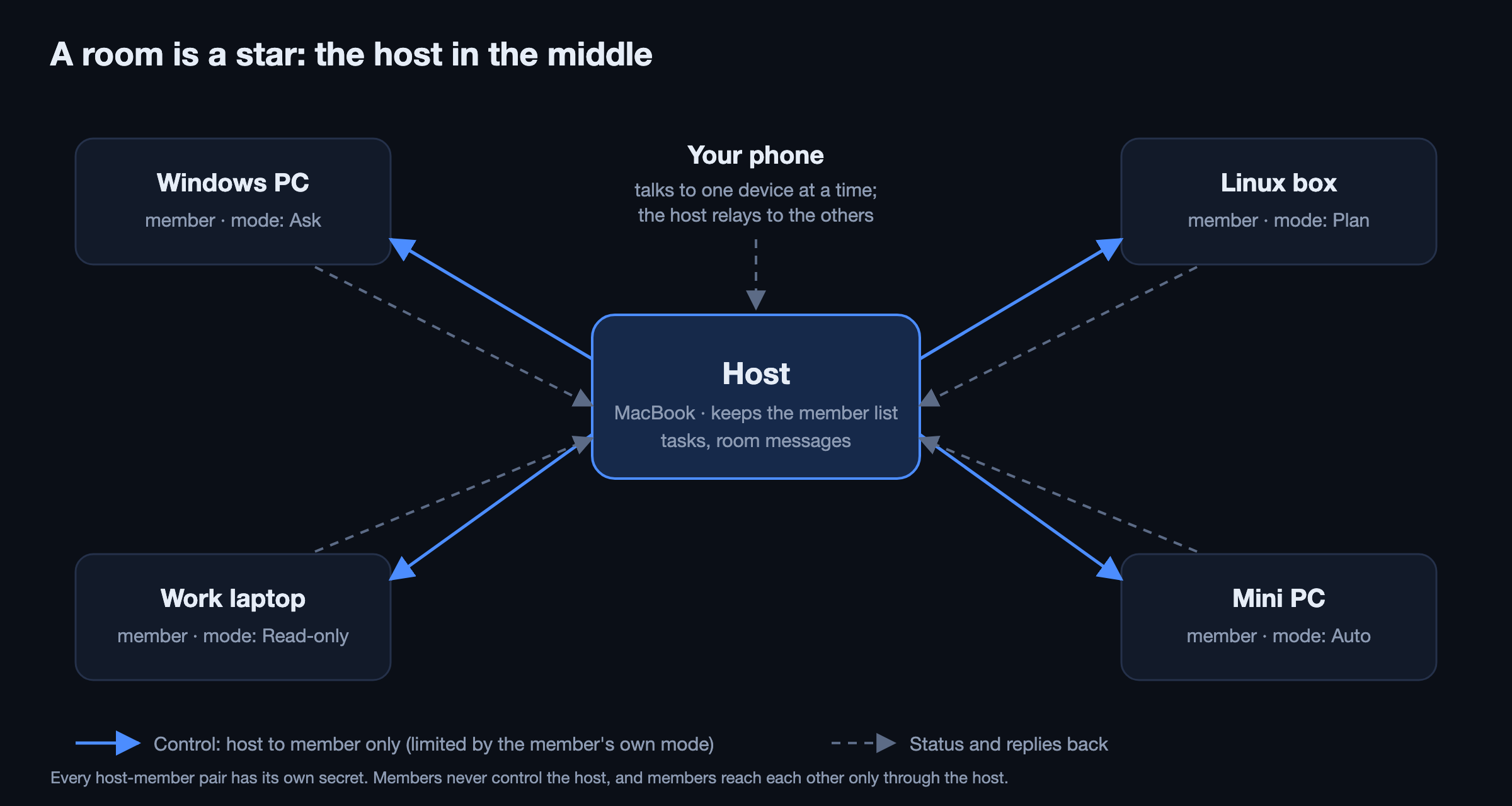
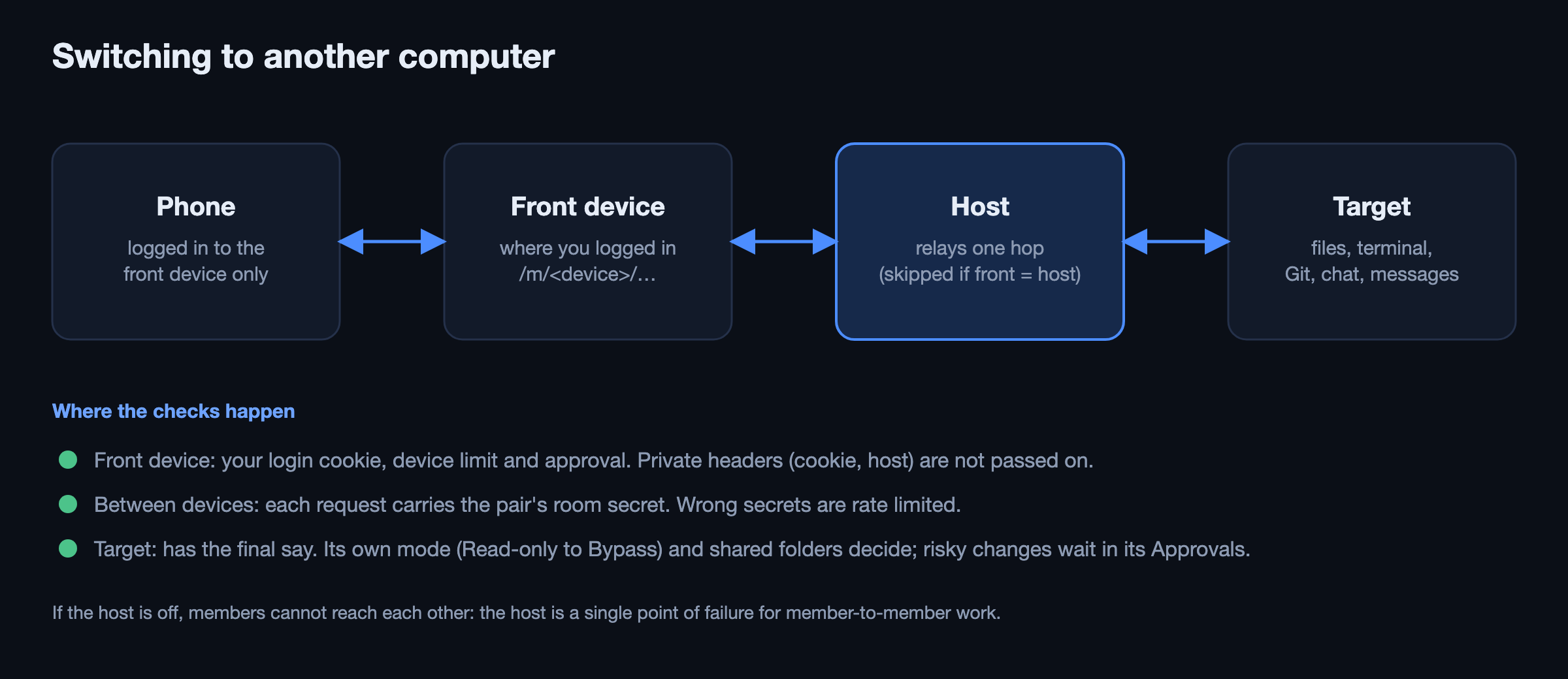
Install Pocket Dev on each computer. A room joins them so the phone can switch between them, share tasks and messages, and approve what other devices do. The room has one host. Each device keeps its own files, terminals and logins, and nothing private is shared unless its owner allows it.
1. Host a room. On the computer that will be the host: Settings, Room, start a room.
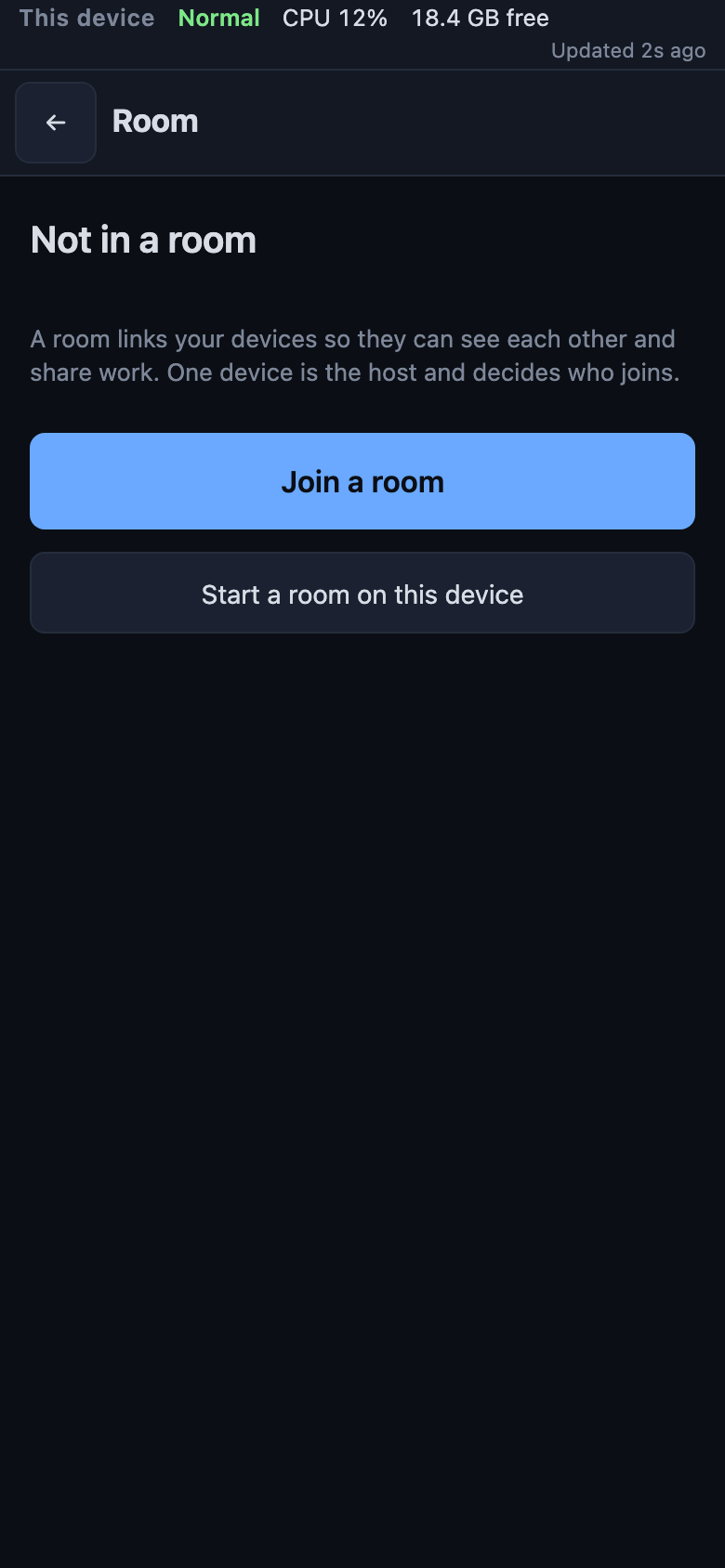 Start a room | 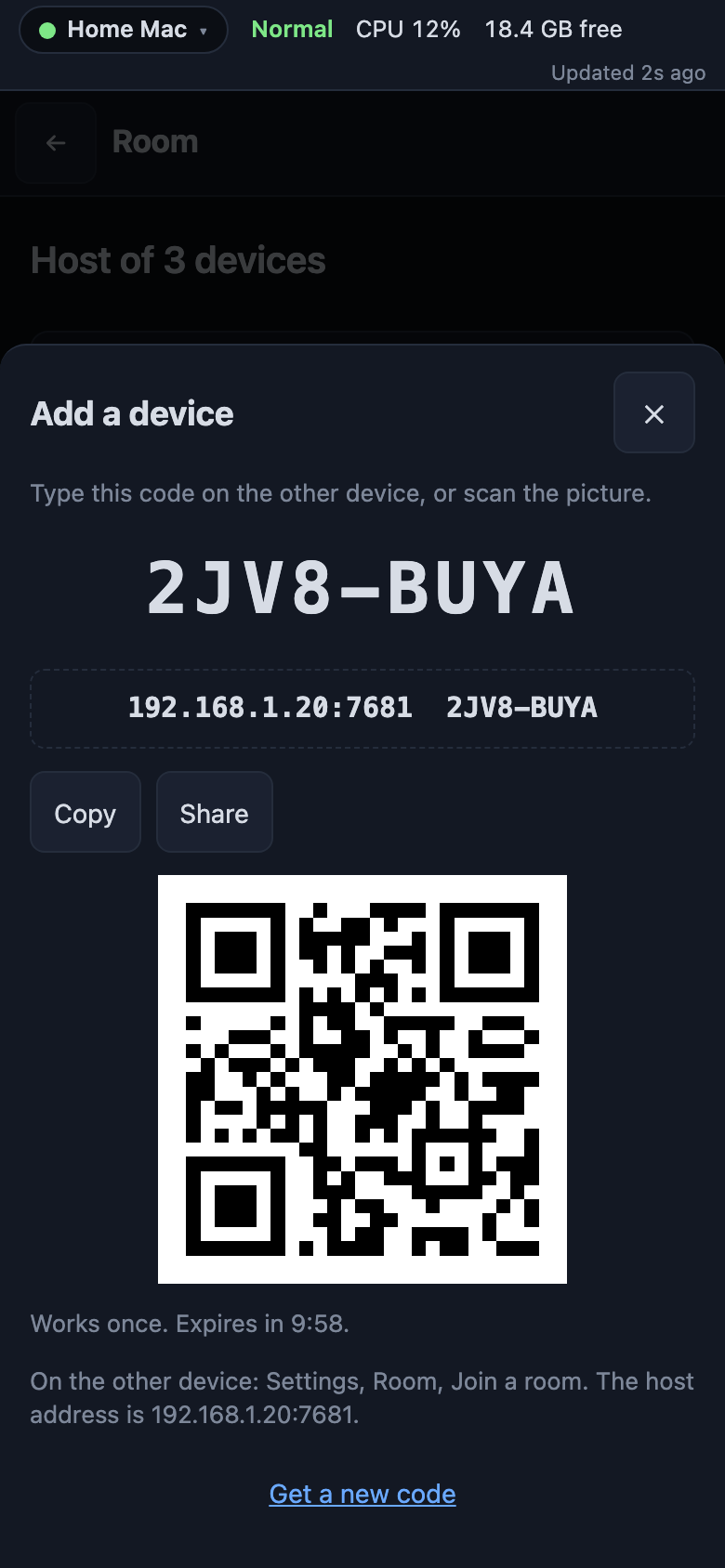 Add a device shows a code and QR |
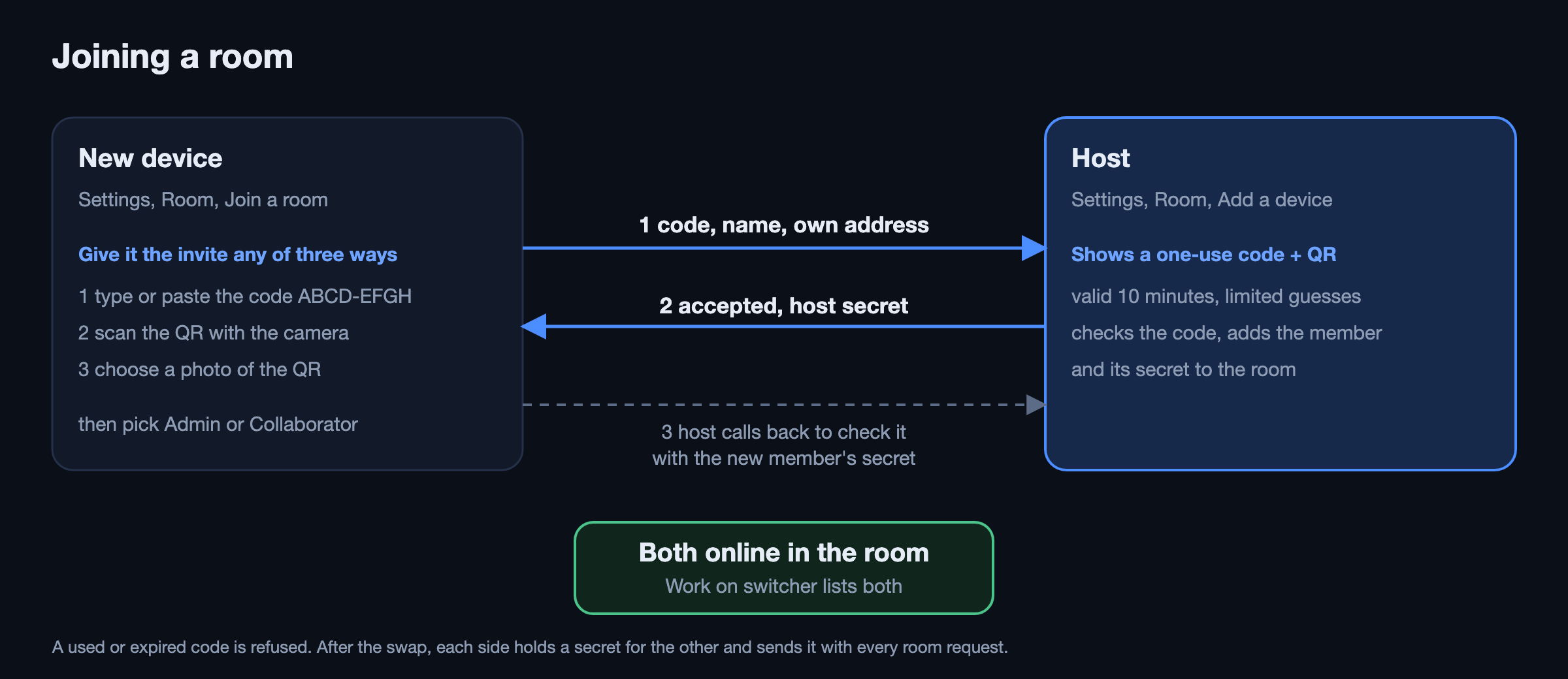
2. Add a device. On the host choose Add a device. It shows a short code such as ABCD-EFGH, the host's Wi-Fi address and a QR. The code works once, for 10 minutes.
3. Join. On the other computer: Settings, Room, Join a room. Join any of three ways: paste the invite line or type the address and code, scan the QR with the camera, or choose a photo of the QR. Then pick what the room may do on this device: Admin (everything) or Collaborator (chosen folders only).
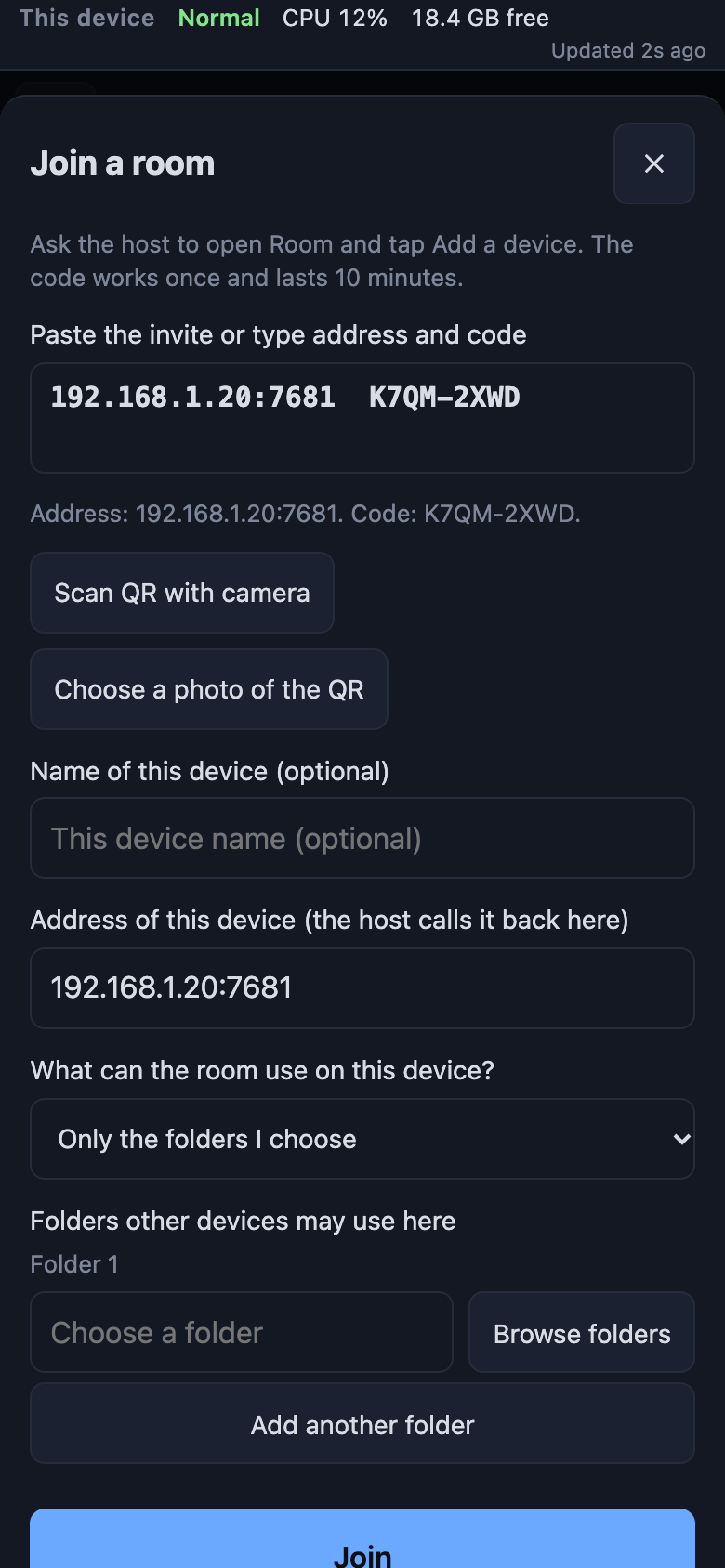 Join by code, camera or photo | 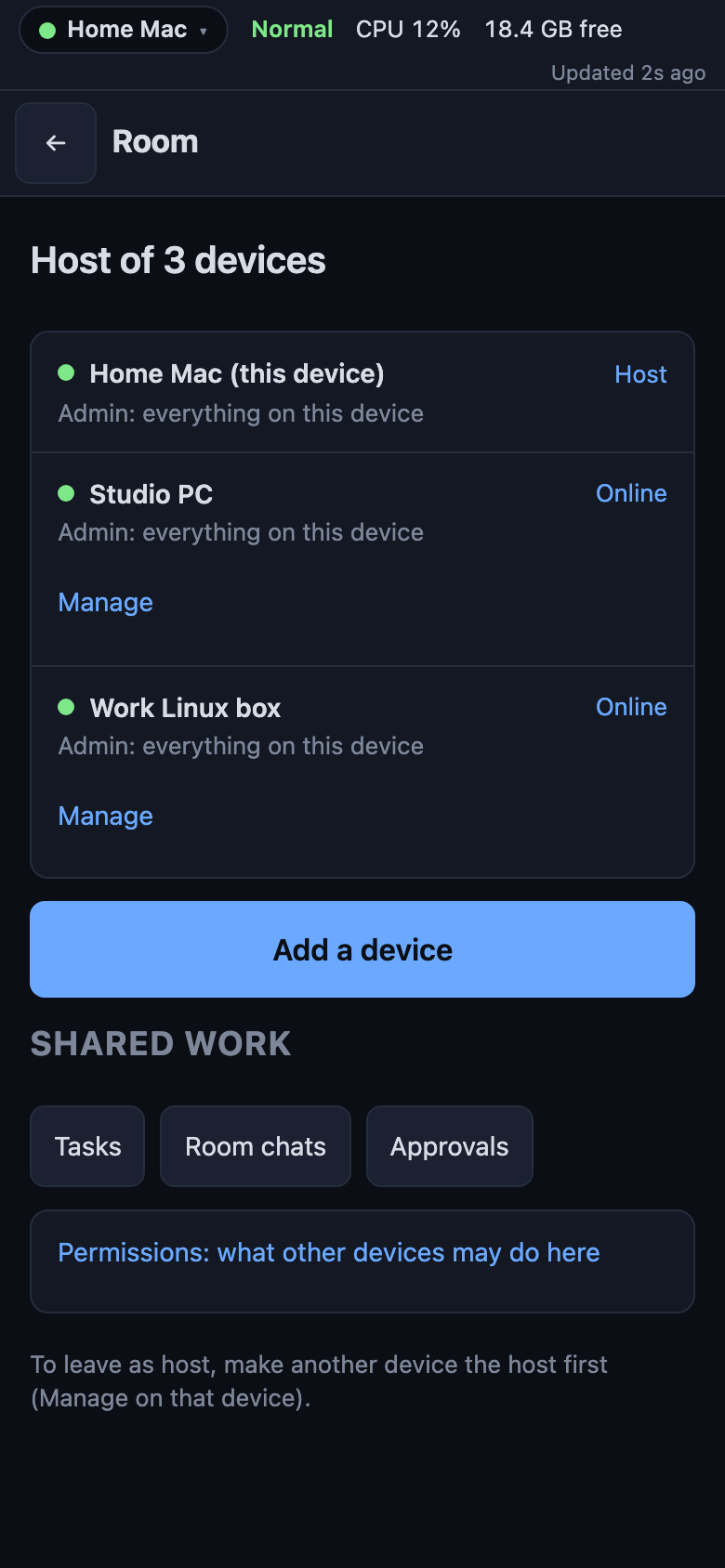 Members and who is online |
4. Switch. Tap the Work on switcher (the device name in the top strip) to open another device's Files, Terminal, Git, Chat and Messages through the host. Offline devices are marked and say why.
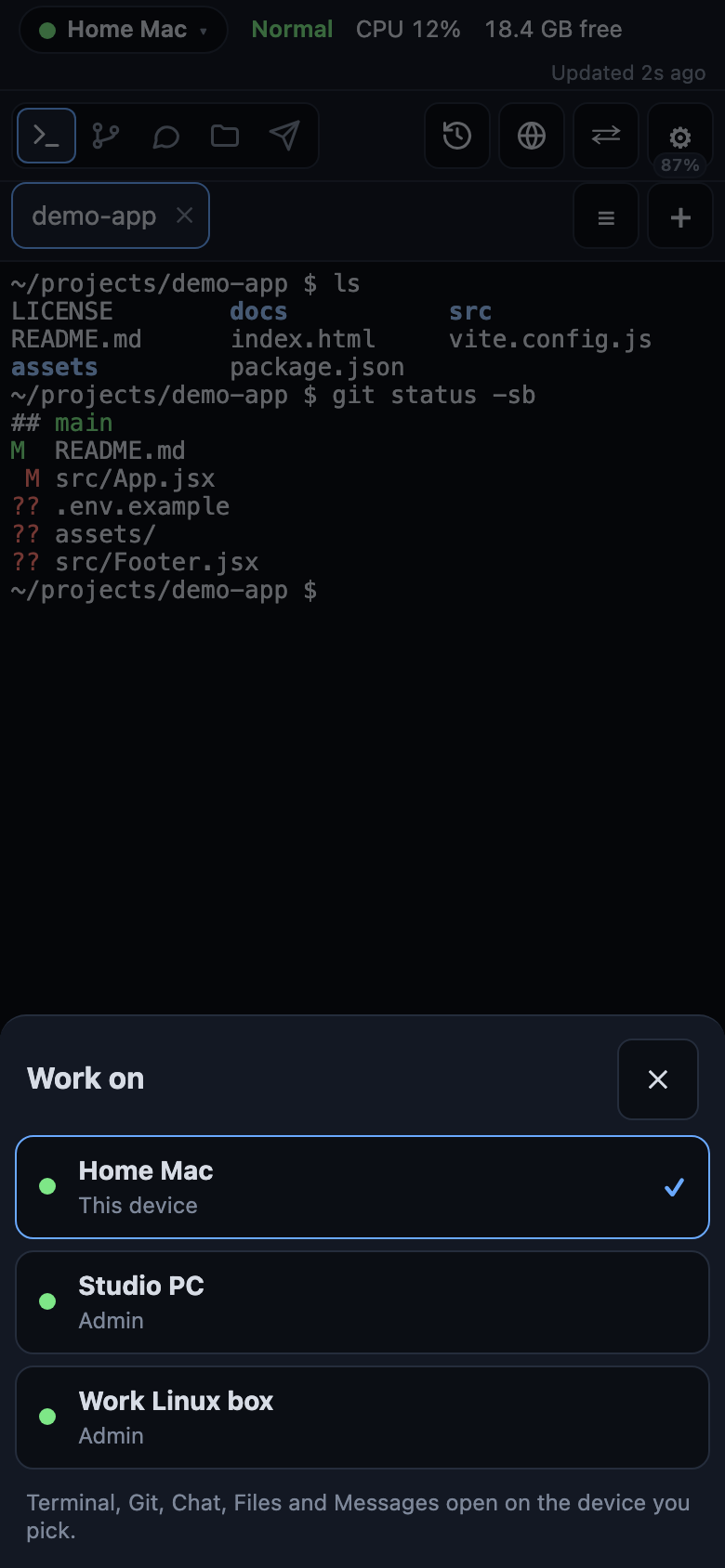 Work on another device | 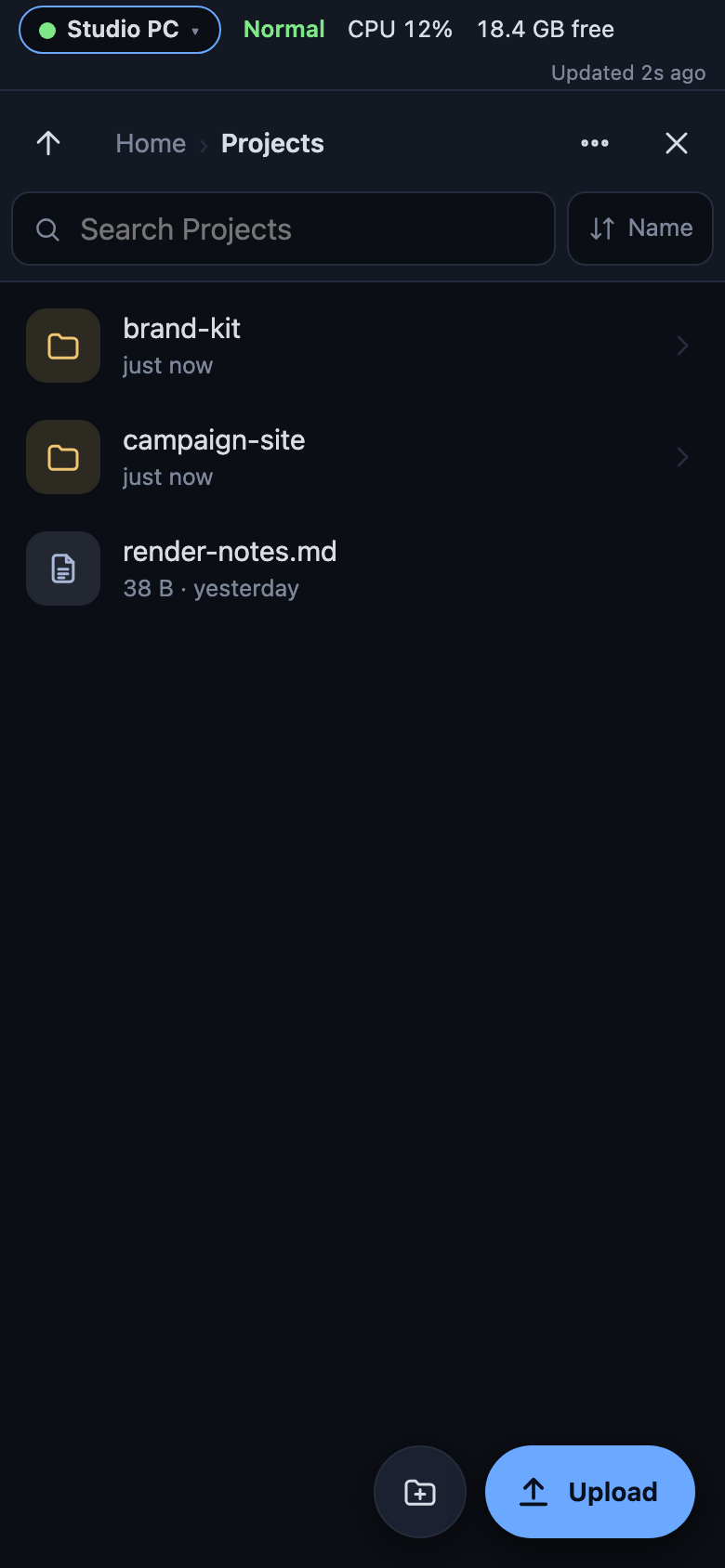 Files of a remote computer |
5. Tasks, messages and chats. A simple board with ids like LAP-14 (To do, Doing, Done, assignee) syncs between devices and catches up after a device was off. Messages to everyone and AI chats from admin-level devices are copied to the others as read-only mirrors (Room chats).
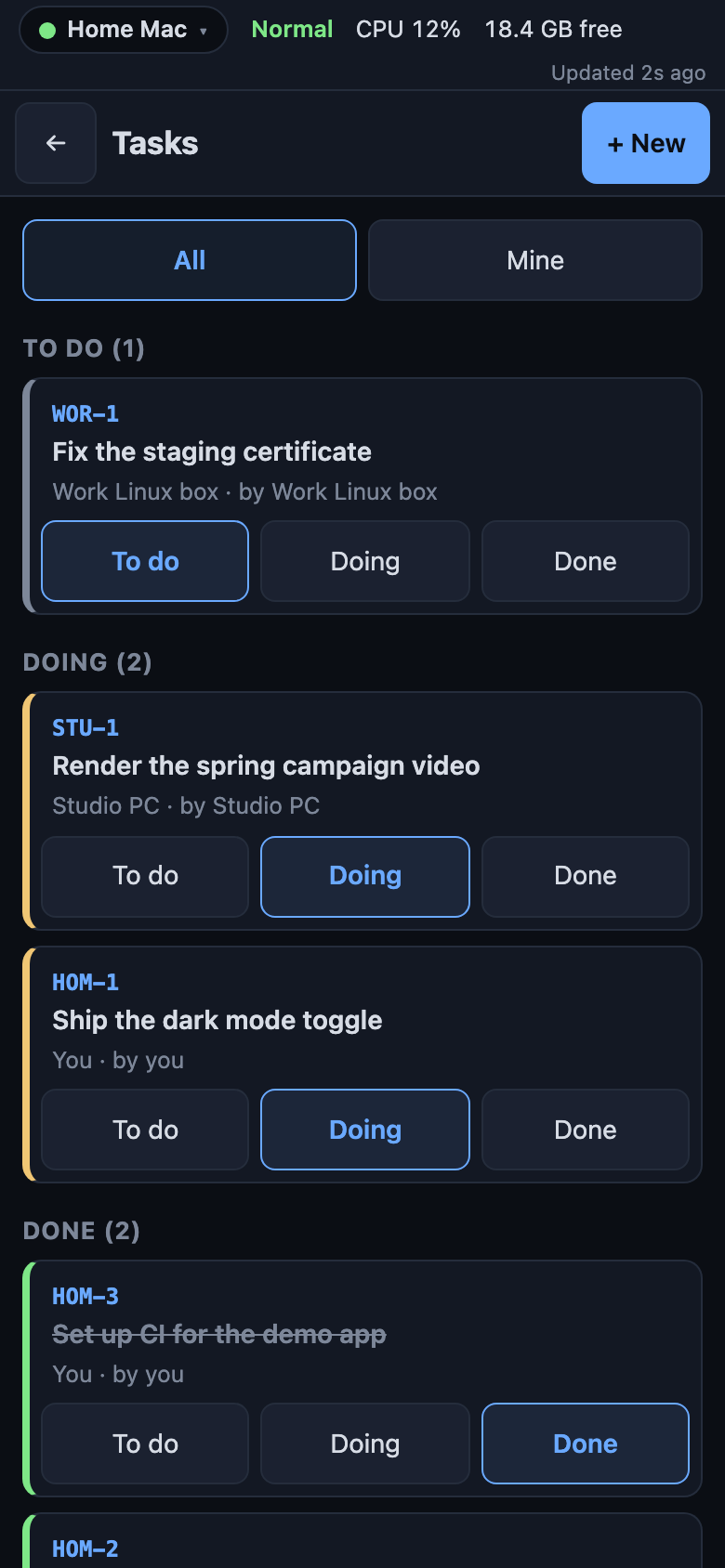 Shared tasks | 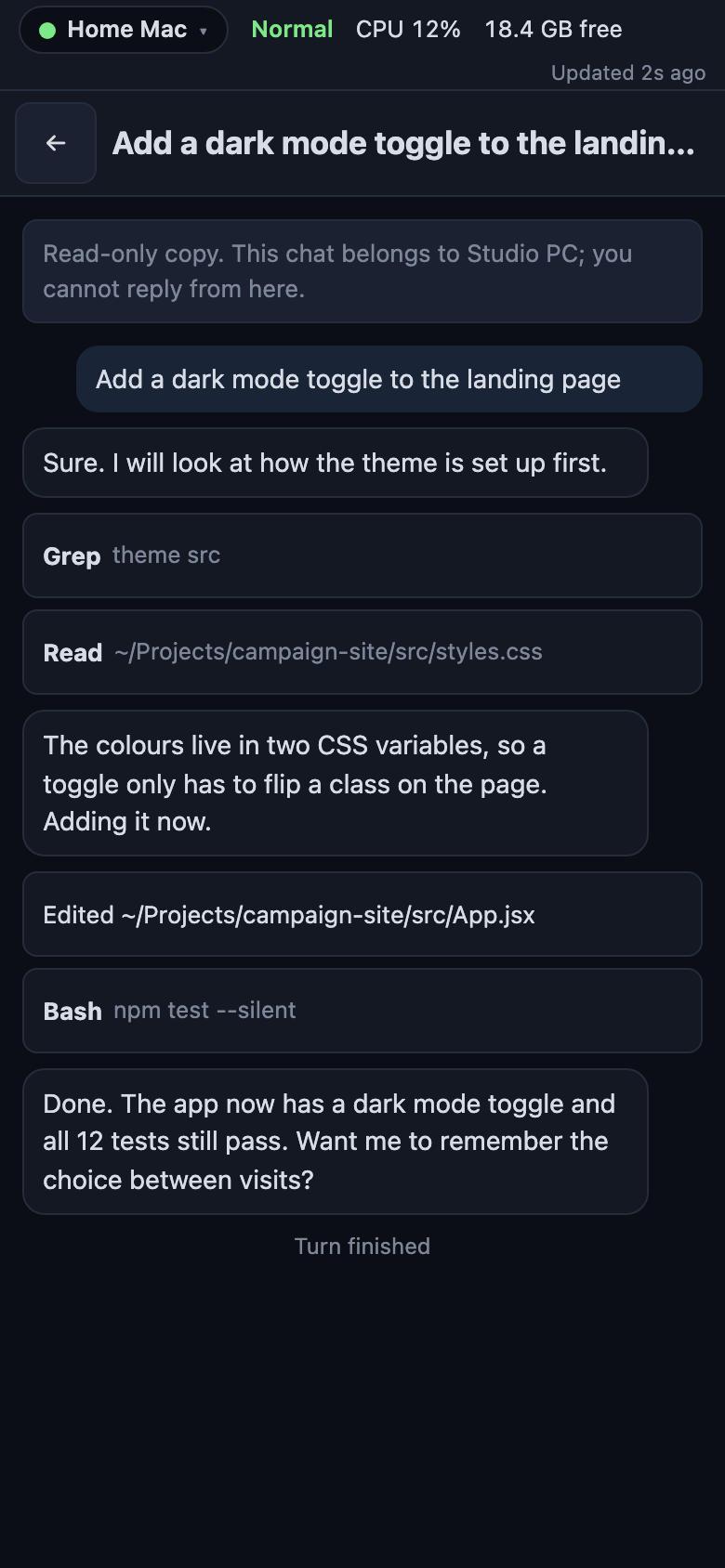 Room chats | 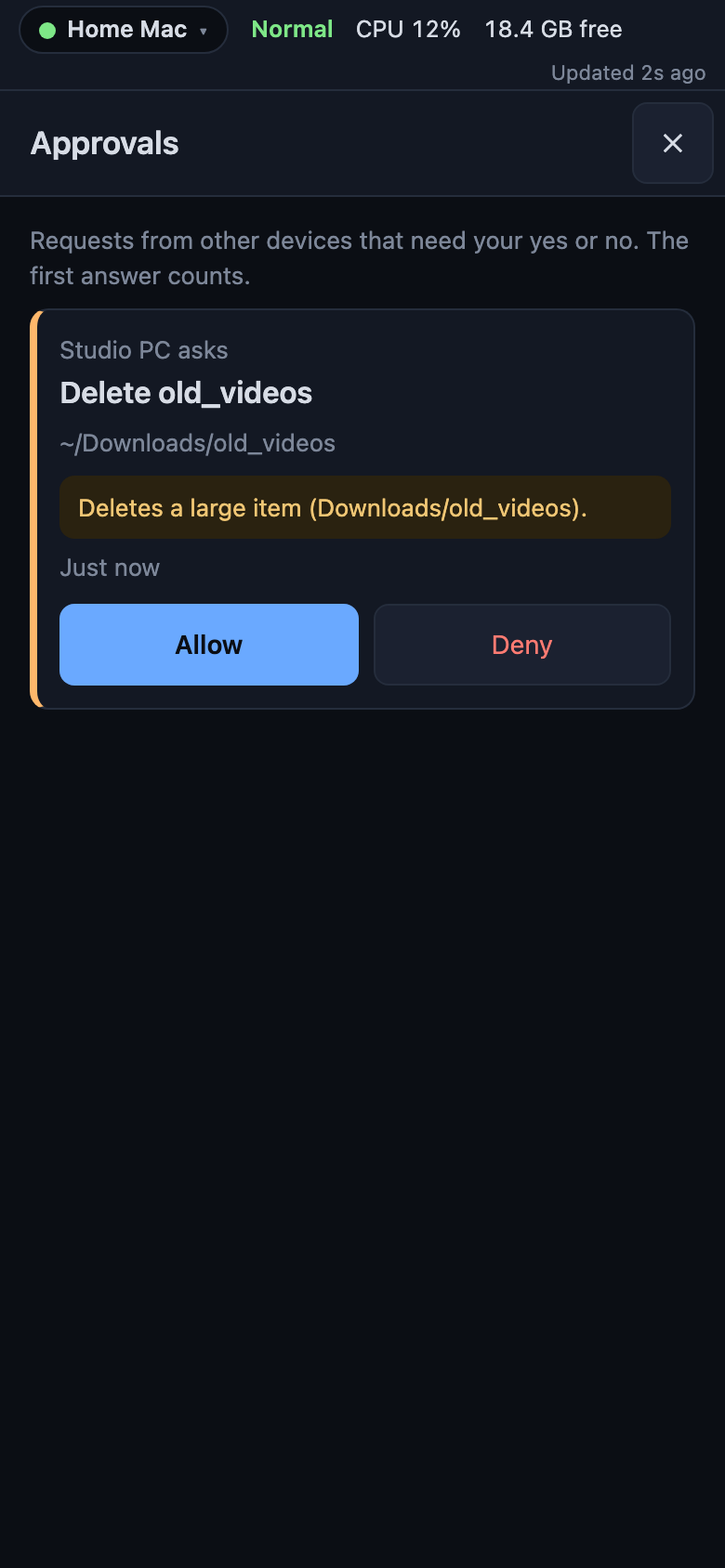 Approvals inbox |
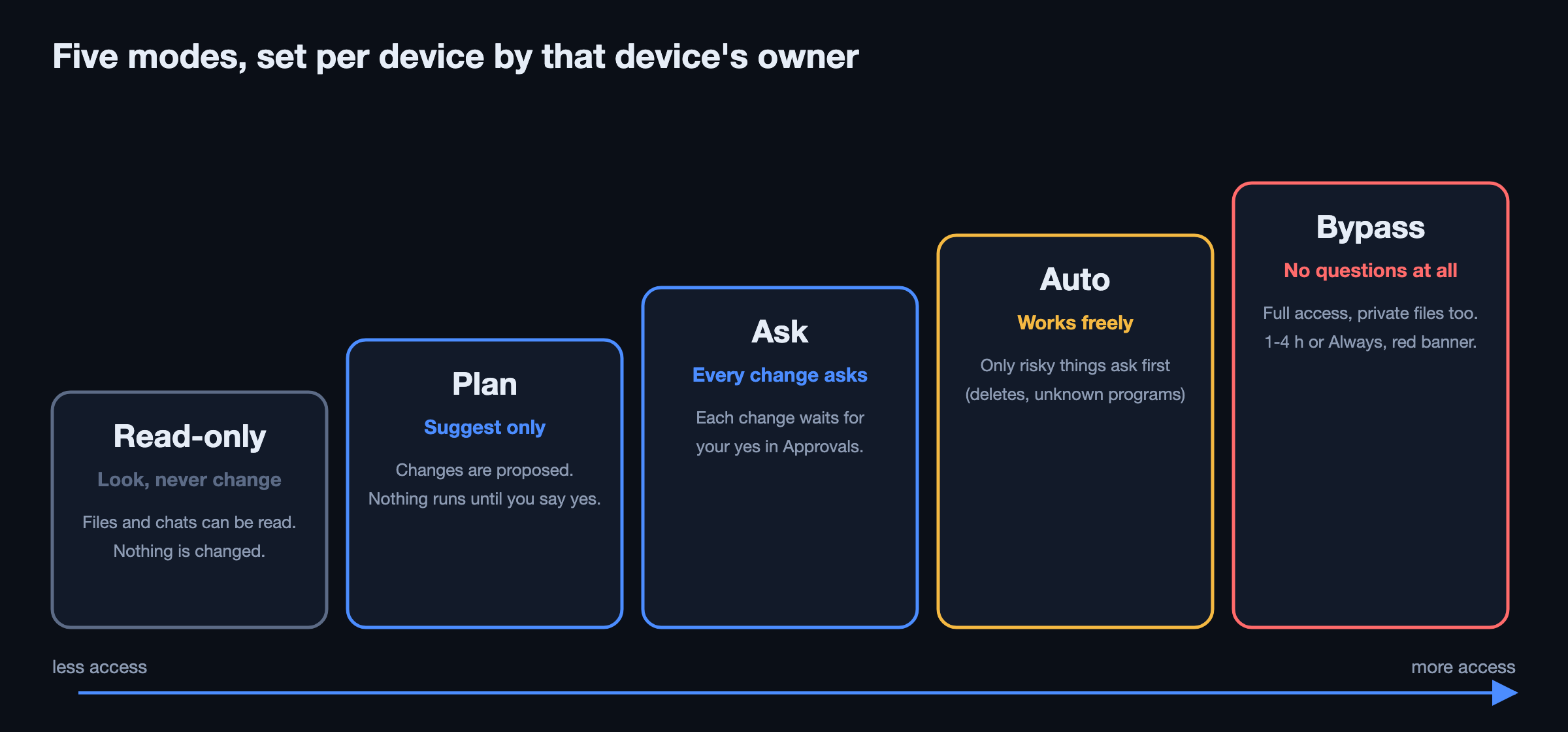
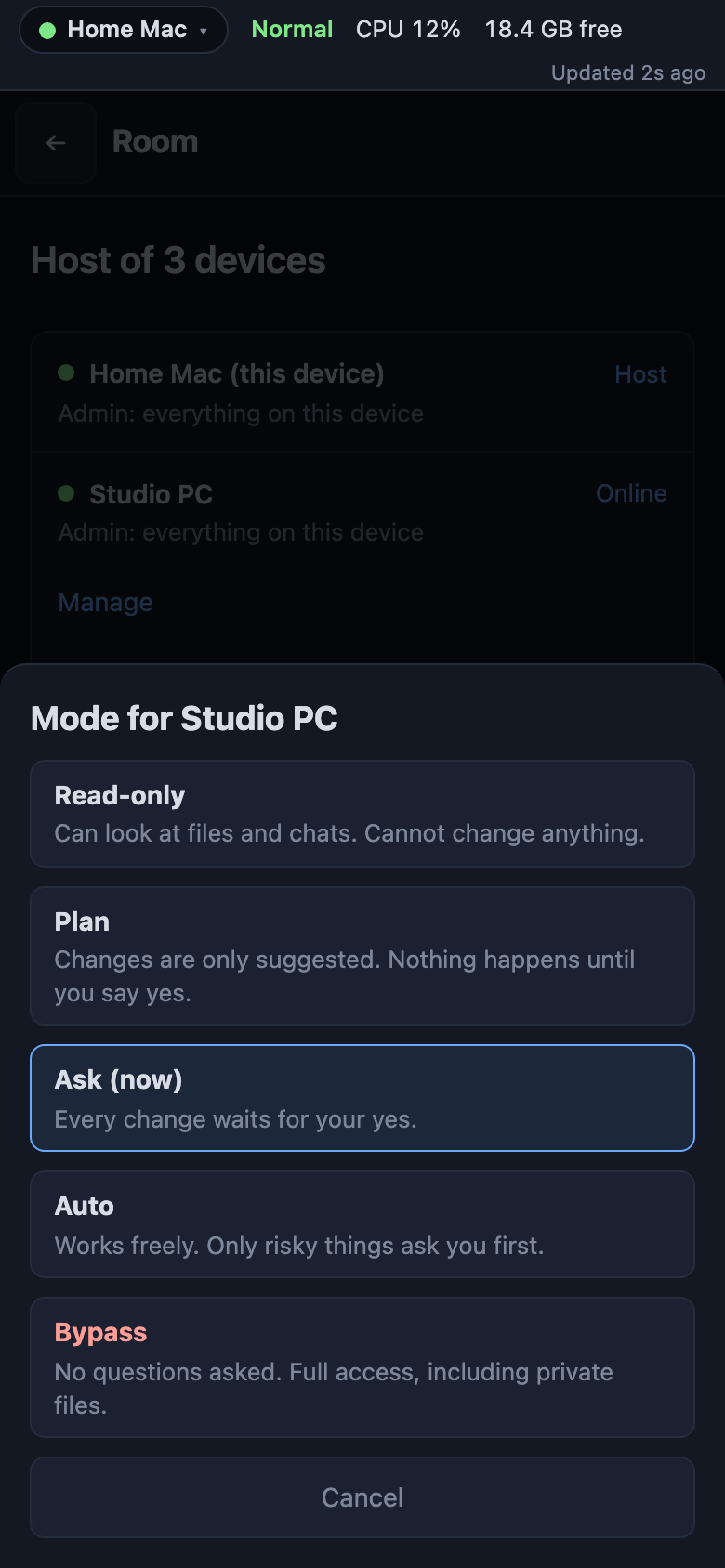
6. Modes per device. For each other device you choose Read-only, Plan, Ask, Auto or Bypass. The device's own owner sets it, and risky actions (deleting a folder, running unknown programs, anything outside the shared folders) ask first, except in Bypass. Bypass lasts 1, 2, 3 or 4 hours or Always, shows a red banner on the device, and only that device's owner can turn it on.
 Per-device modes | 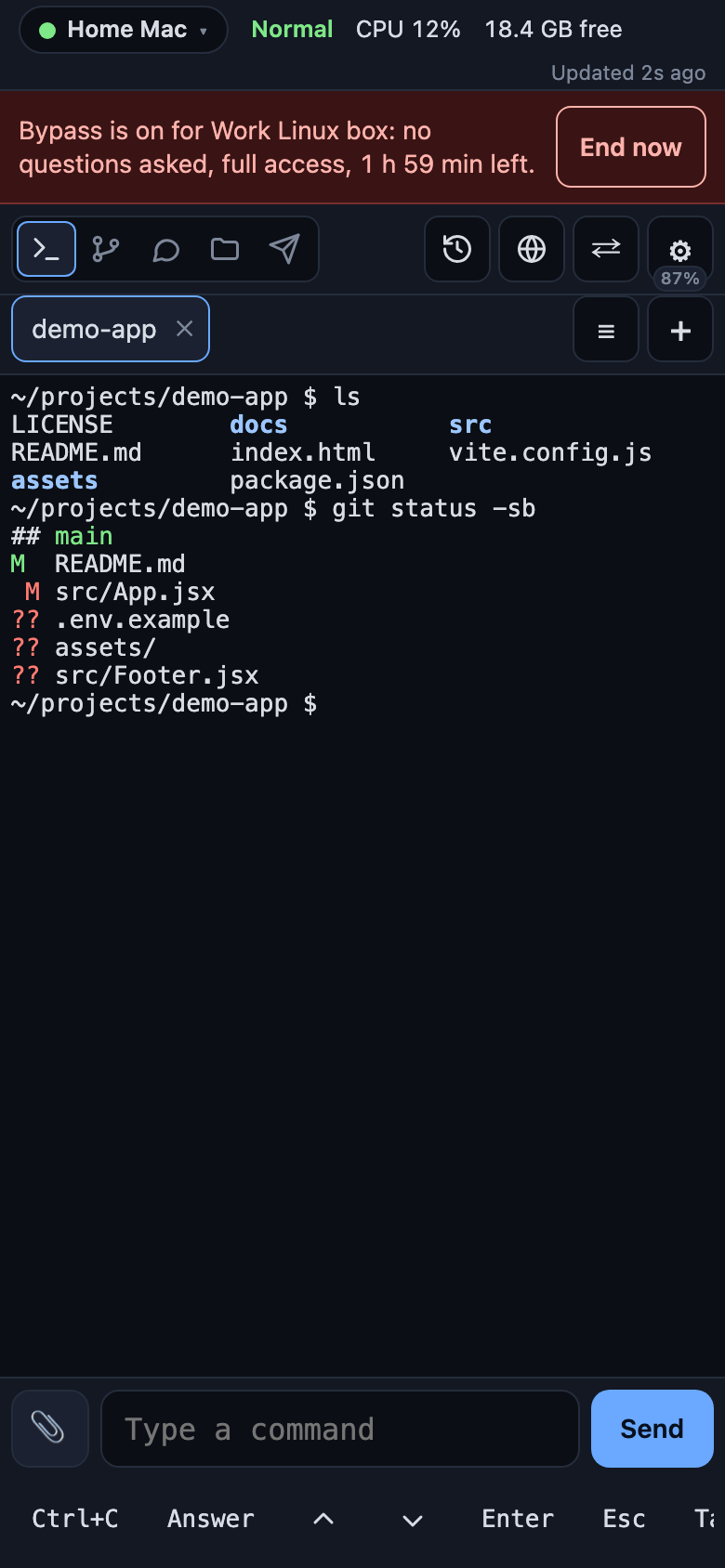 Bypass banner |
7. Approve. Requests that need a yes wait in the Approvals inbox on the device concerned. The first answer wins.
8. Leave. A member can leave at any time. Being removed or leaving ends access at once and removes the room's data from that device.
What the room does not do yet: it is a star, so devices reach each other through the host, and when the host is off the members cannot reach each other. There is no automatic failover and no room over the internet. Messages are not direct between members. Modes are pattern based. Copies of chats follow the owner's admin setting, not per-chat rules. See the details.
Use it away from home
Pocket Dev works on your Wi-Fi with none of this. Internet access adds a second address through a Cloudflare Tunnel that cloudflared on the computer opens outward, so the router needs no port forwarding and the phone gets https. Only the computer itself can turn it on (Admin page, Internet access, or pocket-dev internet); a phone can only turn it off. Install the connector once (brew install cloudflared on macOS), then choose:
| Choice | Needs | What you get |
|---|---|---|
| Off (default) | nothing | Wi-Fi only. |
| Quick link | cloudflared | A random https://….trycloudflare.com address that lasts until you turn it off or Pocket Dev restarts. No account. After a restart you turn it on again and get a new address; phones say so and offer to link again. Saved bookmarks to the old address stop working. |
| My own domain | cloudflared, a free Cloudflare account, a domain on Cloudflare DNS | A fixed https://pocket.example.com that stays. |
pocket-dev internet status          # show it
pocket-dev internet quick           # allow a Quick link, then Turn on in Admin
pbpaste | pocket-dev internet domain --hostname pocket.example.com --token-stdin
pocket-dev internet off
Link the phone while it is at home (the phone offers Link this phone), because each address has its own login cookie. Afterwards Settings, Connection shows both addresses with Switch to local and Switch to remote. Nothing switches by itself. The full steps (tunnel token, HTTPS, linking, Wi-Fi access off) are in docs/REFERENCE.md.
Security model
- Wi-Fi is plain http. Anyone who can read the traffic on that network can see the cookie and terminal contents. Use a trusted network. Through the optional internet link the phone talks https to Cloudflare, which can read the traffic it relays.
- A logged-in device has the full rights of your user: shell, files, and your Claude, Codex and GitHub logins (limited by the credentials and permissions you configured).
- Port 7777 listens on all interfaces (
0.0.0.0), or on the computer itself only with Wi-Fi access off. Forwarded ports listen on the LAN IP and have no password there. From the internet address, a port opens through its own Quick link behind the Pocket Dev login. - Protections: hashed password (scrypt) and cookies, one-time QR keys only from the computer, a device limit, a
SameSite=StrictHttpOnly cookie, thex-pocket-devheader and JSON content-type for every change, a WebSocketOrigincheck, a Git repository allowlist, path checks after symlink resolution, sandboxed previews, and typed Messages attachments (only PNG, JPEG, GIF, WebP, MP4, WebM, MOV, MP3, M4A, Ogg, WAV, PDF and plain text display; everything else downloads, withnosniffand a sandbox policy). - Admin page:
127.0.0.1:7778, with a Host allowlist that resists DNS rebinding. It has no password, so any local process can use it. - Rooms: a device joins only with a one-time short code (10 minutes, limited guesses). The host's control of a member is limited by the member's own mode, and a member never controls the host. Every room request carries a secret per device, failed secrets are rate limited, and kicking or leaving closes open connections. The host is a single point of failure for member-to-member work.
- Not protected: traffic sniffing on the LAN, forwarded ports, an unlocked logged-in phone, local processes on the computer, or a malicious program on it. The login throttles wrong passwords (10 per IP in 15 minutes, then a 15-minute lock).
Full table (cookies, CSRF, approval, block, lockdown, security log): docs/REFERENCE.md.
Commands
| Command | What it does |
|---|---|
pocket-dev start [--port N] [--admin-port N] [--no-open] | Run the server in this terminal. The flags override config.json for this run. |
pocket-dev config list | Show every setting and the file it is saved in. The password hash shows as <set>. |
pocket-dev config get <key> | Show one setting. |
pocket-dev config set <key> <value> | Change a setting. The value is checked first, and a bad value changes nothing. |
pocket-dev config unset <key> | Go back to the default. |
pocket-dev config path | Print the config file path. |
pocket-dev service install|restart|uninstall|status|logs | Run it in the background (launchd, macOS), or manage that. |
pocket-dev service autostart on|off|status | Start at login or not (macOS). |
pocket-dev internet status|off|quick | Show internet access and the link's status, turn it off, or allow a Quick link. |
pocket-dev internet domain --hostname <host> --token-stdin | Use your own domain through a Cloudflare tunnel. The token comes from stdin, or from a file with --token-file <path>, never as an argument. |
pocket-dev qr [--link <address>], admin, connect, disconnect, awake | Print a one-time login QR (for an internet address with --link), open the Admin page, turn phone access on or off, set Keep awake (on|plugged|off|status). |
pocket-dev message [text] [--to NAME] [--file PATH] | Send to Messages as this computer. Text comes from the argument or piped stdin. |
pocket-dev version, pocket-dev help | Show the version, or the command list. |
Configuration
config.json lives in ~/.pocket-dev/ (or POCKET_DEV_STATE_DIR, or exactly at POCKET_DEV_CONFIG; on Windows %USERPROFILE%\.pocket-dev). Edit it by hand or with pocket-dev config. config set accepts port, adminPort, awake, requireApproval, approveFromDevices, maxDevices, chatIdleMinutes, batteryAlertPercent, temperatureAlertC, screenView, allowedHosts (comma separated), messagesReserveGB and greeting. port and adminPort apply after a restart; the rest apply right away. Change the password on the Admin page (pocket-dev admin). Pocket Dev rereads the file at use, so you can edit it while the server runs.
| Key | Default | Meaning |
|---|---|---|
port | 7777 | Phone port. PORT overrides it. |
passwordHash | generated | scrypt hash of the password. |
password | none | Plaintext password to migrate. Converted to passwordHash at start. |
maxDevices | 2 | Device limit, 1 to 20. |
folders | [] | Pinned folders (terminal picker and Files). |
recentFolders | [] | Last 5 terminal folders. |
shortcuts | claude, codex, npm run dev, git status, git pull | Shortcut commands. |
repoRoots | ~/Desktop, ~/Desktop/Projects, ~ | Git scan roots. POCKET_DEV_REPO_ROOTS (colon-separated) overrides it. |
gitRepos | saved by Git | Repositories opened by hand (Open folder…, or the Git graph button on a chat or terminal), newest first, at most 20. |
awake | plugged | Keep awake mode: off, plugged, or always. |
allowedHosts | [] | Additional hostnames accepted by the phone listener. |
greeting | personal | The note at the end of setup. plain leaves out your first name, the system and the time of day. It is made on the computer and never sent. |
chatDefaults | saved by Chat | Last safe tool, folder, model, mode, and effort choices. Bypass and Full access are never silently remembered. |
chatIdleMinutes | 10 | Idle minutes before a chat engine stops. |
batteryAlertPercent | 20 | Alert when the battery is at or below this percent and not charging, 5 to 90. |
temperatureAlertC | 40 | Alert when the battery temperature reaches this many °C, 30 to 70. |
messagesReserveGB | 5 | While less than this is free, Messages files over 50 MB wait. 0 to 1000. |
screenView | true | Whether a logged-in phone may see the computer's screen. false refuses with 403. |
requireApproval | false | New devices wait for approval on the computer. |
approveFromDevices | false | A logged-in owner phone may approve or deny waiting logins. Only the computer turns it on. |
fileRoots | home folder | Folders Files may show. |
fileUploadMax | 2 GiB | Files upload limit in bytes. |
fileZipMax | 4 GiB | Zip limit in bytes, before compression. |
adminPort | phone port + 1 (7778) | Admin page port. POCKET_DEV_ADMIN_PORT overrides it. |
access | {"connected": true, "keepOpen": true} | Phone access and Keep connection open. |
network | {"wifi": true, "internet": {"kind": "off"}} | Wi-Fi access and the kind of internet access: off, quick, or domain with a hostname. wifi: false applies after a restart and is refused while internet is off. |
Environment variables: PORT, POCKET_DEV_CONFIG, POCKET_DEV_PASSWORD (overrides the stored password and is printed at start), POCKET_DEV_REPO_ROOTS, POCKET_DEV_STATE_DIR, POCKET_DEV_CHAT_DIR, POCKET_DEV_ADMIN_PORT, POCKET_DEV_NO_OPEN, POCKET_DEV_CLOUDFLARED, and for Codex POCKET_DEV_CODEX_SOCKET and POCKET_DEV_CODEX. See docs/REFERENCE.md.
Permissions it needs
Pocket Dev runs as your user, never as root, and never runs sudo itself.
| Permission | Needed for |
|---|---|
Firewall: incoming connections for node | The phone can connect (only when the firewall is on). Windows: choose Private networks. |
| macOS Automation: control System Events | Normal shutdown, window names in Open apps. |
| macOS Accessibility | Window names in Open apps. |
| macOS Screen Recording | Screen view (without it the picture shows only the wallpaper). |
| macOS Full Disk Access (maybe) | Files, for protected folders. |
Your claude, codex, and gh logins | Chat, terminals, Git. |
| Your computer password, typed by you in a terminal | Lid closed, sleep with Lid closed on, force shutdown (macOS). |
The Admin page has a Permissions panel that shows each of these. Details: docs/REFERENCE.md.
Troubleshooting
The phone cannot open the address. Check that the phone is on the same Wi-Fi (not mobile data, not a guest network that isolates devices), that the address is the computer's Wi-Fi address (ipconfig getifaddr en0, ipconfig, hostname -I), and that Pocket Dev is running (pocket-dev start shows the URL). Plain localhost only works on the computer itself. Some Android phones cannot open .local names: use the numeric address.
Firewall. Windows: when the prompt appeared you must choose Private networks. If you dismissed it, open Windows Defender Firewall, Allow an app, and allow Node.js on Private. macOS: allow incoming connections for node. Linux: allow TCP 7777 from your network.
pocket-dev doctor. Run it on the computer where Pocket Dev is installed. It prints a table of ticks and crosses (Node version, how Pocket Dev was installed, npm's global folder on PATH, the pocket-dev command, terminals, Git/Claude Code/Codex/GitHub CLI/cloudflared, the settings folder, port 7777, with a tick when this Pocket Dev holds it) with the exact next command for each cross. When Pocket Dev is running it also reminds you to restart it after installing a tool, because a running copy keeps the PATH it started with. It exits 0 when everything required works and 1 otherwise. pocket-dev doctor --fix repairs terminals after showing the command and asking [Y/n] (--yes skips the question); it never uses sudo.
pocket-dev is not recognized / command not found. You skipped -g, or the terminal was opened before the install. Open a new terminal and run npm config get prefix to see where npm puts global commands; that folder (or its bin) must be on your PATH. pocket-dev doctor shows that folder and the command that adds it; if the command itself is missing, run npx -y @anisirji/pocket-dev doctor instead.
Terminals are not available on this computer. node-pty, the part that runs shells, is an optional dependency: if npm cannot download or build it, the install still succeeds and Pocket Dev starts with everything except terminals. The phone's Terminal view then shows a card with the repair command. Run pocket-dev doctor --fix on the computer, then restart Pocket Dev. If the repair reports a missing compiler: macOS xcode-select --install; Windows Visual Studio Build Tools (C++ workload) and Python 3; Linux sudo apt install build-essential python3.
Windows: ENOENT / TAR_ENTRY_ERROR / spawn cmd.exe ... node-pty. npm lost files while unpacking (antivirus or a bad cache; installs from GitHub make it likelier). In PowerShell:
- Remove the half-installed folder:
Remove-Item -Recurse -Force "$env:APPDATA\npm\node_modules\@anisirji" npm cache clean --force- Retry with the scoped name (not
anisirji/pocket-dev, which installs from GitHub) and see the real error:npm install -g @anisirji/pocket-dev --foreground-scripts. A failingnode-ptyno longer fails the install. Then runpocket-dev doctor --fixto add the terminals back. - Pause real-time antivirus for the install, or add an exclusion for the npm folders (
%APPDATA%\npmand%LOCALAPPDATA%\npm-cache). - If
node-ptyhas to build, install Visual Studio Build Tools (C++ workload) and Python 3, then retry. - If it still fails, run it without installing:
npx -y @anisirji/pocket-dev start.
node-pty fails to build. macOS: xcode-select --install. Windows: Visual Studio Build Tools with the C++ workload and Python 3. Linux: build-essential and Python 3. A prebuilt binary is used first when one exists.
Port 7777 is in use. pocket-dev doctor shows a tick when the program on it is this Pocket Dev, and then nothing is wrong: pocket-dev start says it already runs and prints the address and a QR code. Otherwise another program (or an older Pocket Dev) has it, and the doctor suggests a free port that is never 7778 (the Admin page). Use pocket-dev start --port 7780, or pocket-dev config set port 7780 and restart. On macOS pocket-dev service install --force takes over the port from a stray copy.
I forgot the password. Run pocket-dev admin on the computer and set a new one under Password (no old password needed). Or start once with POCKET_DEV_PASSWORD=<new> (PowerShell: $env:POCKET_DEV_PASSWORD='<new>'), which overrides the stored one.
Device limit. maxDevices defaults to 2: a third password login is refused. Log an old device out on the Admin page (Devices), or raise it: pocket-dev config set maxDevices 5. A QR login evicts the least recently used device instead.
The room invite shows 127.0.0.1 or no address. Another device can never use localhost or 127.0.0.1. The host has no Wi-Fi/LAN address: connect it to the network, reload, and make a new code. If you opened the host page as localhost, open it by its Wi-Fi address instead.
The Sleep button on Windows. Do not use it remotely unless you know that PC wakes: it may hibernate, and nothing remote can wake it. This is true for any system: Pocket Dev cannot wake a computer.
Screen view shows only the wallpaper (macOS). Allow Screen Recording for the program that runs Pocket Dev (Terminal, VS Code, or node for the service). The Admin page's Permissions panel opens the right page.
Limitations
- No passkeys yet. Internet access needs
cloudflaredand, for a fixed address, a Cloudflare account and a domain on Cloudflare DNS. - Terminals and port forwards do not survive a computer restart.
- Old uploads in
~/.pocket-dev/uploadsare never deleted. - Agent services such as Claude and Codex still need internet access on the computer.
- Pocket Dev cannot wake or power on any device, and the remote Sleep button can leave a device unreachable until someone presses its power button.
- Rooms work over the Wi-Fi or each device's own address. Failover across devices and a room over the internet are not built, and a device that is asleep or off leaves the room until it wakes.
- Files over the internet connector are limited to 100 MB in Messages (a Cloudflare free-plan limit). On the internet address, Messages shows the limit under the message box and names any larger file before it uploads.
- Windows: main features tested on a real PC; temperature, lid control and window names are unavailable. Linux: written and partly tested, not run on a real machine.
pocket-dev serviceuses launchd on macOS and the Task Scheduler on Windows (tested on a real PC), and systemd on Linux (not run on a real machine). - Upcoming, not built: Google Antigravity CLI in the terminal and in Chat, passkeys and fingerprint login, an Android share target. See the roadmap.
Develop and test
From a clone of the repository:
npm install
npm start          # run in the foreground
npm test           # node --test test/*.test.mjs
Pocket Dev has no npm install scripts, so an install cannot fail on one; node-pty 1.1.0 ships its spawn-helper without the execute bit and src/core/pty-loader.js fixes that when it loads node-pty. The first start writes ~/.pocket-dev/config.json (mode 0600) and prints the password once, a login QR and the URL. Other npm run scripts (qr, admin, connect, disconnect, awake, lid, sleep, shutdown, service:*, autostart) are listed in docs/REFERENCE.md. To try a build as a package: npm pack, then npm install -g ./anisirji-pocket-dev-*.tgz; or npm link to use your working copy as pocket-dev.
The server code is in src/, one folder per area: core (config, paths, platform and service), auth, chat, conversations (history and take over), terminals, workspace (files and Git), machine, network, rooms and setup. The root server.js only loads src/server.js, because an installed service starts <package folder>/server.js. The phone and Admin pages are in public/. The service and power shell scripts are in scripts/service/ and scripts/power/, and the Playwright checks are in test/browser/.
The suite starts disposable phone and Admin listeners, uses fixture folders, stubbed power commands and a stand-in for cloudflared, and exercises authentication, Host/Origin/CSRF checks, terminals, chat persistence, Files, devices, lockdown, the tunnel kinds, rooms and modes. It makes no model calls, opens no real tunnel, and does not install a service or quit user apps.
Before publishing, run npm test, node test/browser/check-responsive.mjs and npm pack --dry-run. The README's screenshot links point at the main branch, so no per-version rewrite is needed. The release notes for the version are in docs/RELEASE_<major>.<minor>.md.
Licence
ISC. See LICENSE.
Read from docs/GUIDE.md in the repository and refreshed about once an hour.